Step 1 of 7Customer Portal
One click from the email
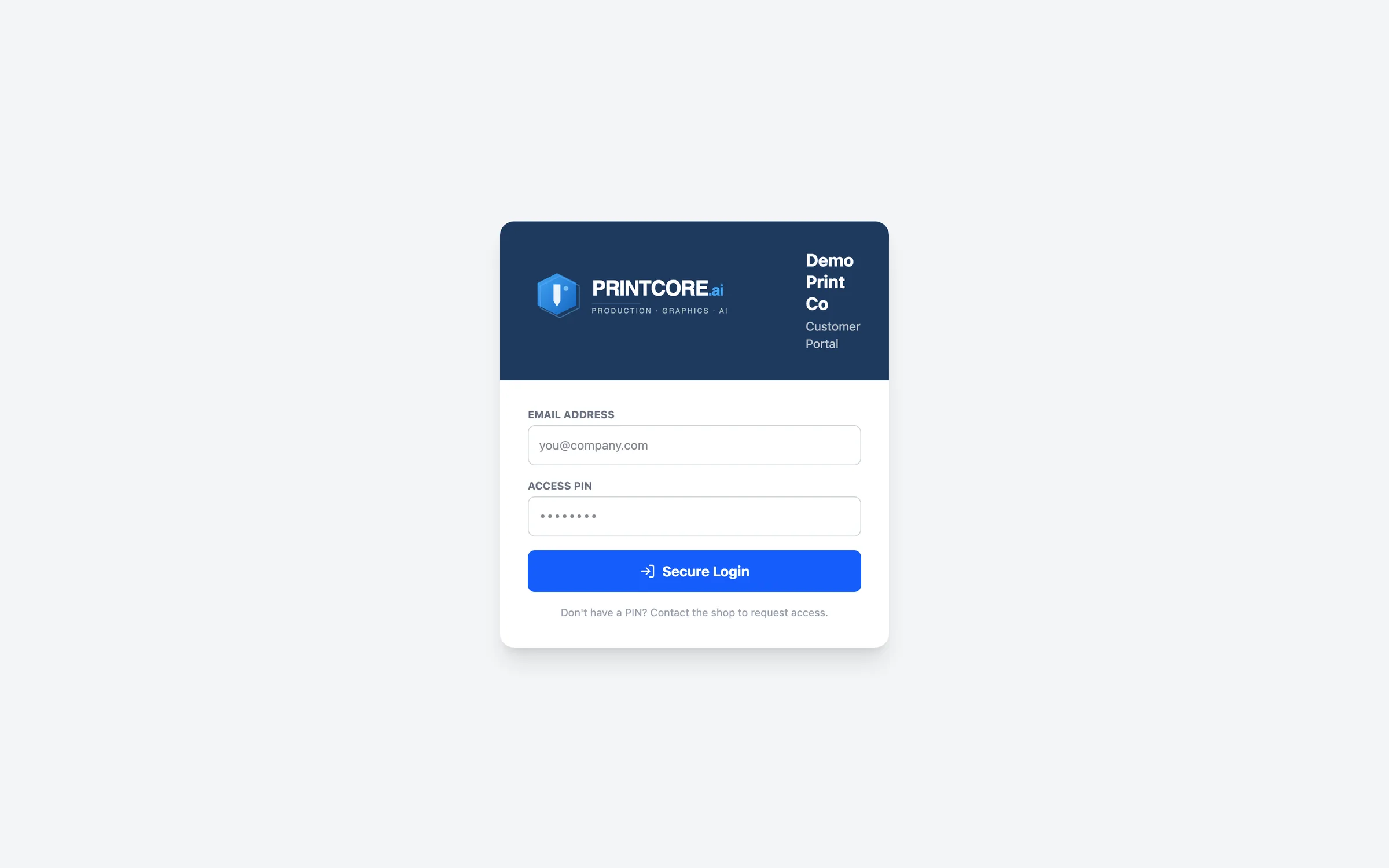
When you send a quote or a proof, the customer's email carries a button that opens that job in your portal — no account to create, no PIN to type. The portal shows your logo, shop name, colors, and contact details.
What to do
Send any quote with Preview & Send. The customer clicks the button, sees the quote, and approves it right there.
Why it matters
Approvals happen in minutes instead of days, and each link opens only its own job — safe for the customer to forward to their own client.
Step 2 of 7Customer Portal
Job history & reorders
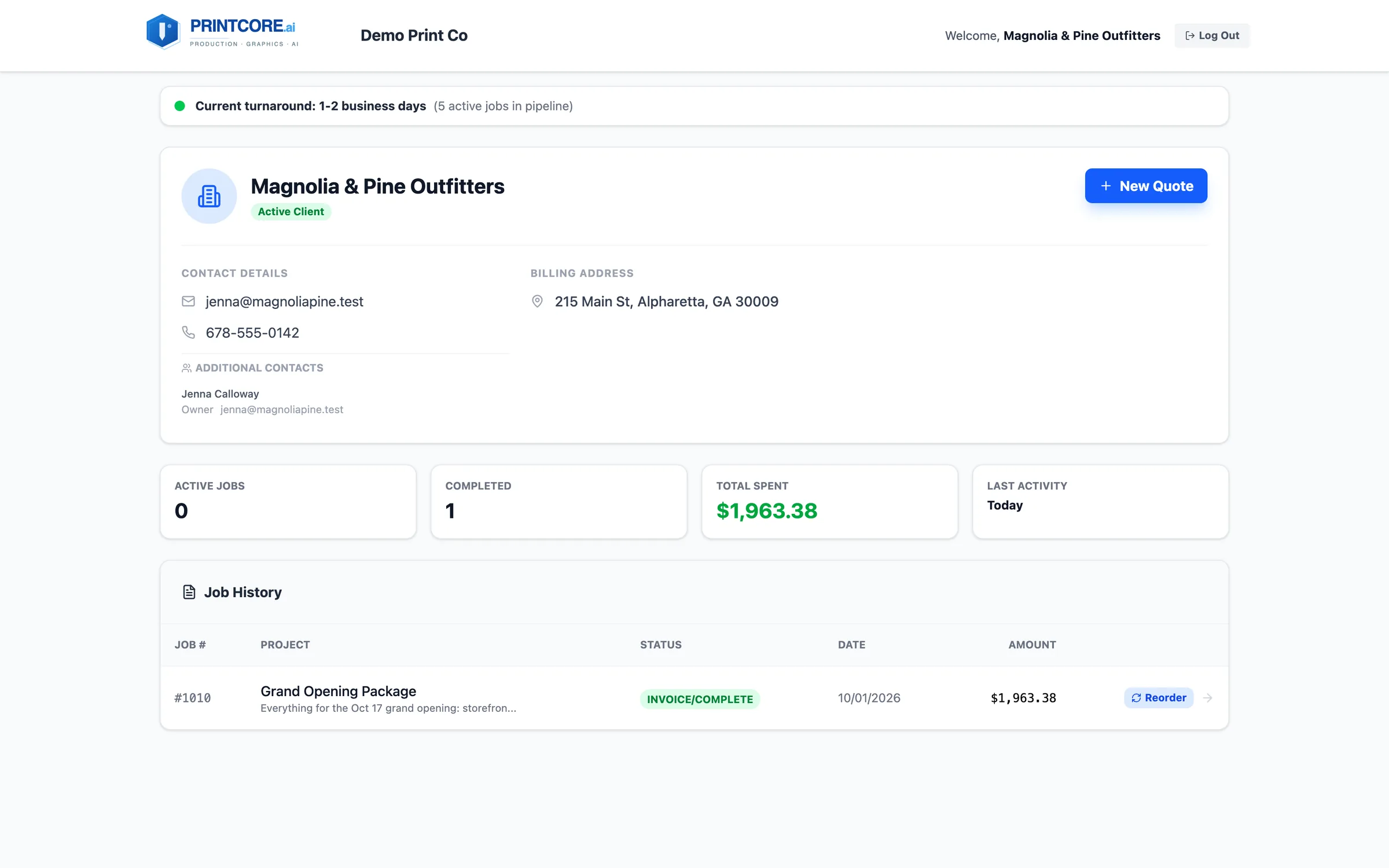
Customers who sign in (email + PIN) see every job they've had — and click Reorder to start a new quote based on a past job.
app.printcore.ai/portal/jobs
What to do
Customers find the job in Job History and click Reorder. The reorder lands in your dashboard as a fresh quote.
Why it matters
Repeat business is the easiest revenue. Making it one click captures more of it.
Step 3 of 7Customer Portal
Proof approvals — no more email back-and-forth
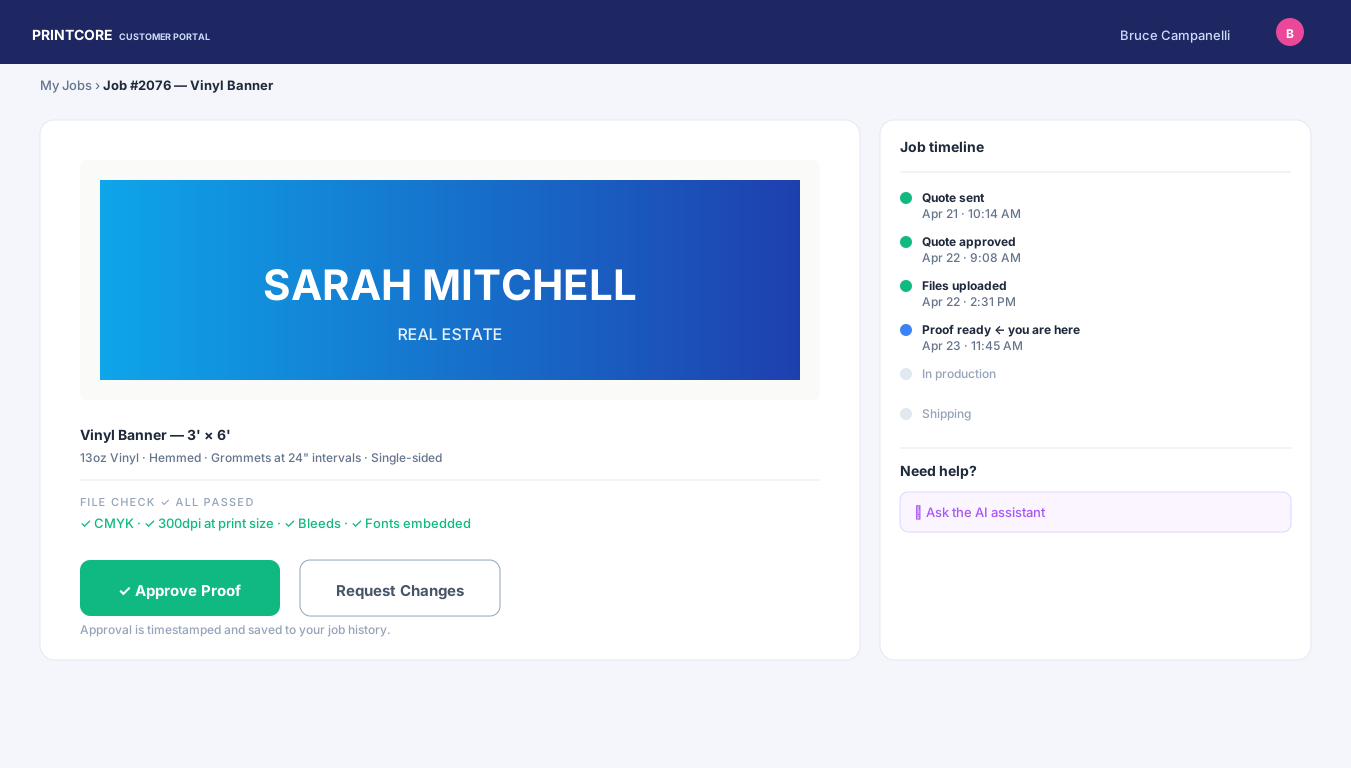
When you send a proof, the customer opens it from the email, sees the file (and the AI proof-check results), and clicks Approve or Request Changes with notes.
app.printcore.ai/portal/jobs
What to do
Upload a proof to any job and send it. The customer gets a formatted email with a one-click button; you get a notification and an email when they respond.
Why it matters
Approvals are time-stamped and logged. No more "I never got that email" disputes.
Step 4 of 7Customer Portal
Built-in AI assistant
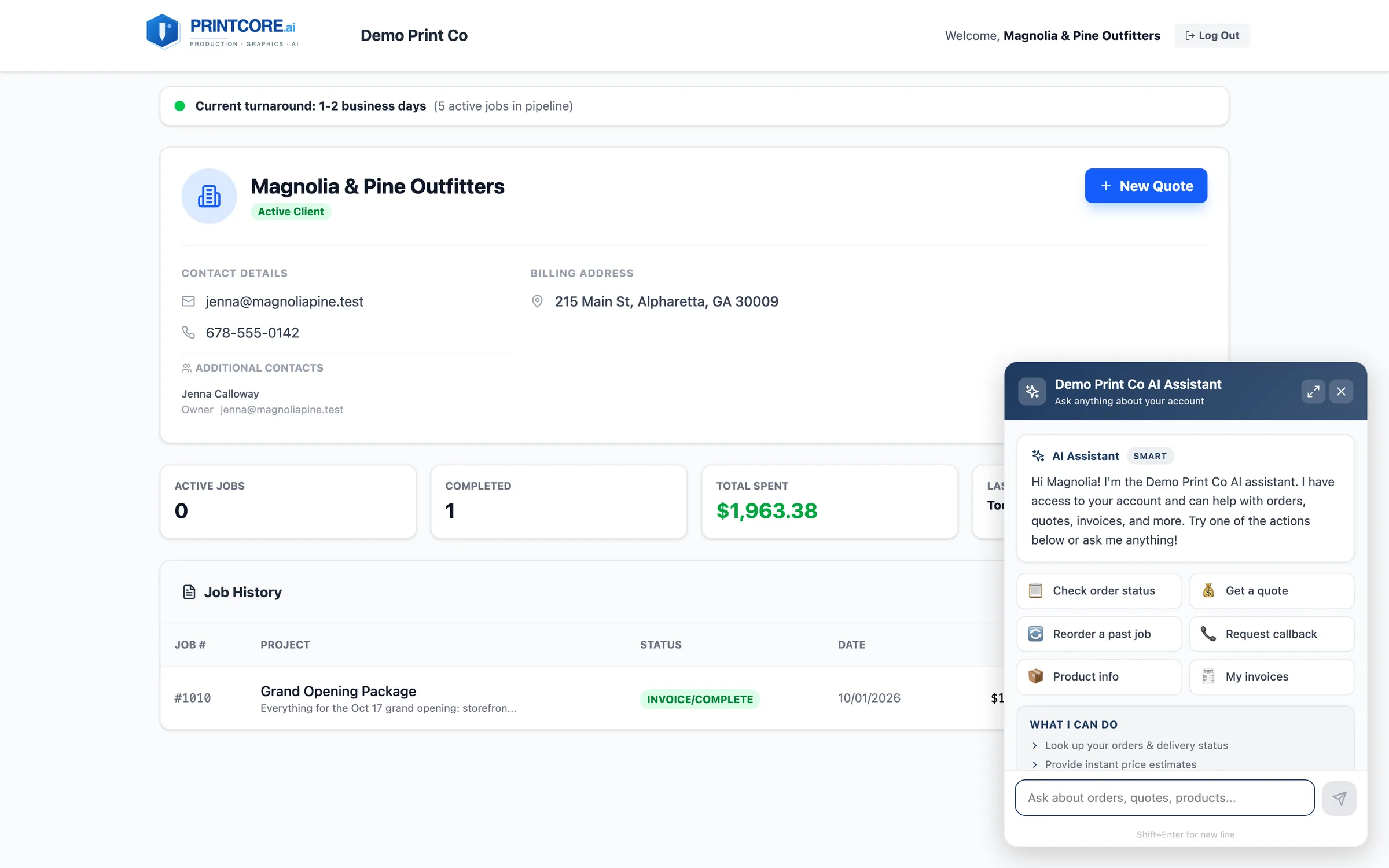
Customers can ask questions in plain English — "how long until my order ships?", "what was my last invoice total?" — and get answers from their data.
app.printcore.ai/portal/ai
What to do
Customers click the AI Assistant button in the corner of the portal. The AI answers with their actual data. Configure its welcome message and autonomy in Shop Settings → Portal.
Why it matters
Cuts down inbound "where's my order" calls. Your team handles fewer status questions, focuses on real work.
Step 5 of 7Customer Portal
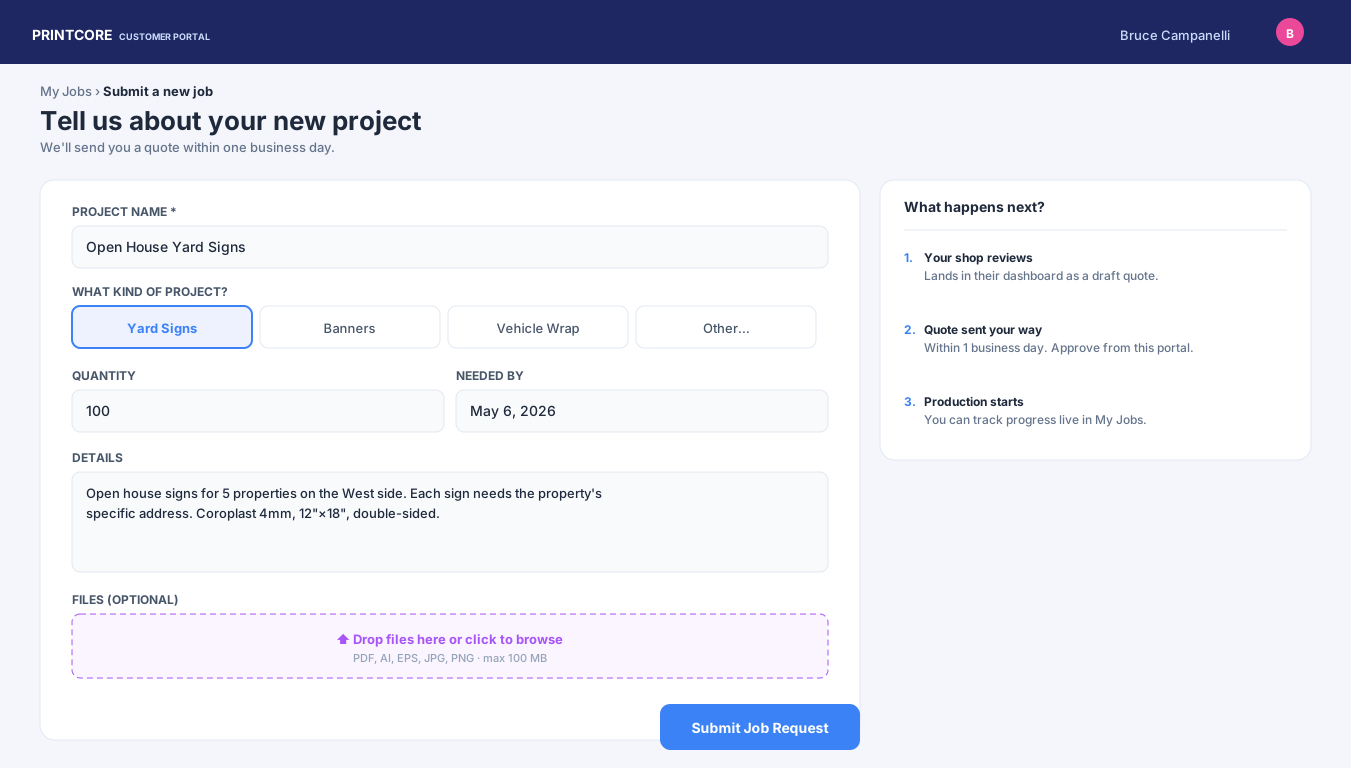
New job requests
Customers can request a quote from the portal — and put several items on one request. When Apparel & Promo is switched on they can also ask for tees, polos, hoodies, hats, bags, and drinkware, with color, a quantity-by-size grid, decoration method, logo colors, and locations.
app.printcore.ai/portal/new
What to do
Customers fill the form and click Add another item to this request for each extra product, then Submit Request. You get a bell notification — clicking it opens the request in AI Quote, already parsed, and Create Quote prices it onto that same job.
Why it matters
You give customers a self-service door to start work, without giving them direct access to your full system.
Step 6 of 7Customer Portal
Their company store
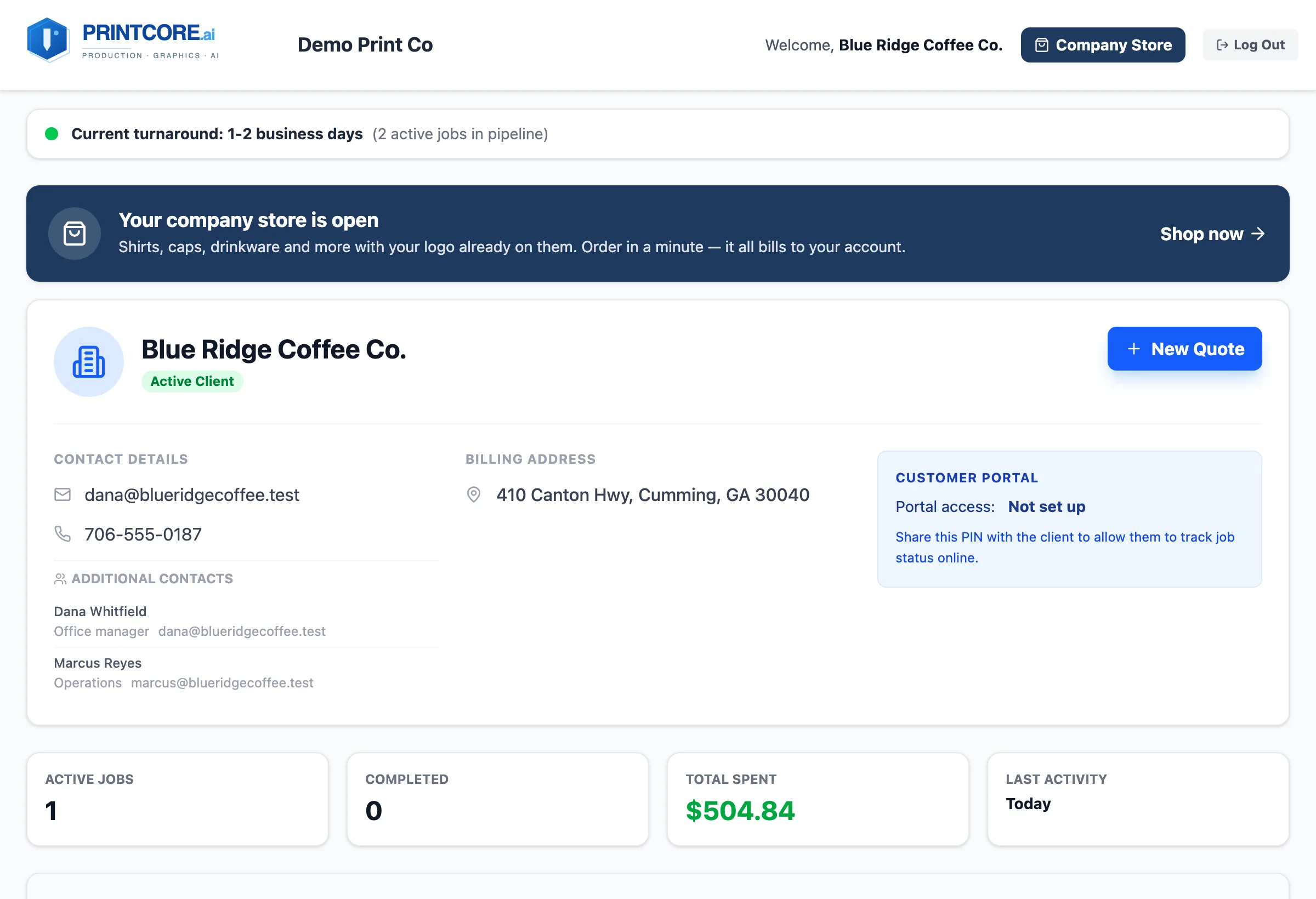
When you've opened a company store for a customer, their portal leads with a Your company store is open banner, and a Company Store button sits in the header on every page. Approvers also find orders waiting for them there.
What to do
Build the store under
Company Stores — see the
Company Stores walkthrough. Contacts who sign in with email and PIN see every open store; invite links open one store only.
Why it matters
The customer's merch reorders start in the same place they already approve proofs.
Self-service for your customers 🔐
Now let's see what happens once a job moves from Quote to Production.