
One store per customer
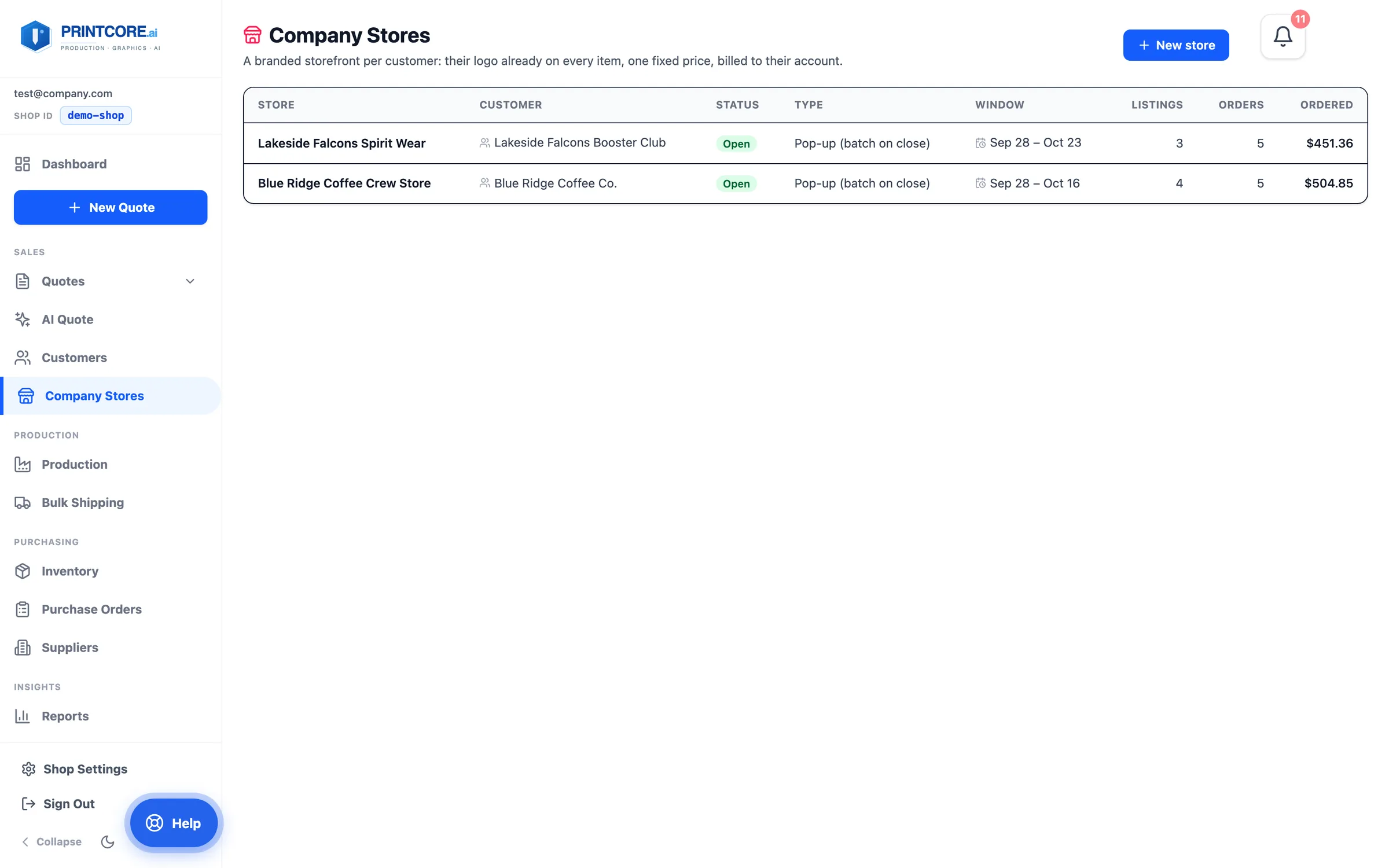
Company Stores gives a customer their own storefront in your portal — polos, caps, tumblers and more with their logo already placed, at one fixed price per piece. Each store belongs to one customer account, and the list shows its status, window, listings, orders, and what has been ordered so far.
What to do
Why it matters
Set the rules for the store
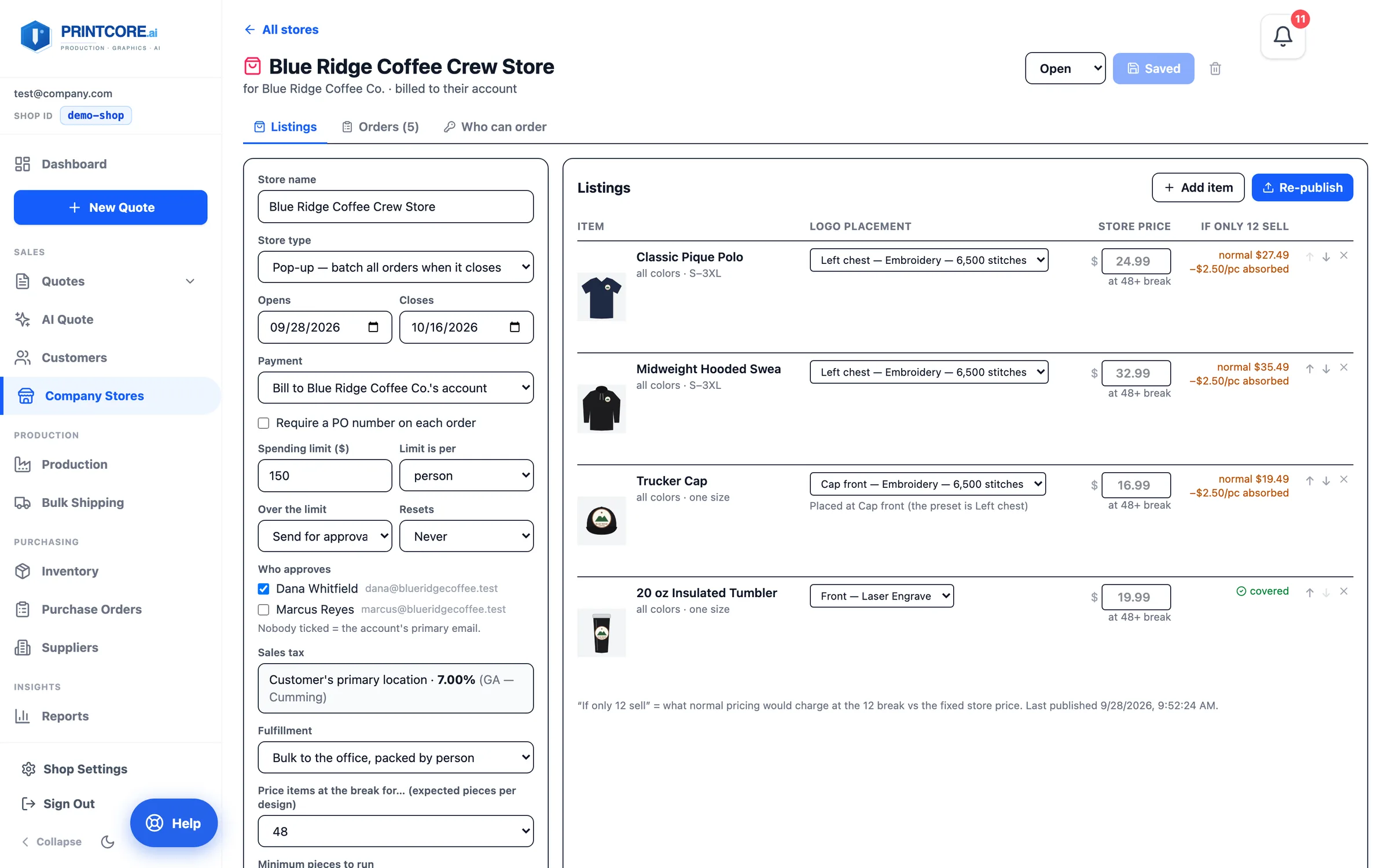
The left panel sets how the store runs. A Pop-up store collects orders until it closes, then merges them into one job; Always open makes each order its own job. Set the window, whether a PO number is required, a spending limit per person or per order (block it, or send it to the office for approval), who approves, and whether it ships in bulk to the office or to each person. Sales tax uses the customer's primary location.
What to do
Why it matters
Add items — the logo is locked in
Add item opens your curated catalog. Each listing takes the customer's decoration preset that fits it — left-chest embroidery on polos, cap front on caps, laser engraving on tumblers — and its price is the blank plus decoration at the expected break. If only 12 sell shows what you'd absorb per piece if the run comes in small.
What to do
Why it matters
Decide who can order
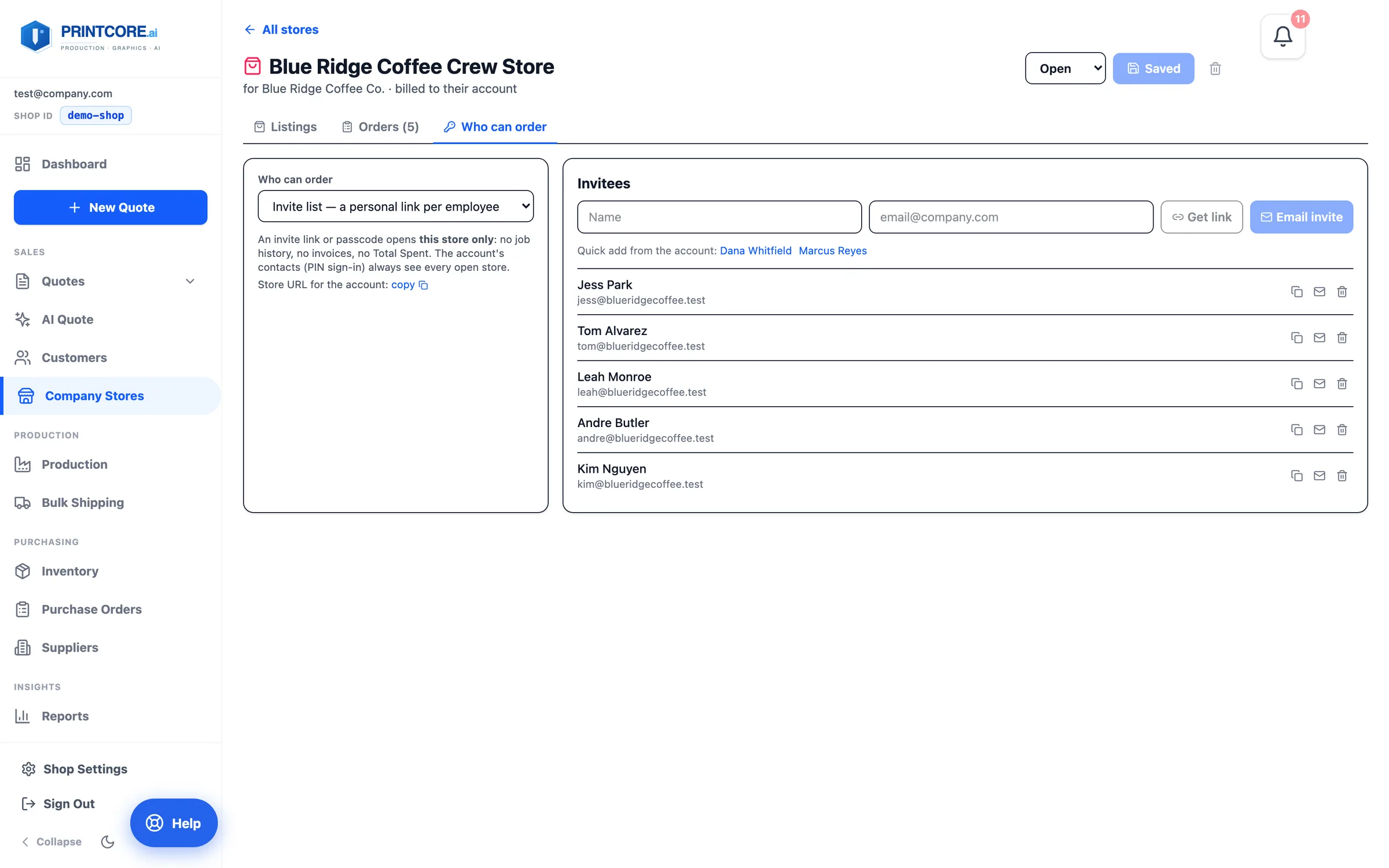
Who can order has three options: an invite list with a personal link for each employee, the account's contacts signing in with email and PIN, or anyone with the store passcode. An invite link or passcode opens this store only — no job history, no invoices, no totals.
What to do
Why it matters
The storefront
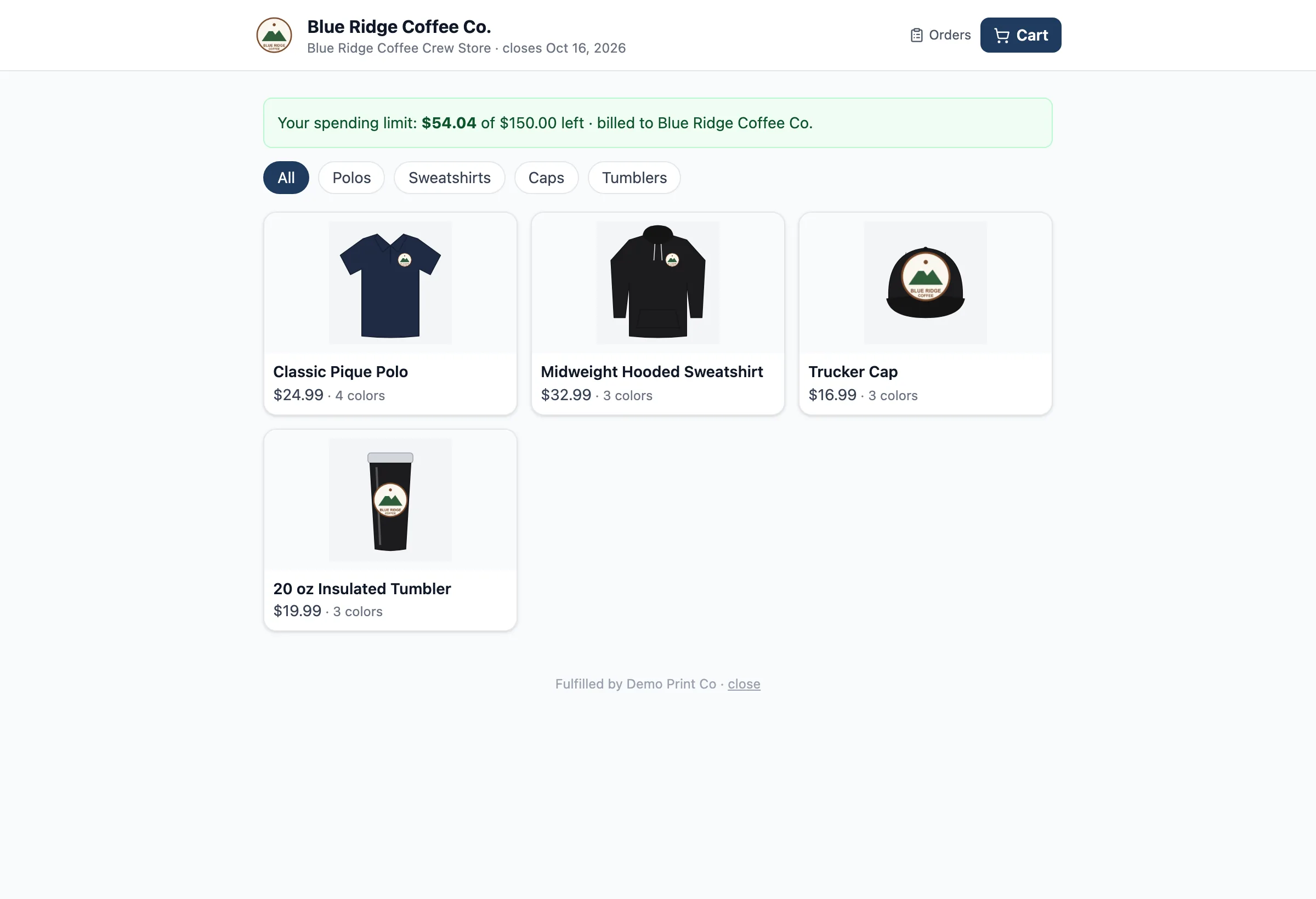
The invite link opens a branded store: the customer's logo, the store's close date, the shopper's spending limit, and category chips. Every product photo already shows the logo where it will go.
What to do
Why it matters
Pick color and sizes
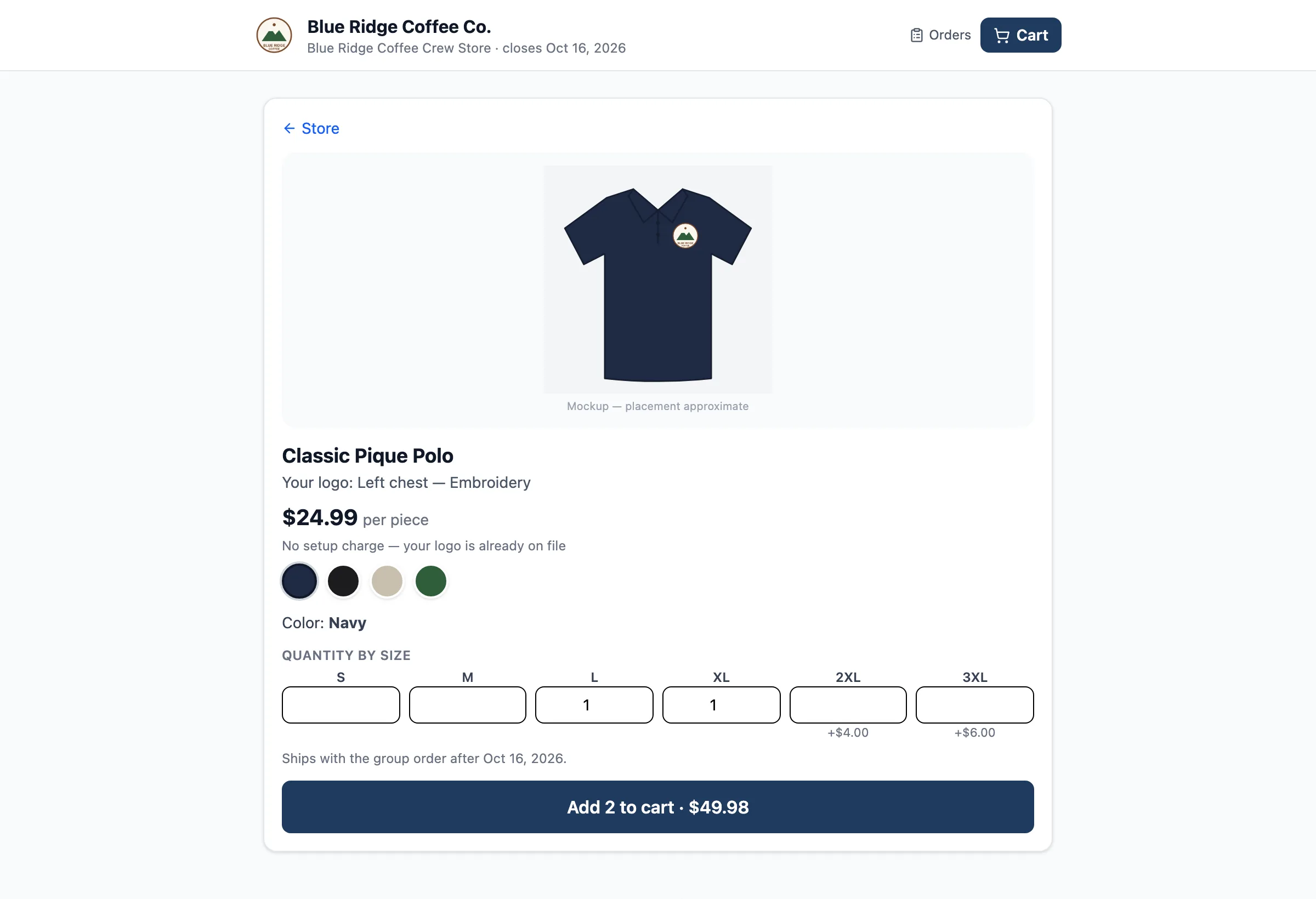
The product page shows a mockup with the logo placed, the decoration ("Left chest — Embroidery"), the fixed price, and a note on setup. The shopper picks a color and types quantities in the size grid; bigger sizes show their extra charge.
What to do
Why it matters
Checkout on the company account
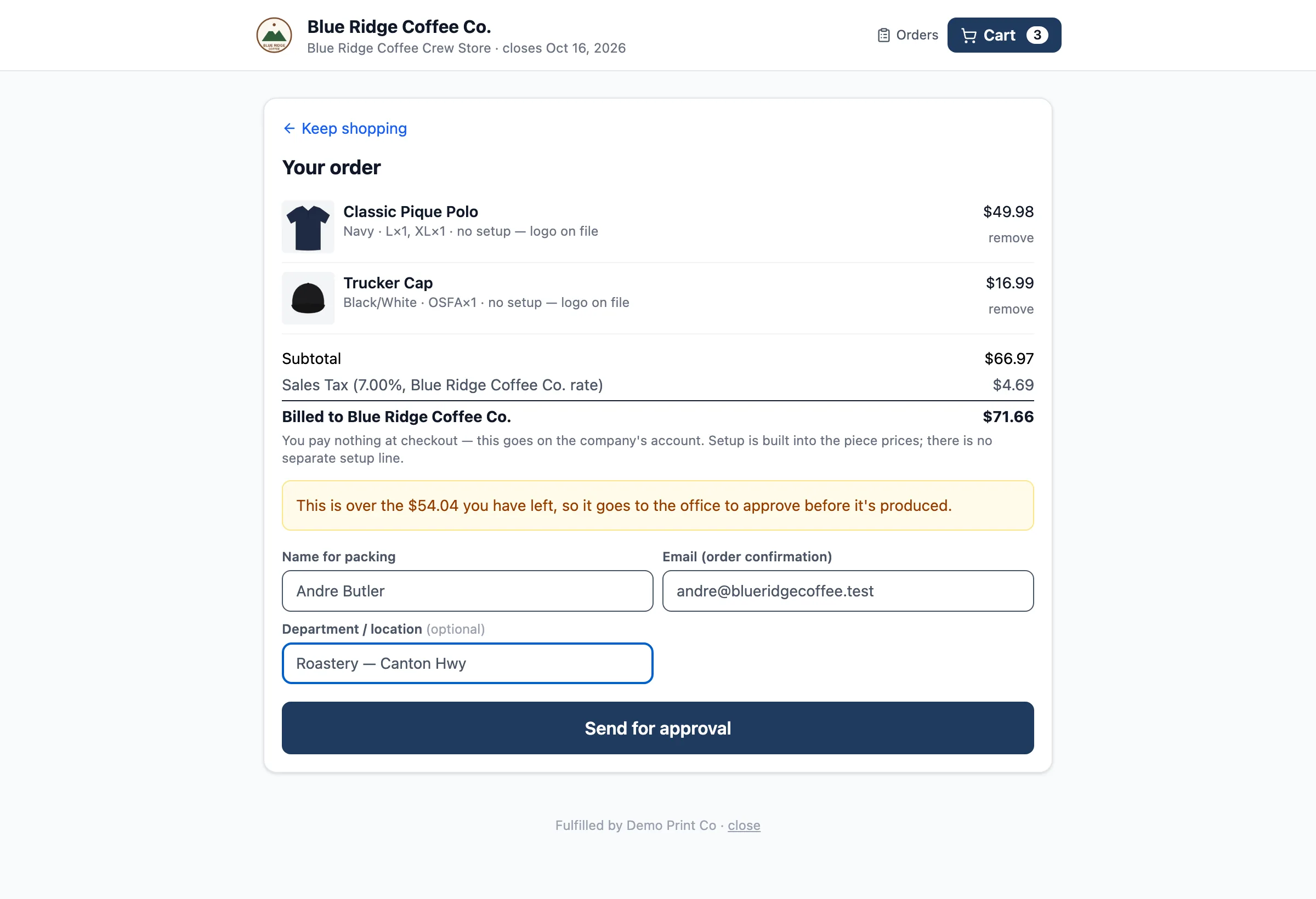
The cart shows sales tax at the company's rate and the total billed to the account. The shopper adds a name for packing and a department or location. If the order is over their spending limit, the cart says so and the button becomes Send for approval.
What to do
Why it matters
The office approves over-limit orders
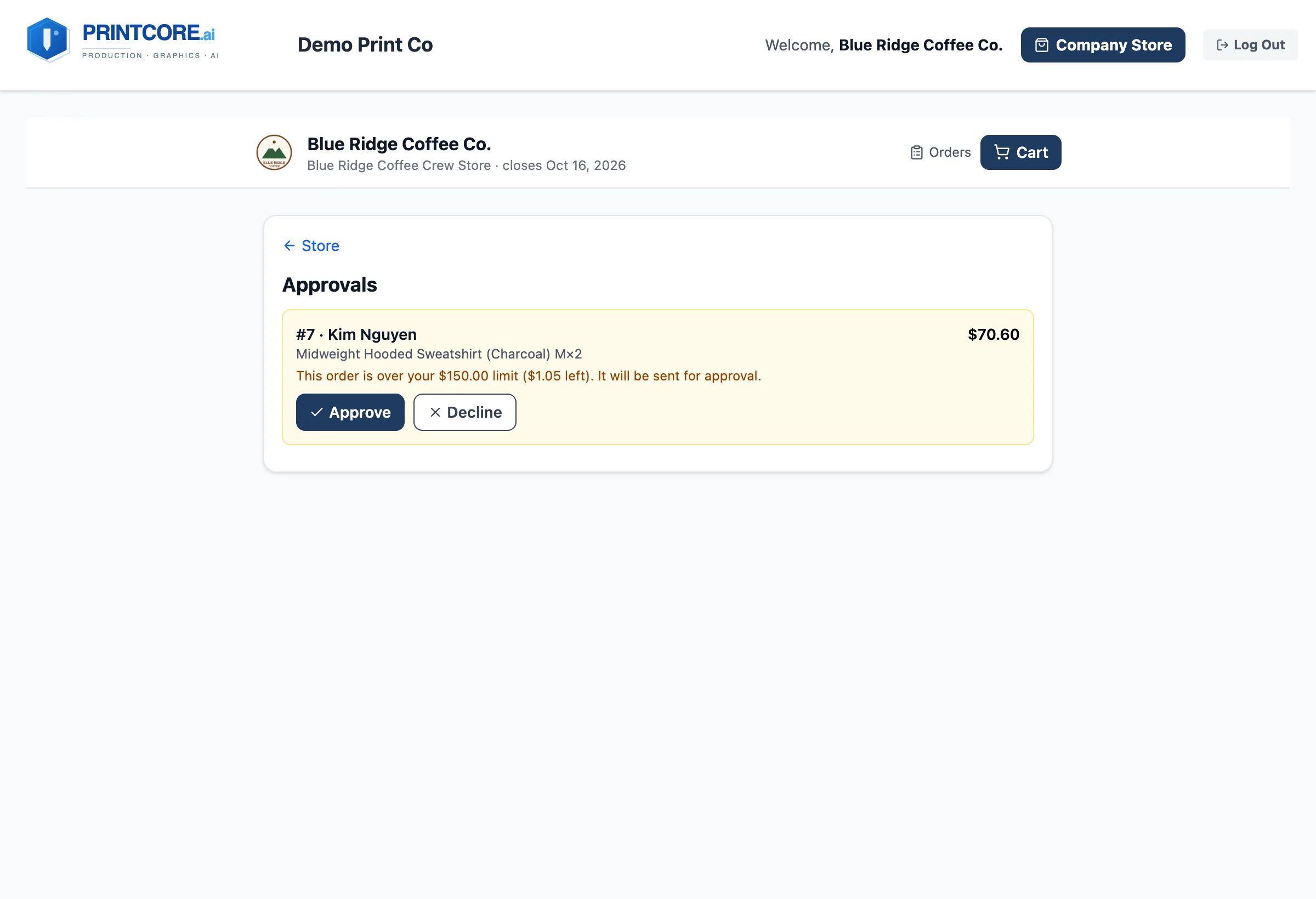
When a customer contact signs in to your portal, a Your company store is open banner and a Company Store button take them to the store. Orders over the limit wait under Approvals until an approver clicks Approve or Decline.
What to do
Why it matters
Orders merge into one job
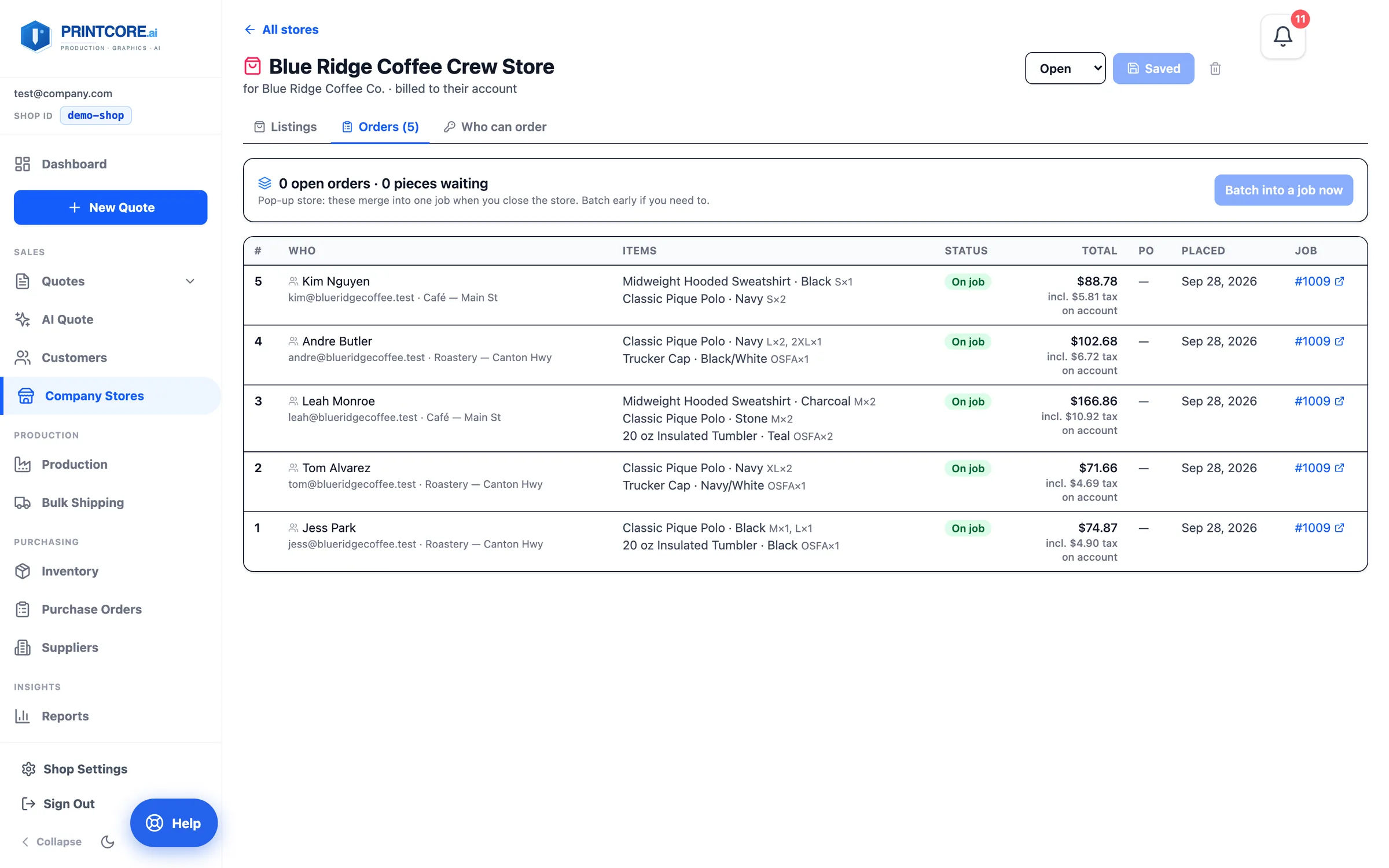
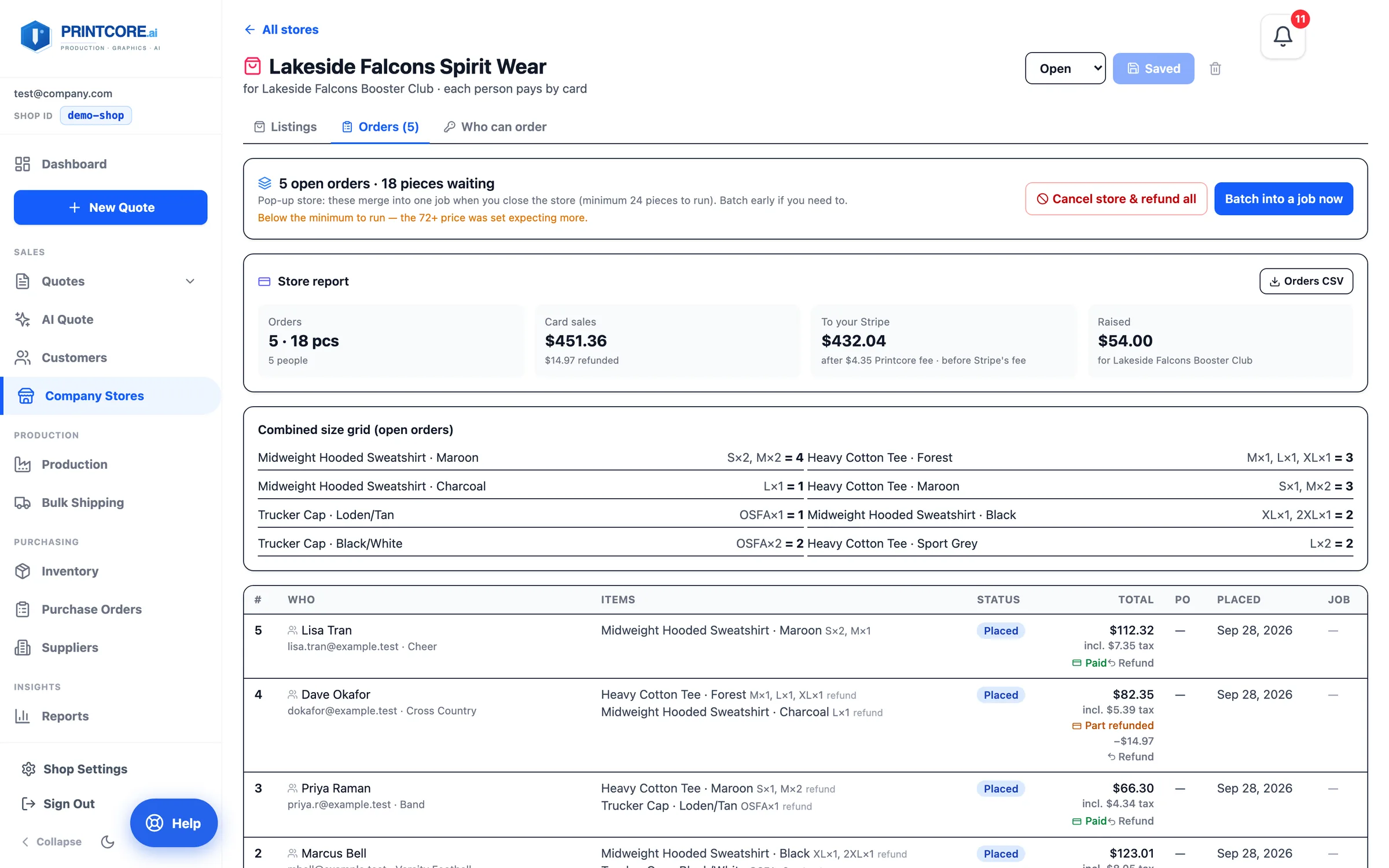
The store's Orders tab lists every order with who placed it, their items, status, and total, above a combined size grid across all open orders. When a pop-up store closes — or when you click Batch into a job now — the orders merge into one job, and each order shows its job number.
What to do
Why it matters
A pick list for packing
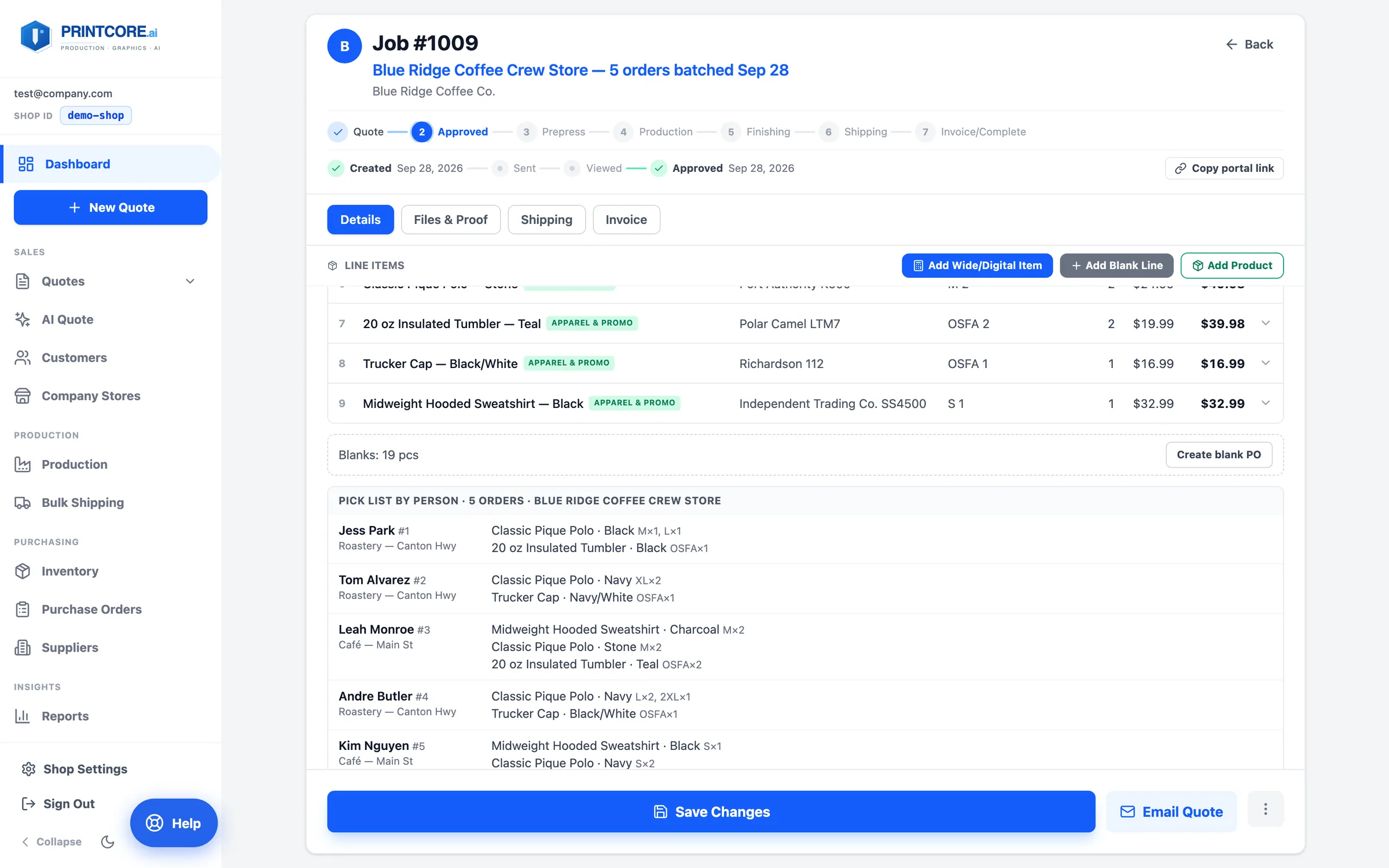
The batched job has one line per item and color with the combined size grid, so blank POs and production work exactly as they do for any apparel job. Under the lines, a pick list by person shows who ordered what and where it goes.
What to do
Why it matters
Sponsored stores: connect Stripe
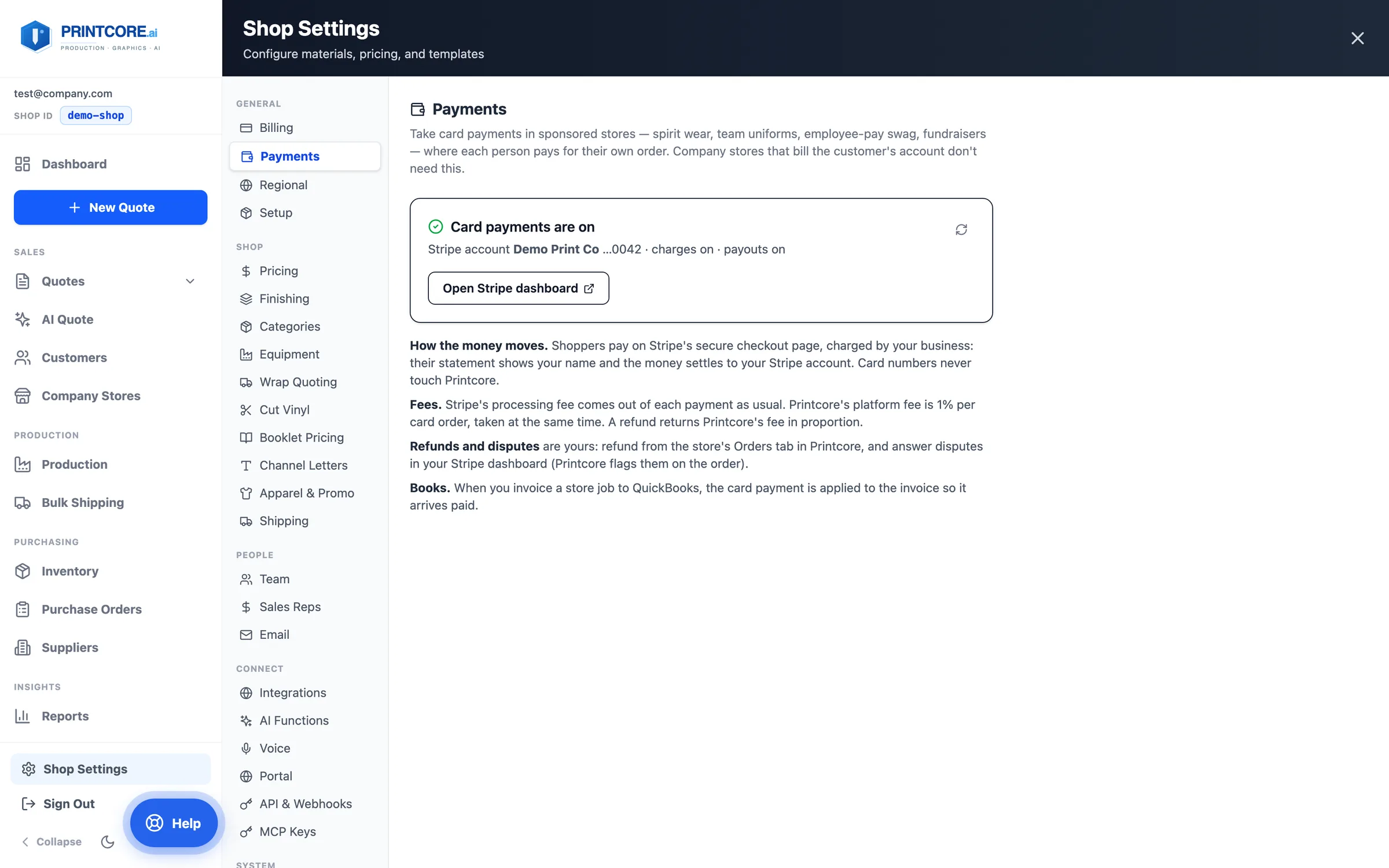
For spirit wear, team uniforms, and fundraisers, each person can pay for their own order by card. Shop Settings → Payments connects your own Stripe account. Shoppers pay on Stripe's secure checkout, charged by your business, and the money settles to your Stripe account.
What to do
Why it matters
Set up a card store — with a fundraiser
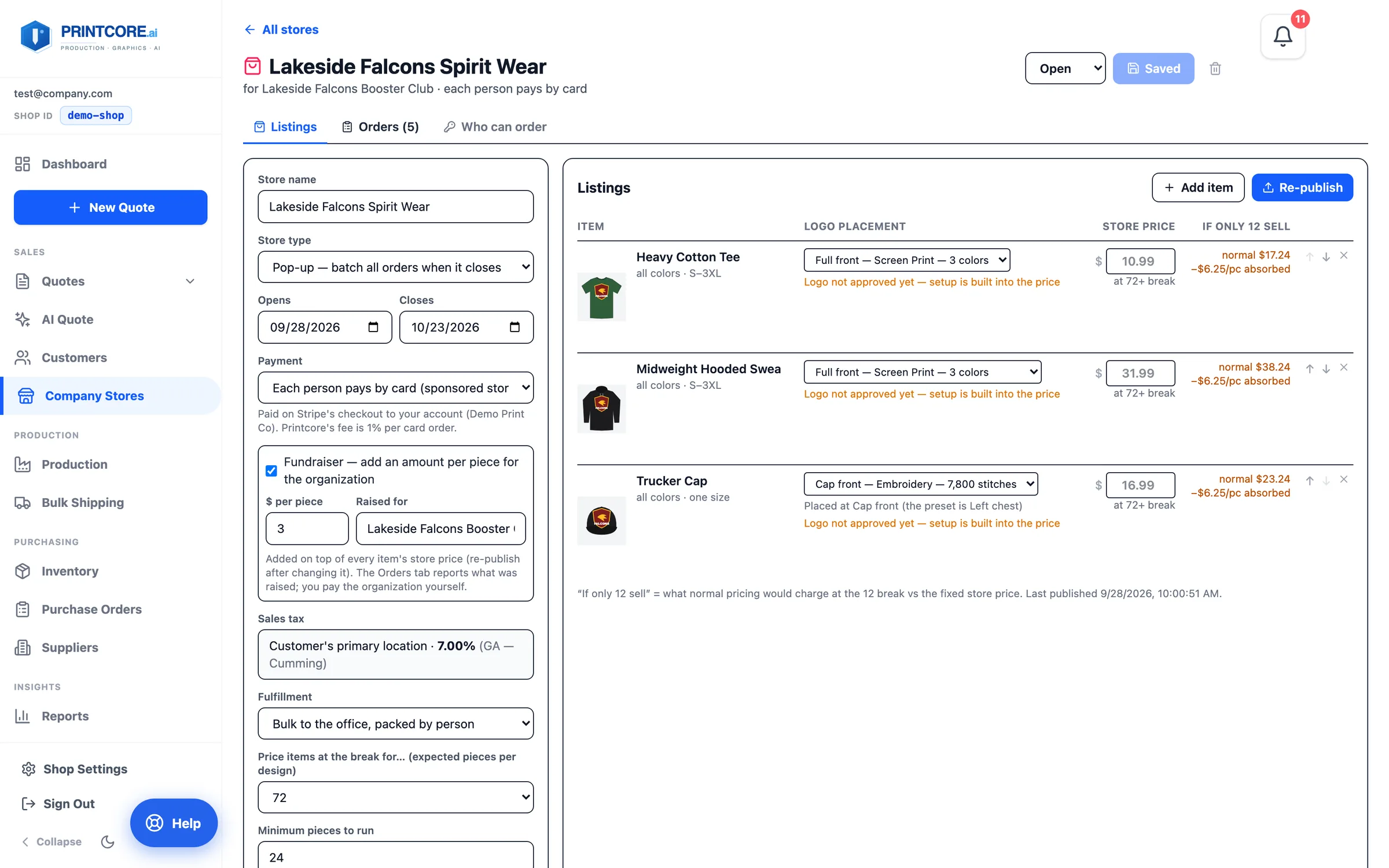
Set the store's Payment to Each person pays by card, or Shopper chooses: card or the account. Tick Fundraiser to add a dollar amount per piece for the organization. You can set a minimum number of pieces to run.
What to do
Why it matters
Share a passcode
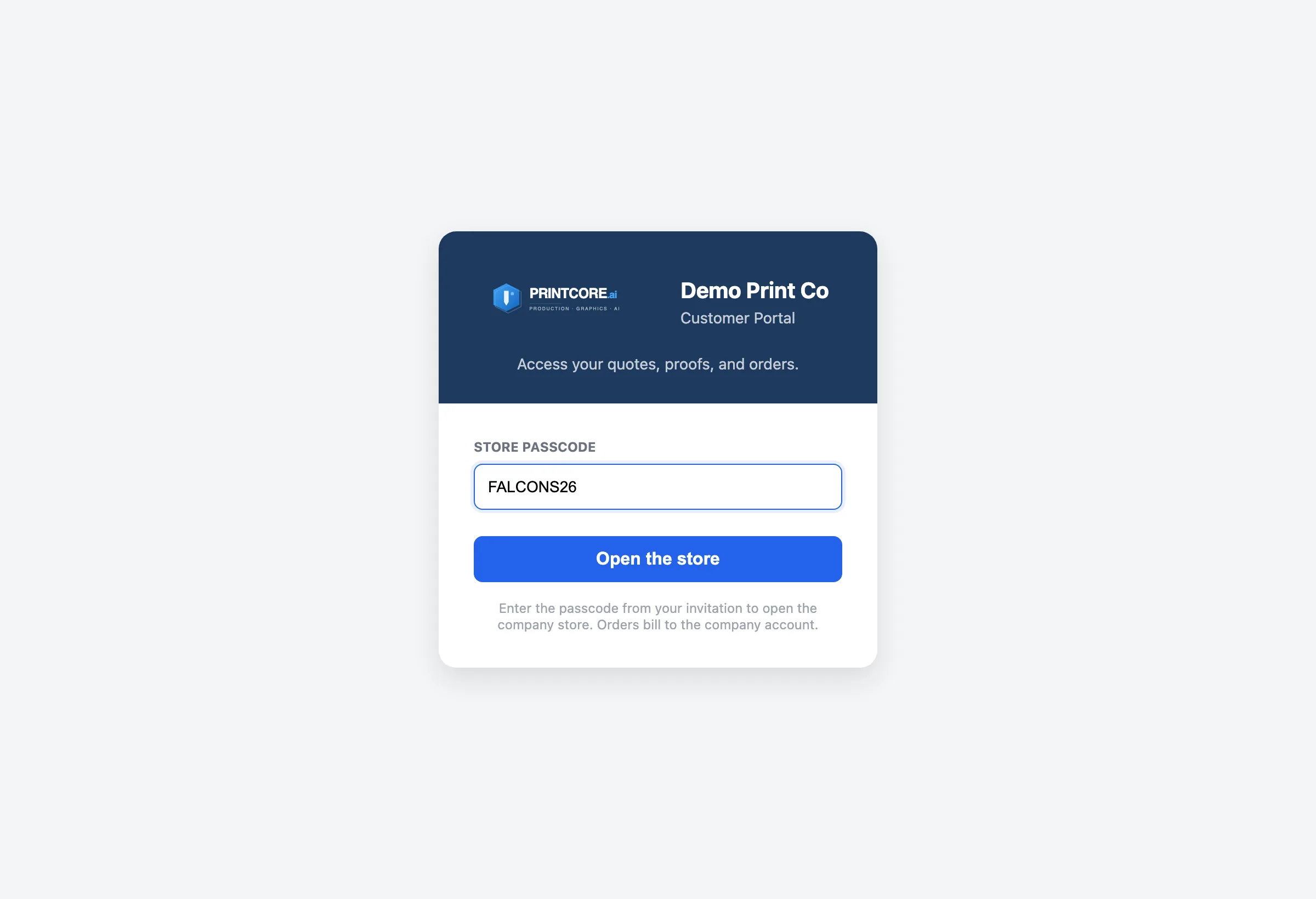
For a store open to a whole team or school, choose Anyone with the store passcode under Who can order. Share the store link along with the passcode; shoppers type it in to open the store.
What to do
Why it matters
Pay by card
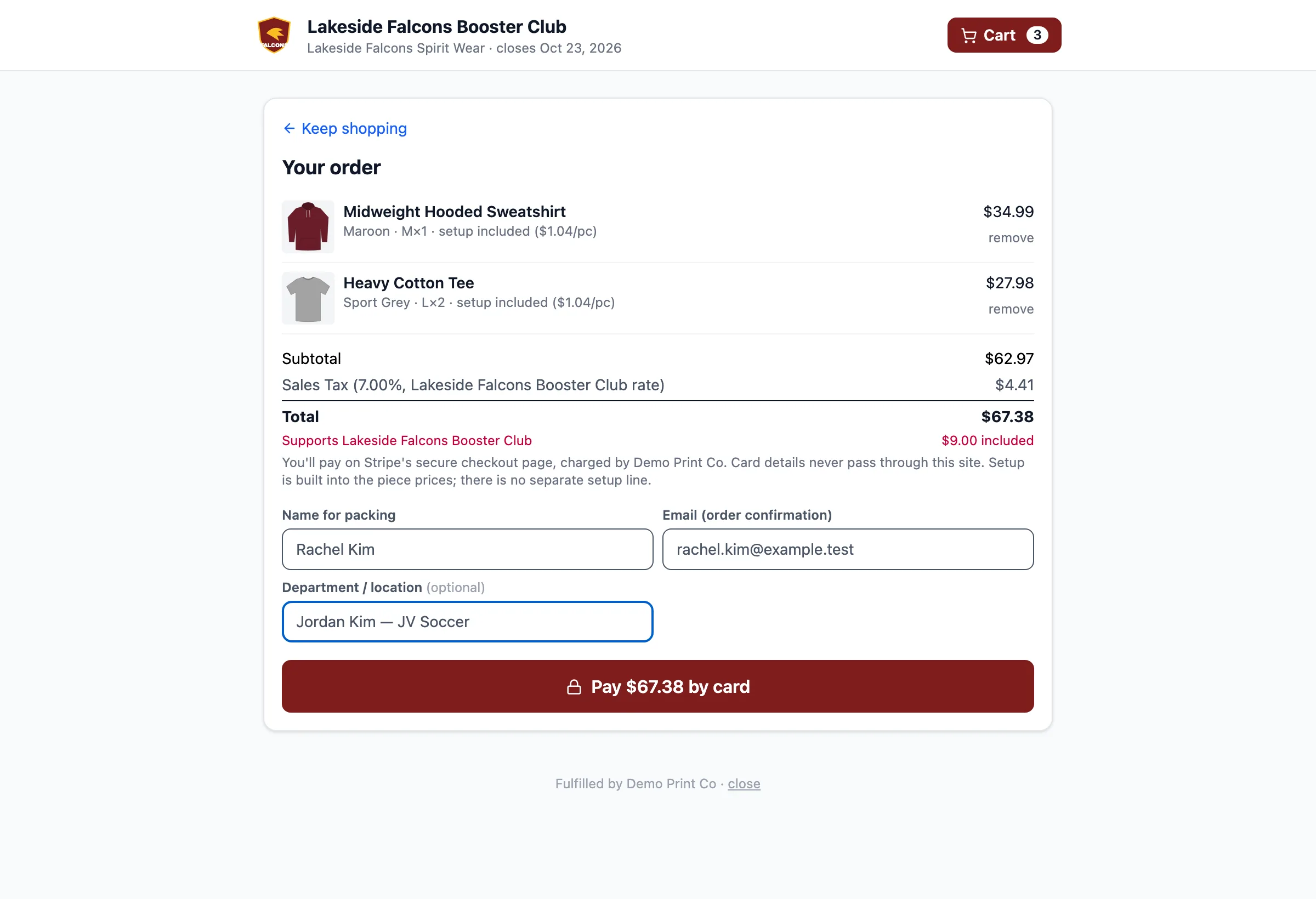
In a card store, the cart shows the fundraiser amount included in the total and a Pay by card button. The shopper finishes on Stripe's checkout page; if they cancel, nothing is charged and the cart is still there.
What to do
Why it matters
Store report and refunds
Card stores add a Store report: orders and pieces, card sales, what goes to your Stripe account after Printcore's fee, and how much was raised. Each order shows Paid, Part refunded, or Refunded.
What to do
Why it matters
Your customers can shop now 🛍️
That's company stores, from the first listing to the pick list. Bookmark the index page and come back to any walkthrough whenever you need a refresher — and press F1 inside Printcore any time for the Help Assistant.