
Printcore WALKTHROUGH

Apparel & Promo

← All walkthroughs
Step 1 of 11Apparel & Promo

Switch it on

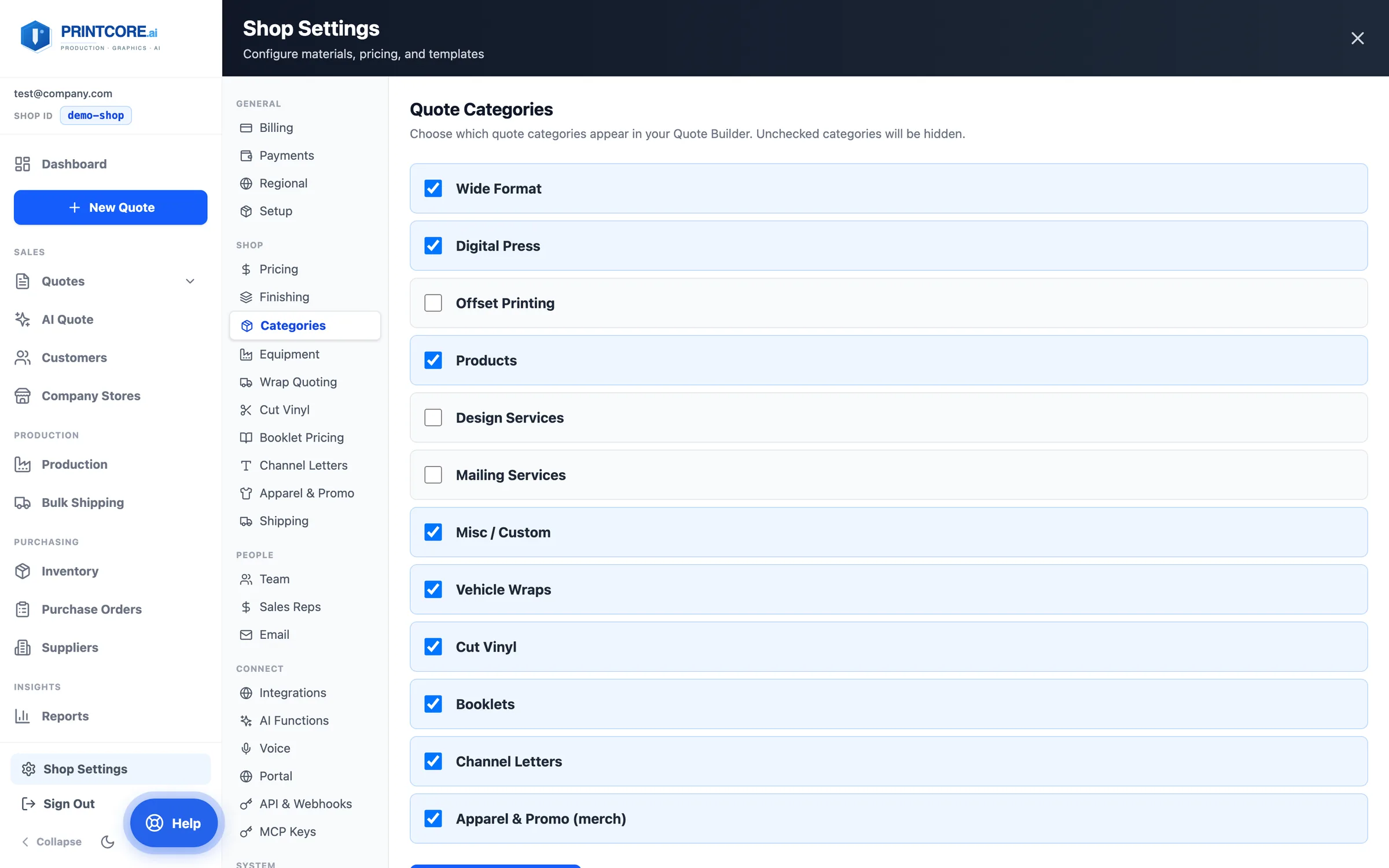
Apparel & Promo is an opt-in quote category. Once it's on, New Quote gets an Apparel & Promo tile, the product picker gets an Apparel & promo tab everywhere it appears, and Shop Settings → Apparel & Promo holds the catalog.
app.printcore.ai/settings/categories
Switch it on

What to do

Open Shop Settings → Categories, tick Apparel & Promo (merch), and click Save Categories.

Why it matters

Shops that don't sell merch never see it. Shops that do get it in every place they already quote.
Step 2 of 11Apparel & Promo

Set your decoration pricing

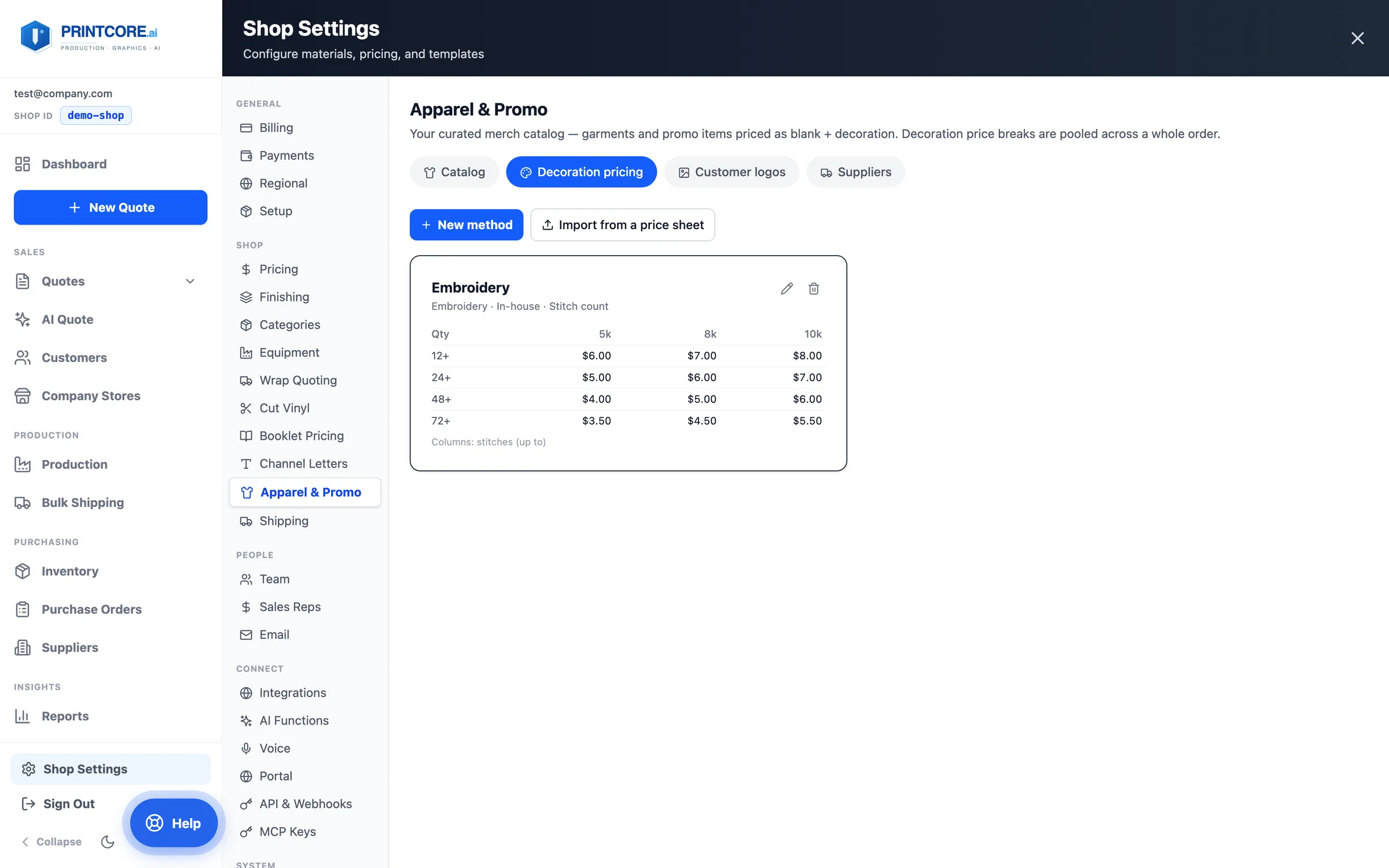
Decoration pricing holds one price grid per method — screen print by number of ink colors, embroidery by stitch count, DTF by print size, laser engraving by quantity. Price breaks are pooled across the whole order, so 24 hoodies and 24 tees with the same art price at the 48 break.
app.printcore.ai/settings/merch/decoration
Set your decoration pricing

What to do

Click Start with sample methods and edit the numbers, add a New method, or use Import from a price sheet to read a decorator's price list. Methods you outsource can carry the decorator's cost grid and setup, so you know your margin.

Why it matters

Decoration is priced the way decorators actually charge — and the whole order gets the break it has earned.
Step 3 of 11Apparel & Promo

Build your catalog

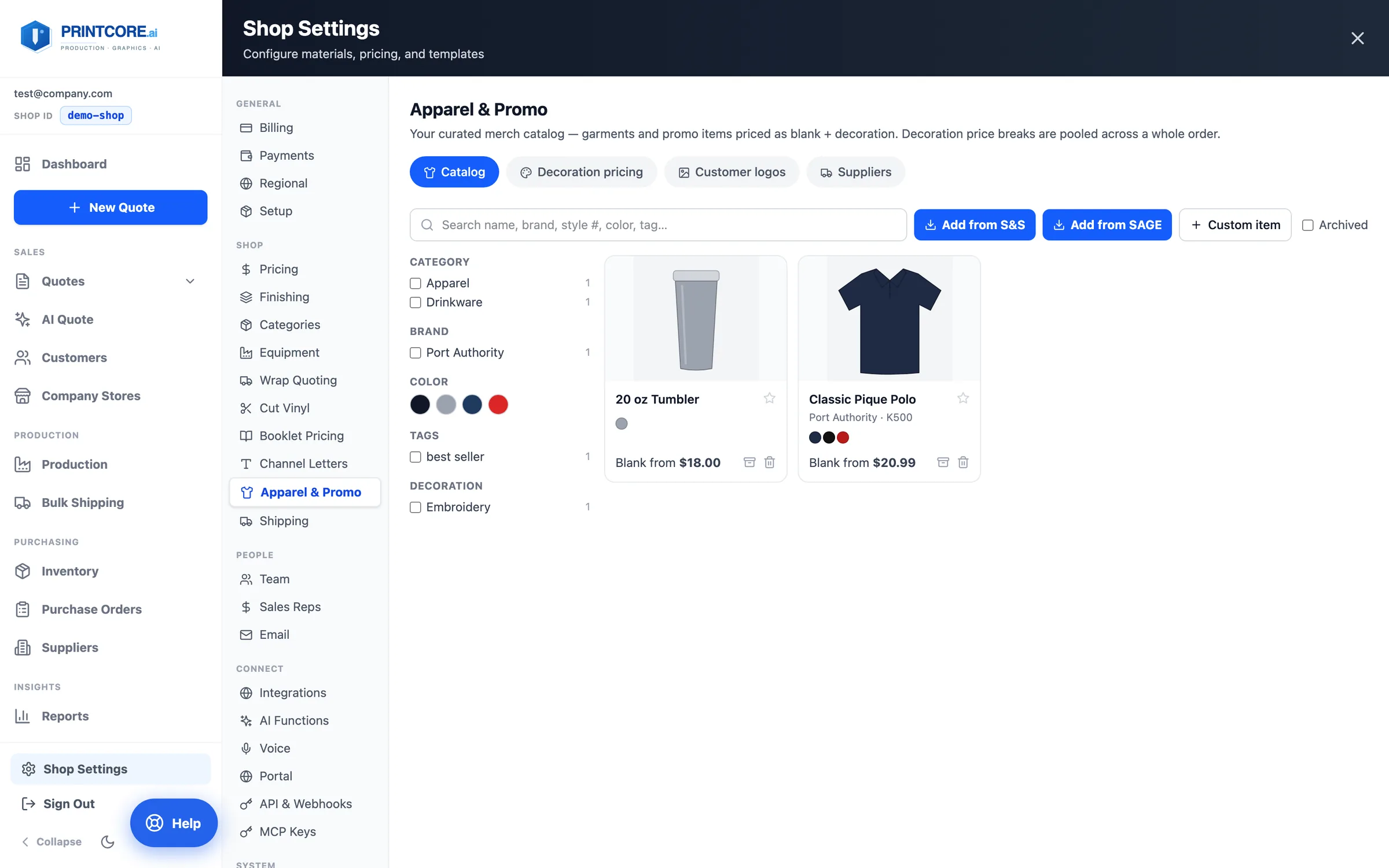
The Catalog is the items you actually sell. Add from S&S brings in styles, colors, photos, and your own account's prices; Add from SAGE searches promotional products with your net cost at every quantity break; Custom item covers anything else. Search and filter by category, brand, color, tag, or decoration.
app.printcore.ai/settings/merch
Build your catalog

What to do

Connect S&S or SAGE under the Suppliers tab with your own account, then add the styles you sell. The supplier is added to your Suppliers list automatically, ready for purchase orders.

Why it matters

A short, curated catalog is faster to quote from than a supplier's 10,000 styles — and your costs stay current.
Step 4 of 11Apparel & Promo

Set cost, markup, and methods per item

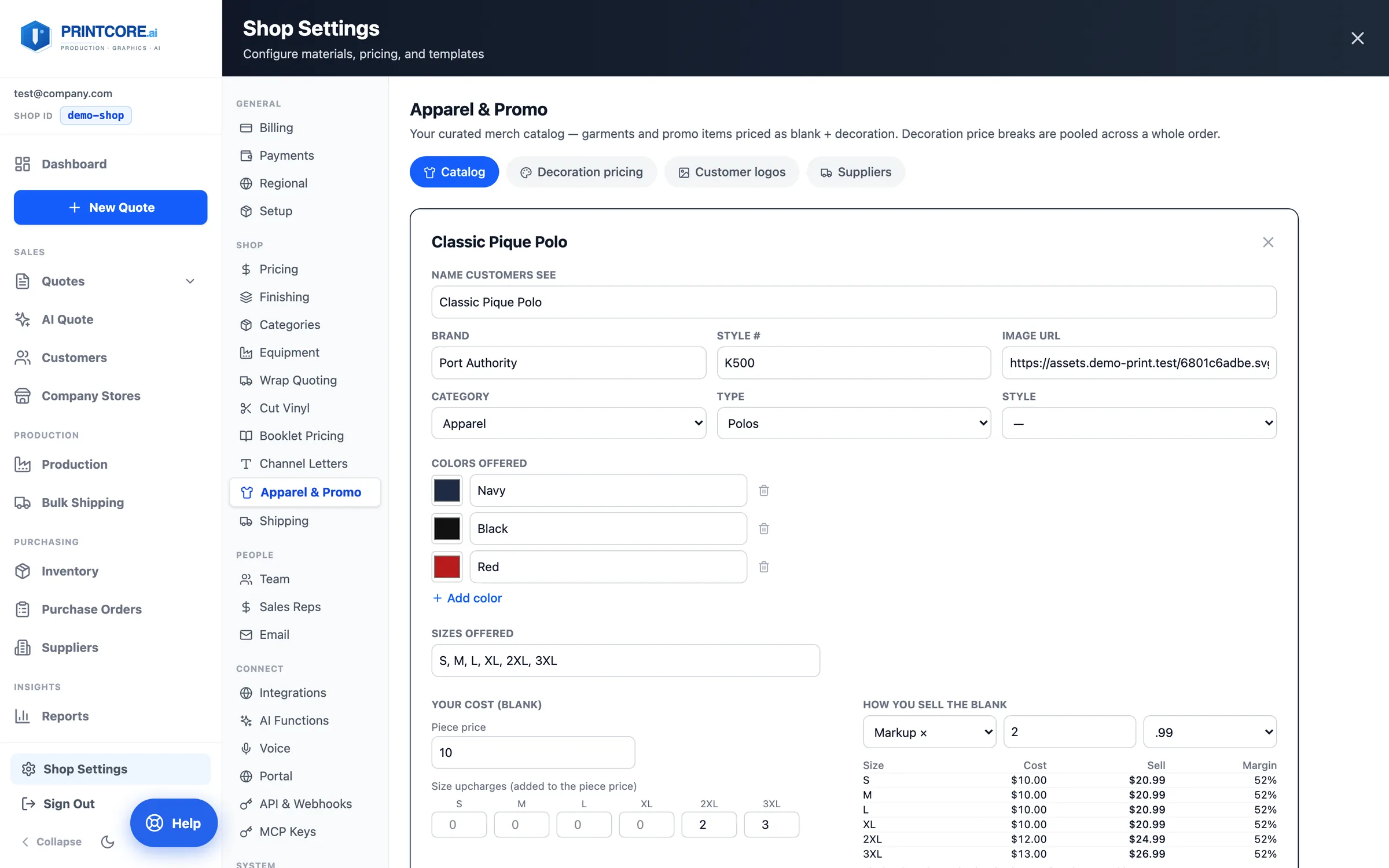
Each item has its colors, sizes, your blank cost with size upcharges (2XL and up), and how you sell the blank — markup, margin, or a fixed price, with rounding. Tick which decoration methods it takes and which is the default, and where the blanks are bought from.
app.printcore.ai/settings/merch
Set cost, markup, and methods per item

What to do

Open an item and check the table under How you sell the blank — cost, sell price, and margin for every size. Tick Bought already decorated for promo items the supplier imprints for you.

Why it matters

The margin on a 3XL is visible before it's quoted, not after it's invoiced.
Step 5 of 11Apparel & Promo

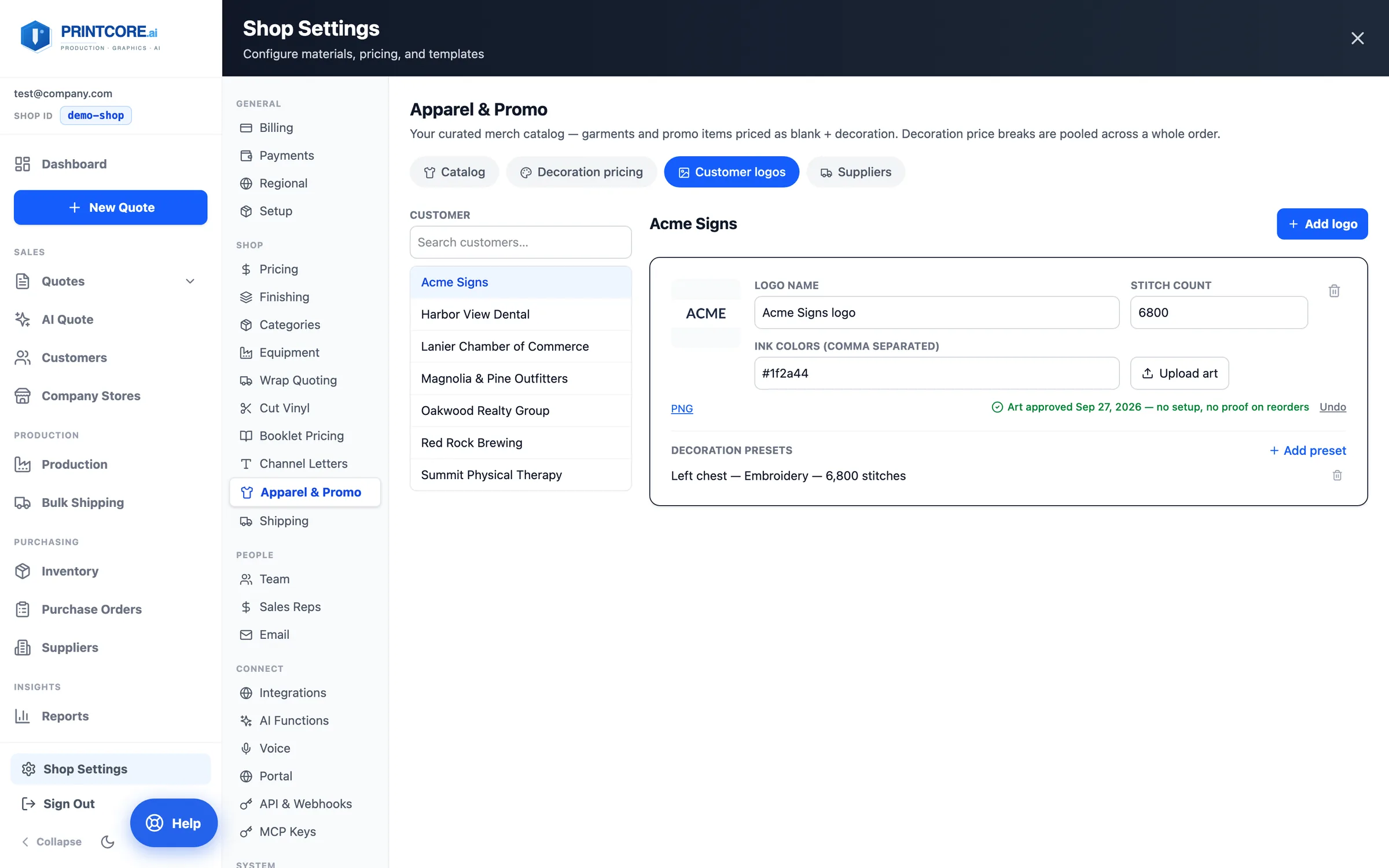
Keep each customer's logos on file

Customer logos stores each customer's art with its stitch count and ink colors, plus decoration presets like "Left chest — Embroidery — 6,500 stitches". Once art is approved, reorders skip the setup charge and the proof.
app.printcore.ai/settings/merch/logos
Keep each customer's logos on file

What to do

Pick the customer, Add logo, upload the art, and Mark art as approved — or let it happen automatically when the customer approves a proof. Then Add preset for the placements they order again and again.

Why it matters

The second order for the same logo should take seconds, and it shouldn't charge the customer a setup fee twice.
Step 6 of 11Apparel & Promo

Quote it

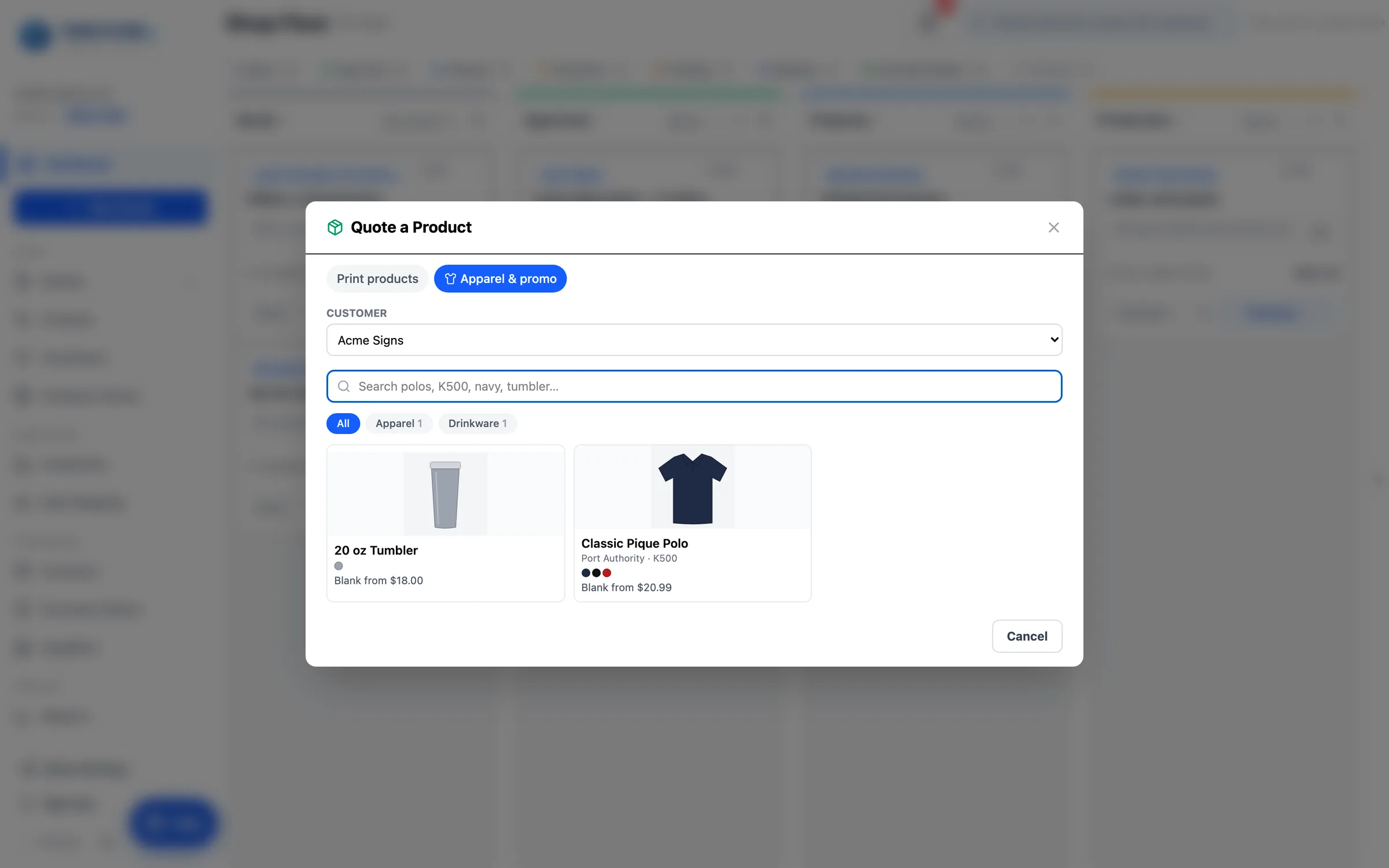
Click New Quote → Apparel & Promo (or Add Product in any calculator, the job ticket, or AI Quote). Pick the customer and the item.
app.printcore.ai/
Quote it

What to do

Choose the customer, then search the catalog — "polo", a style number, "navy", "tumbler" — or click a category chip.

Why it matters

Apparel lives in the same picker as your print products, so a banner and the staff shirts are one quote.
Step 7 of 11Apparel & Promo

Color, sizes, decoration — and a mockup

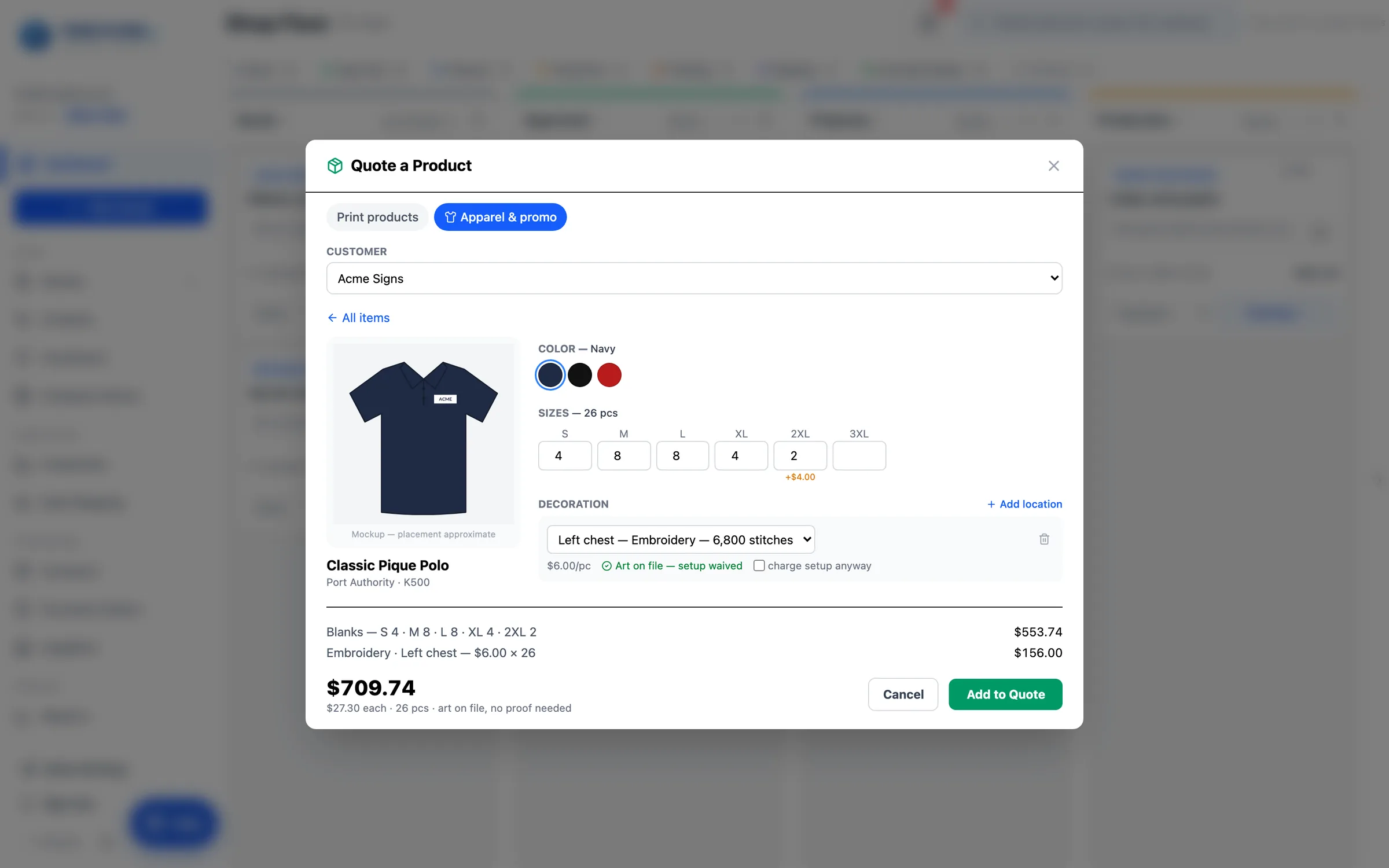
Pick the color, type the size run, and add a decoration for each location — from the customer's presets or custom art. The mockup draws the customer's logo on the product photo where it will go, and the breakdown shows blanks, each decoration, the total, and the price per piece.
app.printcore.ai/
Color, sizes, decoration — and a mockup

What to do

Fill the size grid (upcharged sizes show their extra), choose the decoration for each location, and click Add to Quote. It opens the quote's ticket so you can review and send.

Why it matters

The customer sees what they're buying, and you see exactly where the money is — before anything is ordered.
Step 8 of 11Apparel & Promo

On the job: sizes, decoration, purchase orders

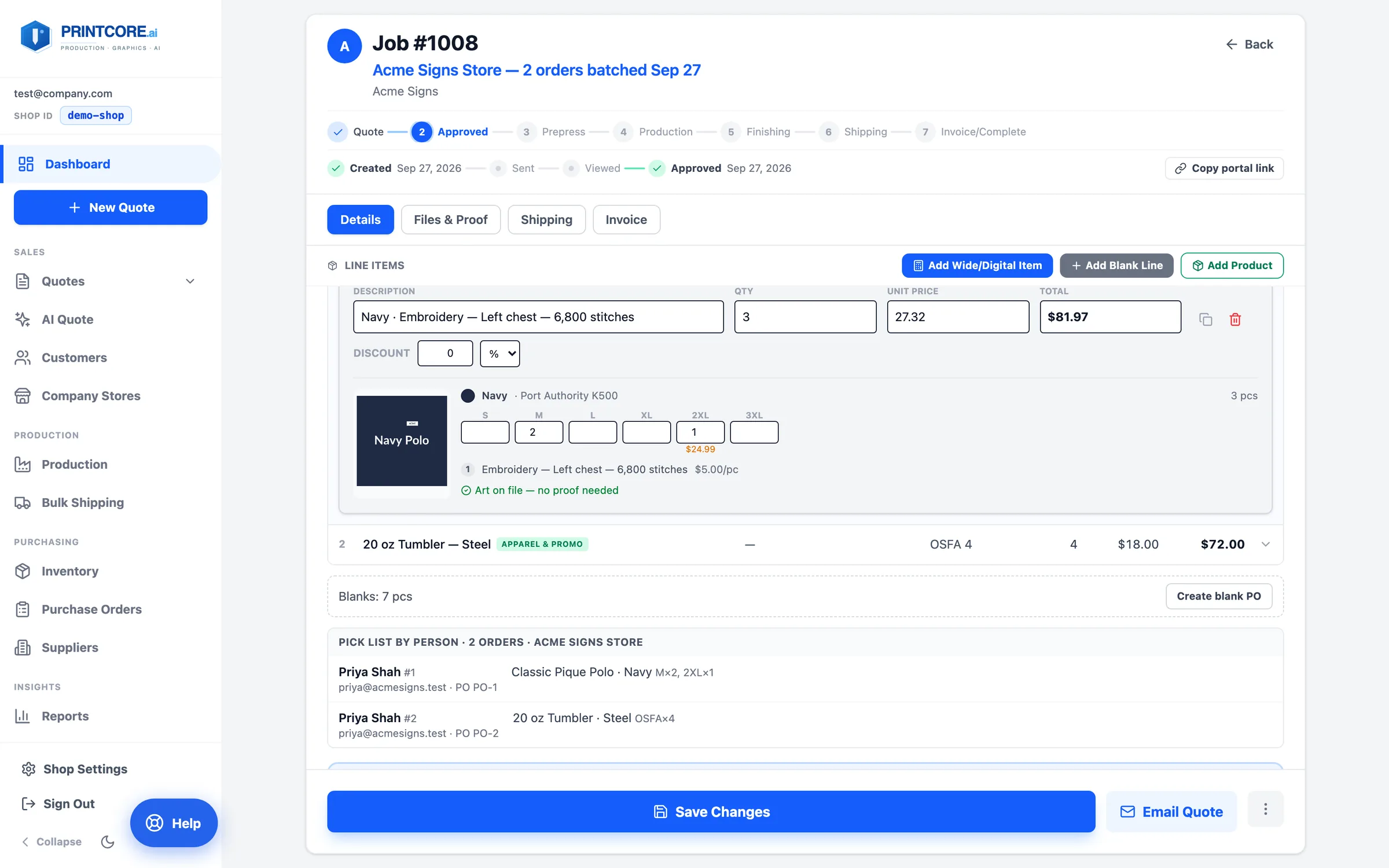
On the job ticket an apparel line keeps its size grid and decorations editable — change a size and the decoration break re-pools across the order. Create blank PO orders the garments from the supplier; outsourced decoration gets its own Create decoration PO.
app.printcore.ai/jobs/1008
On the job: sizes, decoration, purchase orders

What to do

Expand the line to adjust sizes, then click Create blank PO. Production gets a receive-and-count-in step and one decorate step per art location, and the printable size-grid sheet goes to the floor.

Why it matters

The quote, the purchase order, and the production steps all come from the same line, so nothing is re-typed.
Step 9 of 11Apparel & Promo

Apparel requests come in too

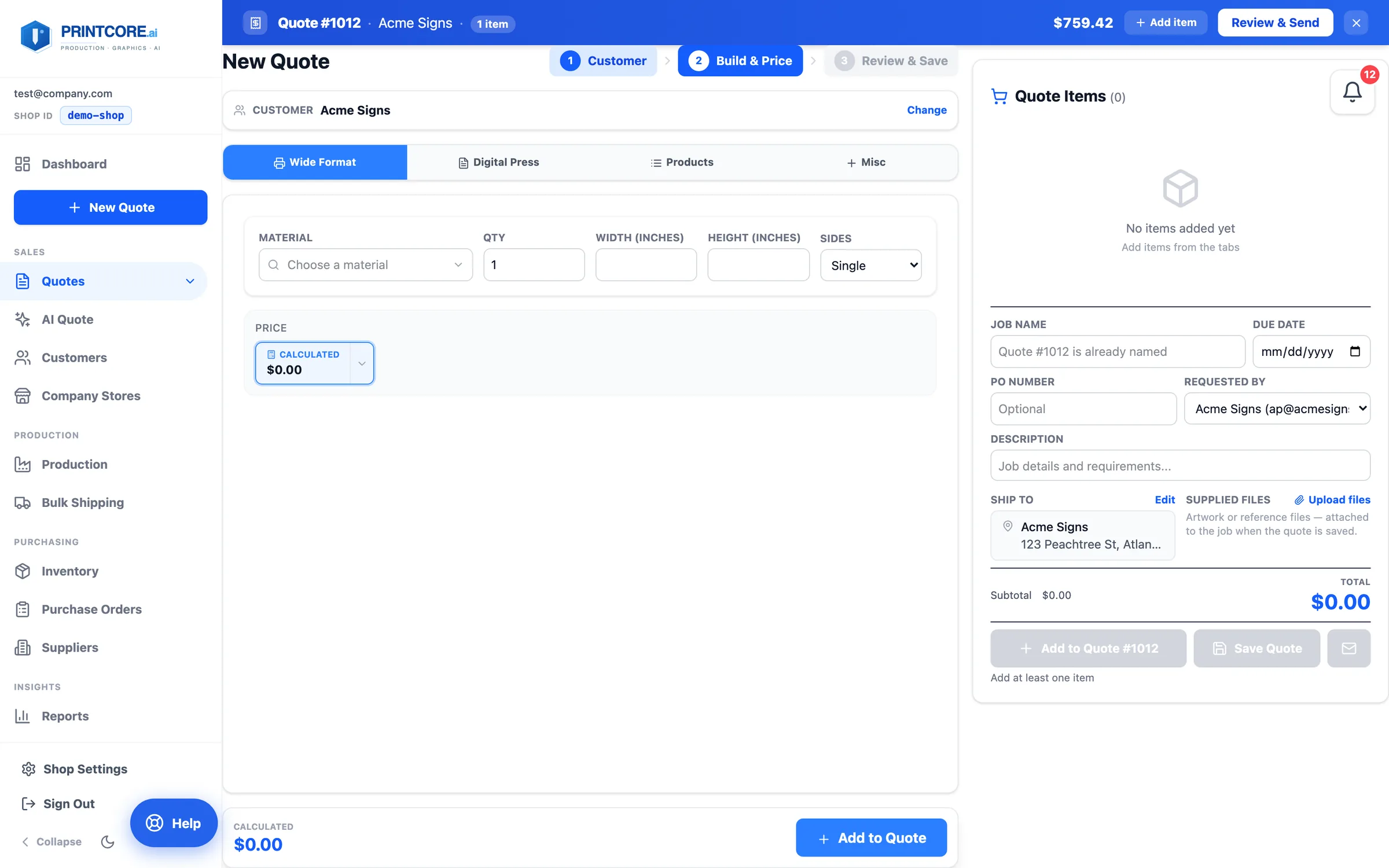
Customers can ask for apparel from your portal — color, quantity by size, decoration method, logo colors, and locations — and AI Quote reads size runs like "12 each S, M, L, XL" from emails. Both arrive with the builder prefilled.
app.printcore.ai/quotes/wide-digital
Apparel requests come in too

What to do

Open the request from the bell or the AI Quote inbox and finish the line in the builder. The Active Quote bar at the top keeps the quote in reach — Add item to put a banner or yard signs on the same quote, Review & Send when it's done.

Why it matters

Hybrid shops sell print, outsourced work, and merch to the same customers. One quote, one job, one invoice.
Step 10 of 11Apparel & Promo

Sell it through a company store

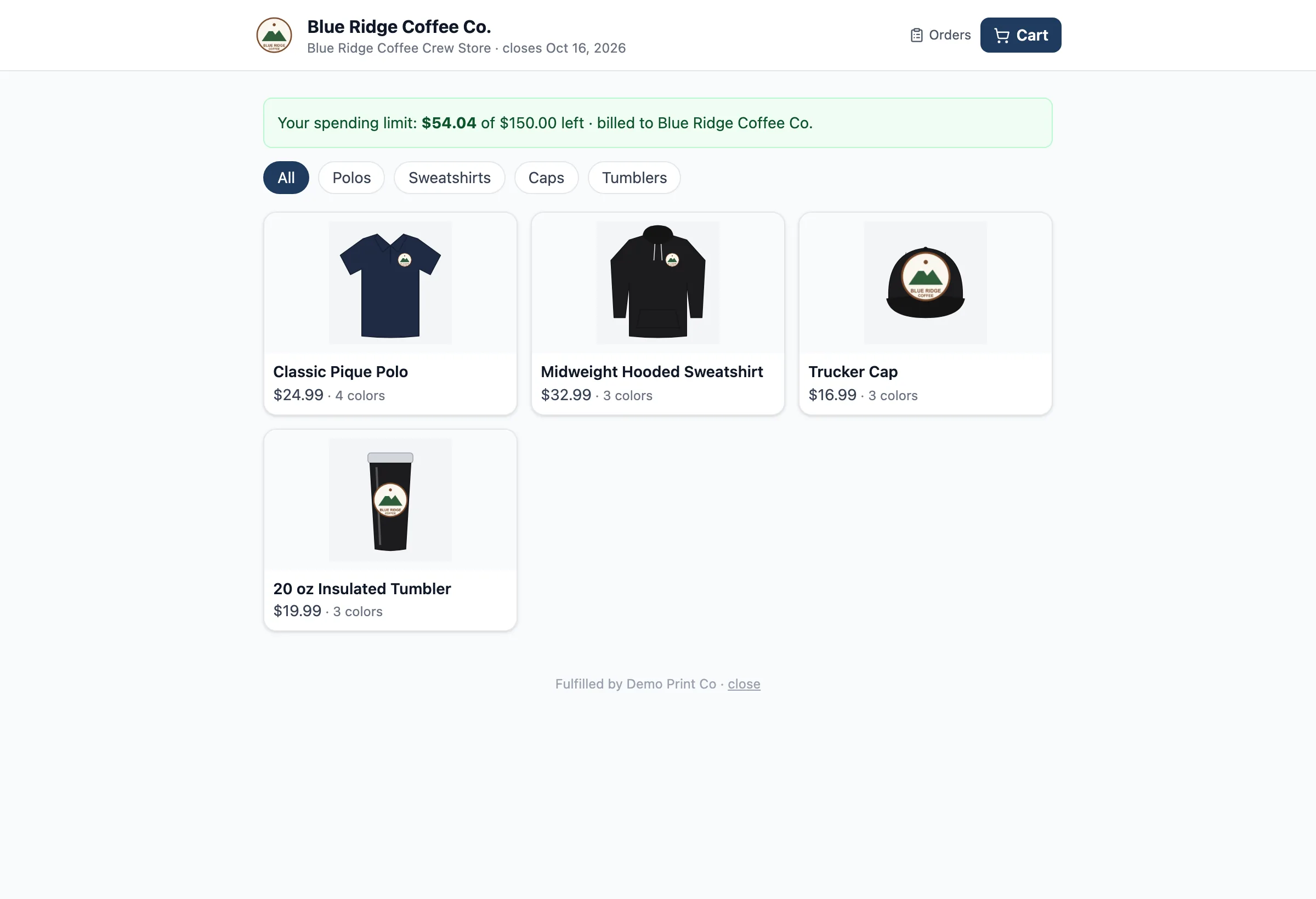
Once a customer's logos and presets are on file, you can give them a company store: a branded storefront in your portal where their people order these same items with the logo already placed, at one fixed price, billed to the account — or paid by card in a sponsored store.
app.printcore.ai/portal
Sell it through a company store

What to do

Click Company Stores in the sidebar and New store. The Company Stores walkthrough covers it step by step.

Why it matters

Reorders from the same customers come in on their own, with sizes already broken out.

Merch is part of your shop now 👕

That's the full tour. Next up: company stores, where your customers order merch themselves.