Step 1 of 7Ask Printcore
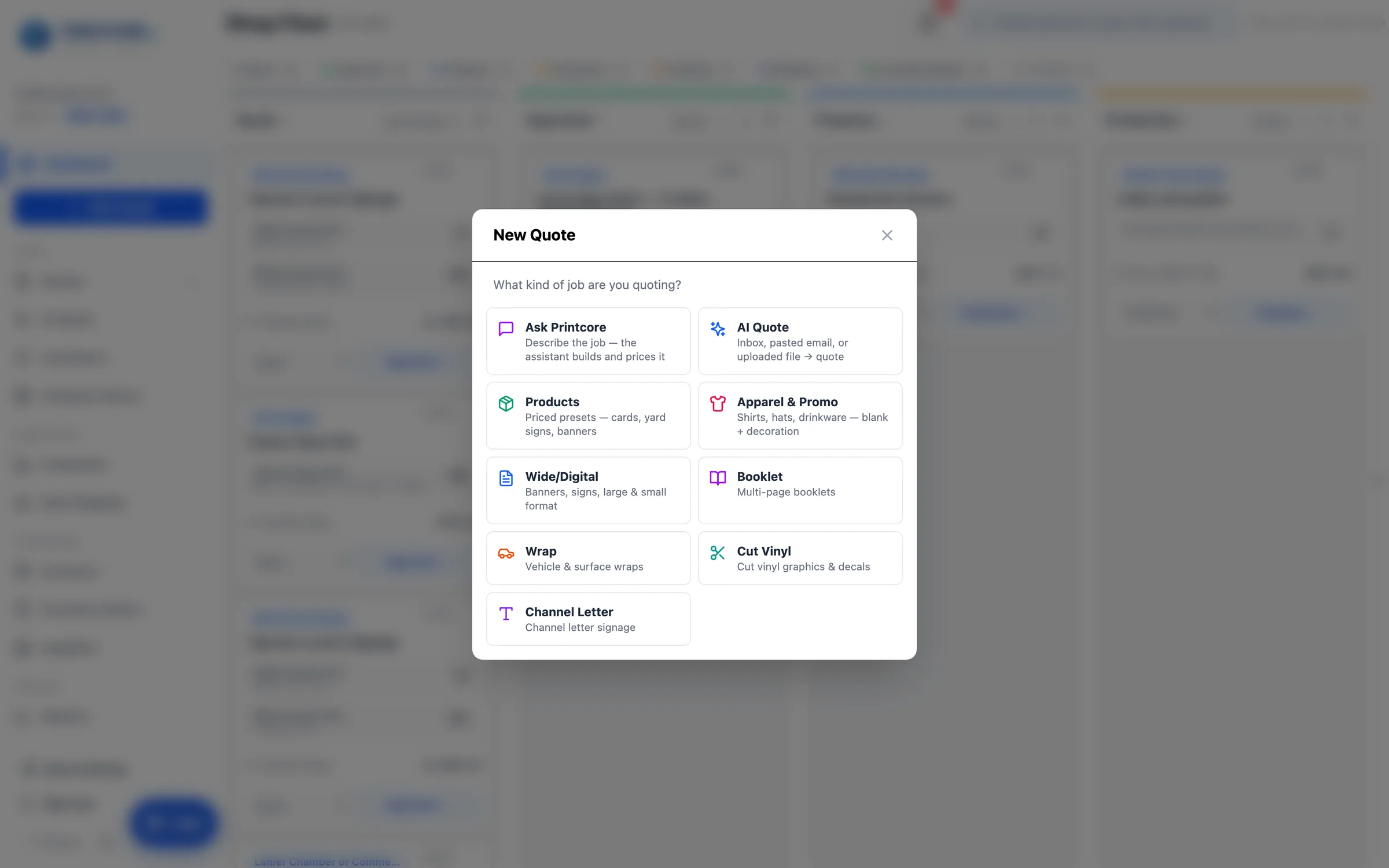
Open Ask Printcore
Ask is a conversation that turns into a quote. Use it for requests that aren't written down yet — a customer at the counter, a phone call, a job you already know by heart.
app.printcore.ai/quotes/new
What to do
Click New Quote and pick the Ask Printcore tile, or open AI Quote and click the Ask tab.
Why it matters
You skip choosing a calculator. The assistant works out which one each line needs.
Step 2 of 7Ask Printcore
Say what the customer needs
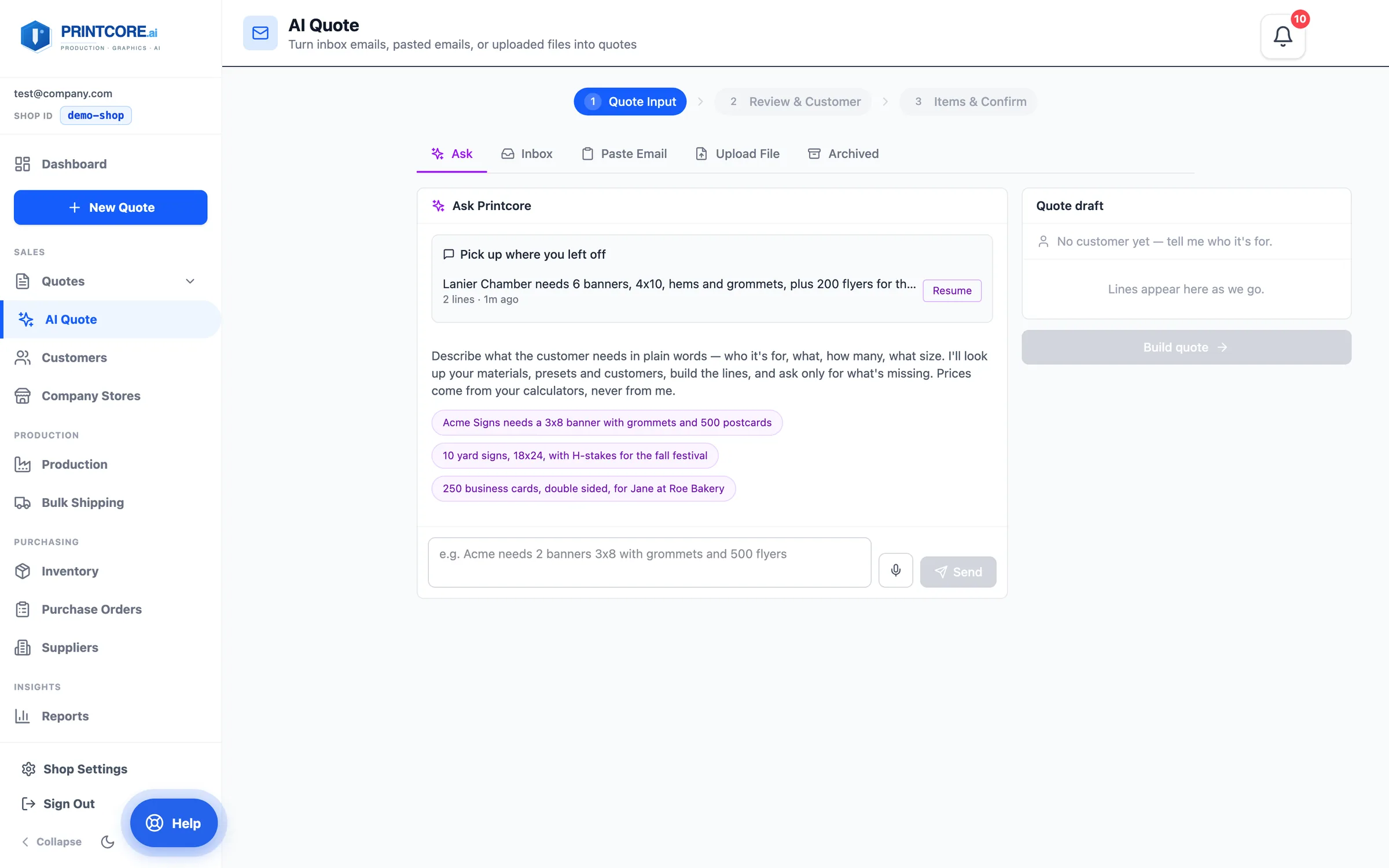
Type it the way you'd say it: who it's for, what, how many, what size. Click one of the example chips to see how it works. Click the microphone to dictate — in Chrome, Edge, and Safari your words appear live as you speak.
app.printcore.ai/quotes/ai?tab=assistant
What to do
Type the request and press Enter (Shift+Enter for a new line). One message can hold several items — "10 yard signs and 2 banners" becomes two lines.
Why it matters
You don't have to know the material names or fill in a form. Plain words are enough.
Step 3 of 7Ask Printcore
Watch the draft build
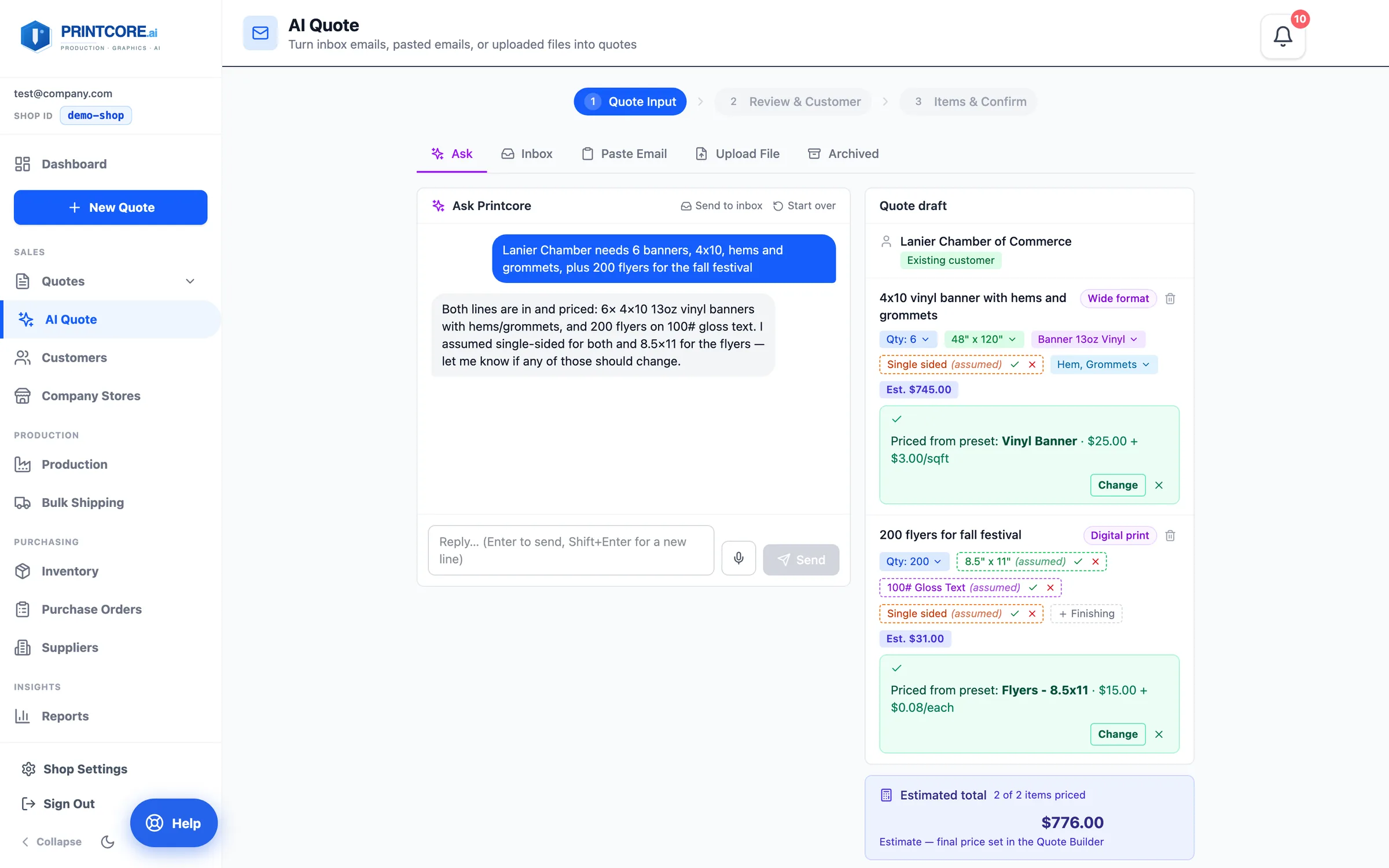
The Quote draft on the right fills in as you talk. Each line shows its quote type, quantity, size, sides, and finishing. If a line matches one of your Product Presets, the preset prices it.
app.printcore.ai/quotes/ai?tab=assistant
What to do
Read the assistant's reply. It asks only for what's still missing — usually the customer, or a spec like single- or double-sided. Click any chip in the draft to change it yourself.
Why it matters
Every price comes from your own calculators and presets, never from the AI. Prices show only in the draft, never in the chat.
Step 4 of 7Ask Printcore
Answer the follow-up questions
Tell it who the job is for. It looks the name up in your customer list. A match is marked Existing customer, and the assistant can suggest "same as last time" from their recent jobs. A new name becomes a New customer once you give a contact.
app.printcore.ai/quotes/ai?tab=assistant
What to do
Keep answering until every line shows an Est. price. The Estimated total at the bottom right shows the total and how many lines are priced. If you ask the assistant "how much?", it points you here — it never types a price.
Why it matters
It asks one short question at a time, so a phone call turns into a priced draft while the customer is still on the line.
Step 5 of 7Ask Printcore
Build the quote
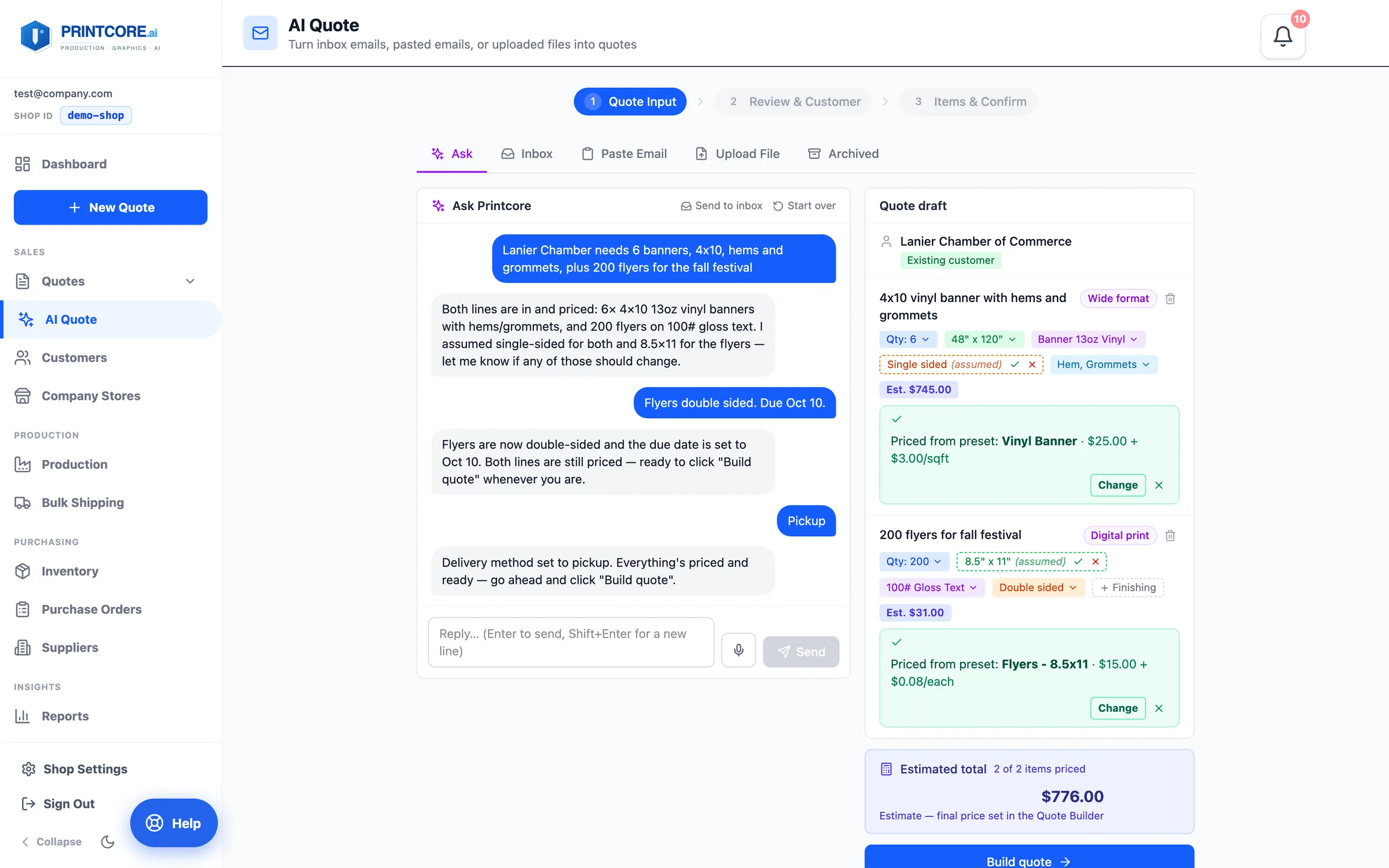
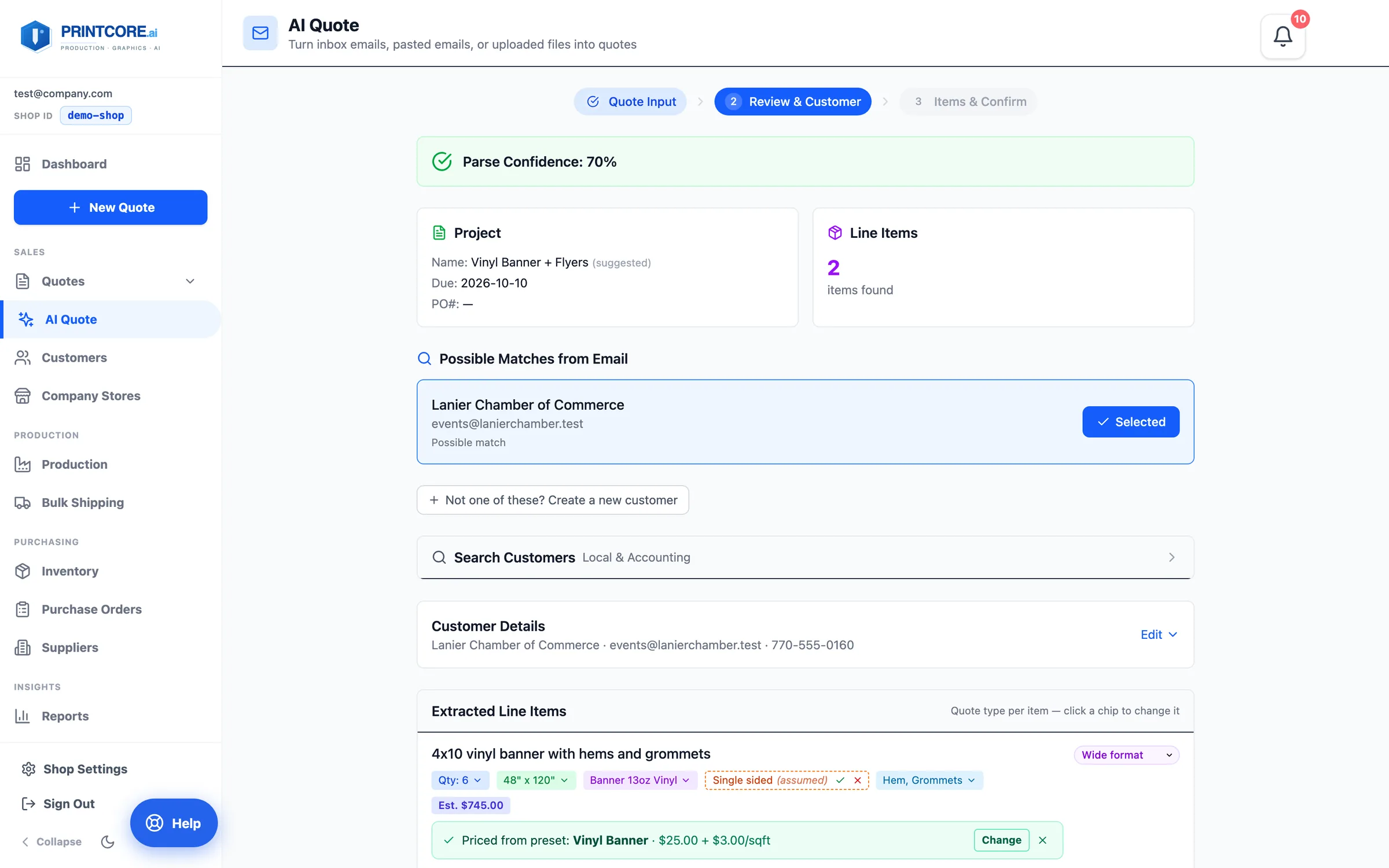
Build quote hands the draft to the usual AI Quote steps — Review & Customer, then Items & Confirm — with everything filled in. The conversation is saved on the job, so anyone can see how the quote was put together.
app.printcore.ai/quotes/ai
What to do
Click Build quote, check Review & Customer, click Continue, then Create Quote. The lines — and any finishing you mentioned, as their own priced lines — land in the Quote Builder's cart.
Why it matters
Nothing new to learn after the conversation. It lands in the same place as a parsed email.
Step 6 of 7Ask Printcore
Park it or pick it back up
Not ready to finish? Send to inbox saves the draft in your AI Quote inbox. If you leave the page, the Ask tab shows Pick up where you left off with a Resume button next time. Start over clears the conversation and the draft.
app.printcore.ai/quotes/ai?tab=assistant
What to do
Use the Send to inbox and Start over links at the top of the conversation.
Why it matters
A half-finished phone quote doesn't get lost when someone walks in the door.
You can quote by talking now 💬
Last one: Apparel & Promo — quote shirts, hats, and promo items with decoration, from the same quote.