
Printcore WALKTHROUGH

AI Quote

← All walkthroughs
Step 1 of 7AI Quote

Open AI Quote

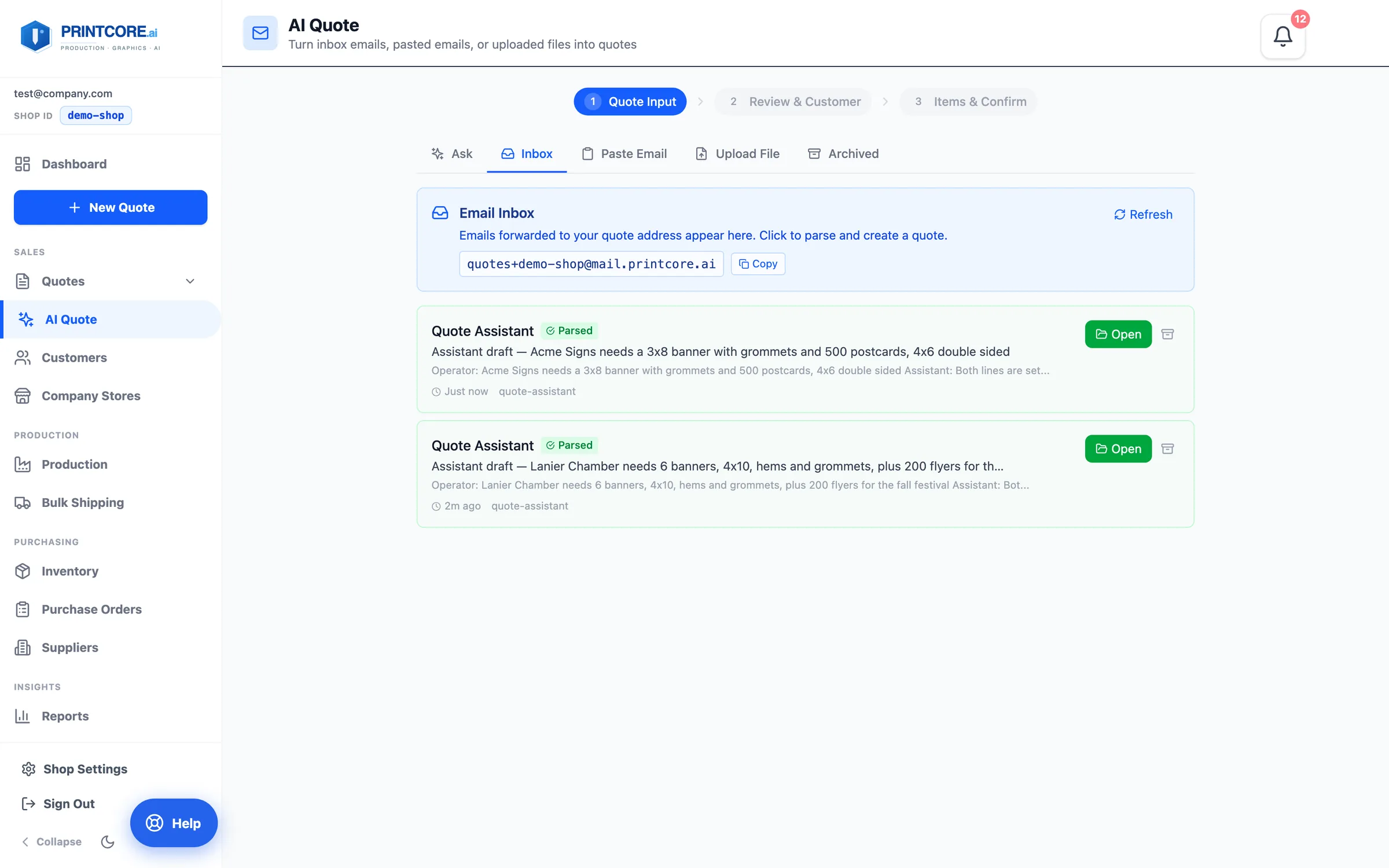
AI Quote is three steps: Quote Input → Review & Customer → Items & Confirm. The input tabs are Ask, Inbox, Paste Email, Upload File, and Archived. Emails forwarded to your shop's quotes@ address and requests customers send from the portal land in the Inbox, already parsed.
app.printcore.ai/quotes/ai
Open AI Quote

What to do

Click AI Quote in the sidebar, or the AI Quote tile on New Quote. Click Open on an Inbox item to work it. Taking a request over the counter or on the phone? Use the Ask tab — see the Ask Printcore walkthrough.

Why it matters

You stop re-typing what the customer already wrote down. Five minutes saved per quote, every quote.
Step 2 of 7AI Quote

Give it the request

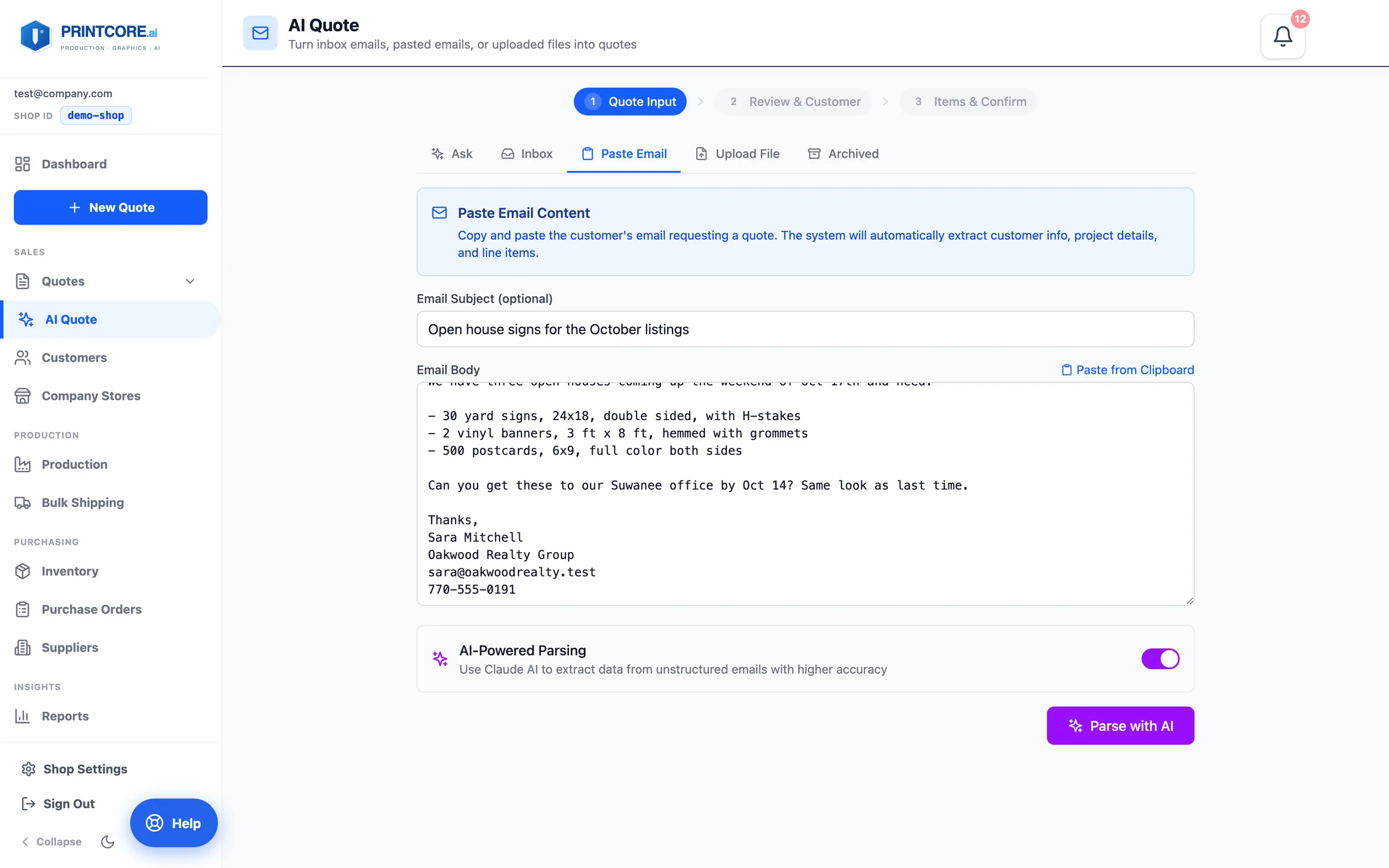
Paste Email takes the subject and body. Upload File takes a PDF or image — scanned PDFs and phone photos work. Emails in the Inbox are read with their attachments too — a spreadsheet pasted as a screenshot becomes one line per row. Click Parse with AI and a progress line shows Reading → Classifying → Extracting → Matching materials → Finding customer, usually 10–20 seconds.
app.printcore.ai/quotes/ai
Give it the request

What to do

Paste the whole email — greeting, list, and signature — and click Parse with AI.

Why it matters

AI works best with the whole request. The signature is how it finds the customer; the list is how it finds the lines.
Step 3 of 7AI Quote

Review & Customer

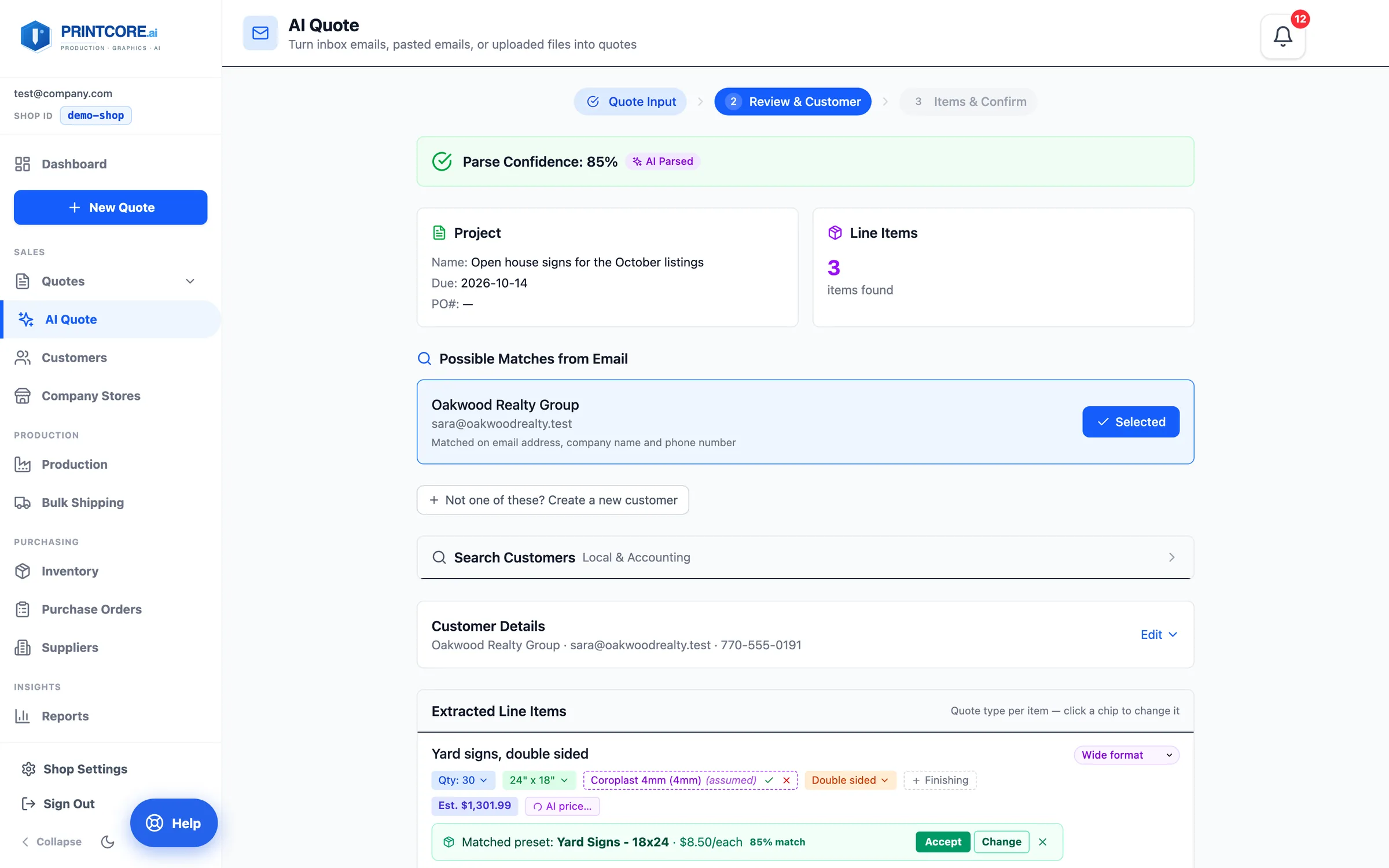
Step 2 shows the Parse Confidence, the project name and due date, the customer match, and every line it found. The customer is matched on email, company name, and phone — an existing customer collapses to one line with an Edit toggle, a new one opens the form already filled in.
app.printcore.ai/quotes/ai
Review & Customer

What to do

Confirm the selected customer or pick another. Check each line's quote type — Digital print, Wide format, Cut vinyl, Vehicle wrap, Channel letters, or Booklet — and change the chip if the AI guessed wrong. Accept a Matched preset when a line is one of your catalog products.

Why it matters

The customer is set before anything is priced, so AI prices come from that customer's history. 80%+ confidence means the request was clear; below 60%, read every line.
Step 4 of 7AI Quote

Items & Confirm: fix specs with a click

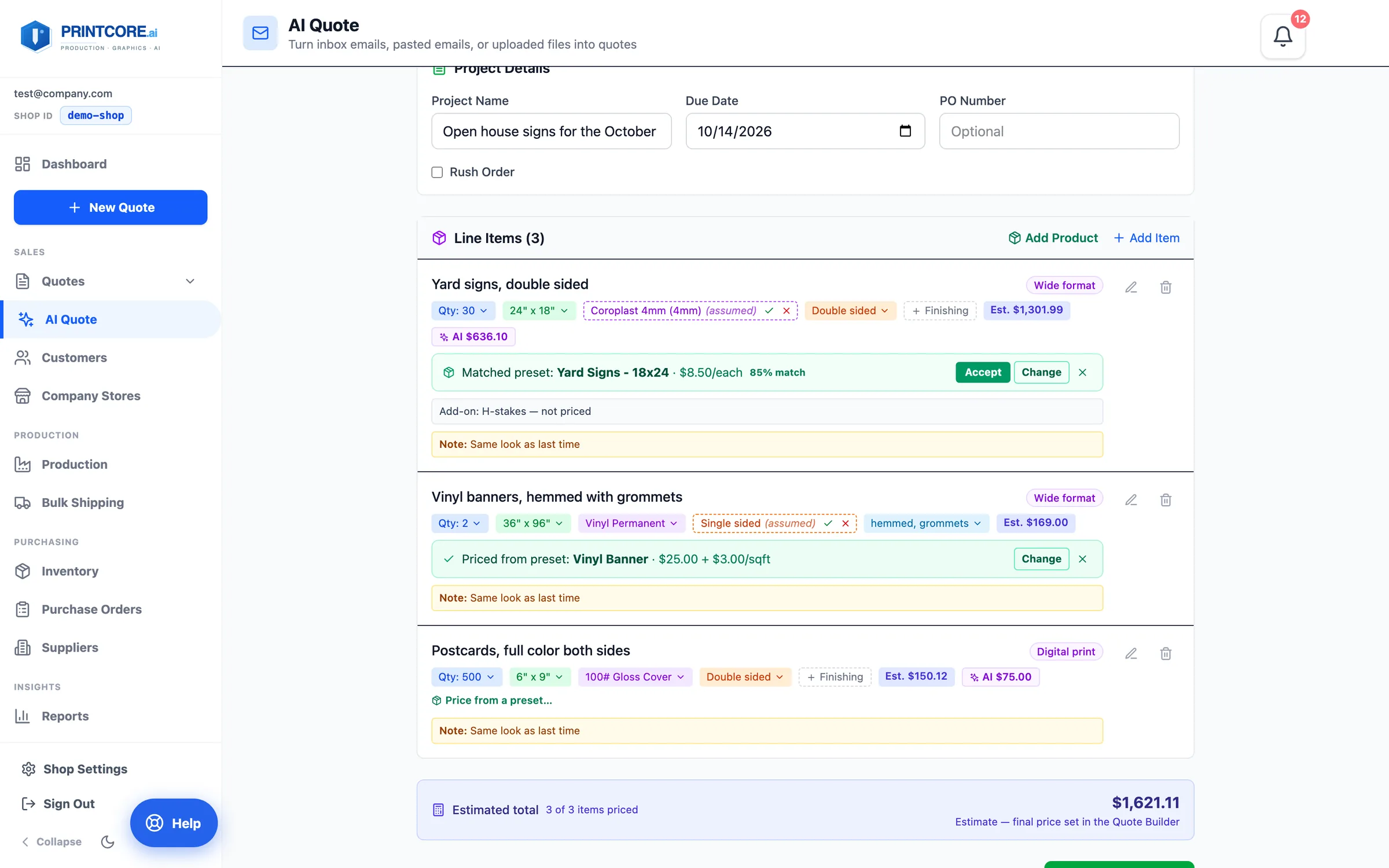
Step 3 shows who the quote is for, the project details, and each line as chips — quantity, size, material, sides, finishing. Anything the parser assumed is a dashed (assumed) chip. Each line shows an estimate from your own calculators, with the AI $ price beside it.
app.printcore.ai/quotes/ai
Items & Confirm: fix specs with a click

What to do

Click any chip to change it. If a preset doesn't fit — a single-sided preset on a double-sided request, say — the line prices from specs instead and tells you why, with Use preset anyway if you disagree.

Why it matters

You correct a wrong assumption in one click instead of rebuilding the line in the calculator.
Step 5 of 7AI Quote

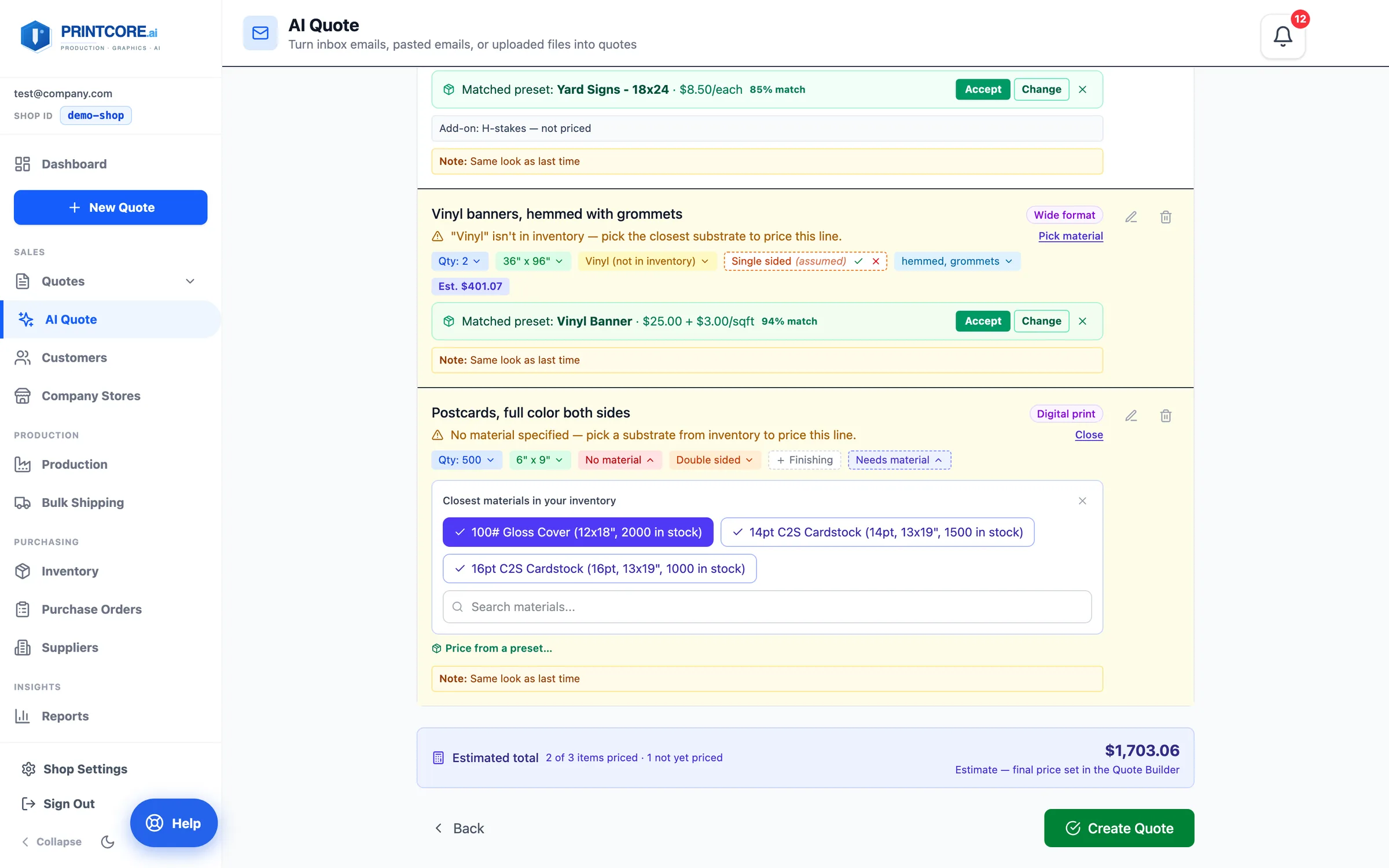
Lines that need a material

A line reading Needs material can't be priced until it has one. Pick material opens a short list of the closest matches from your inventory, with sizes and stock on hand.
app.printcore.ai/quotes/ai
Lines that need a material

What to do

Pick the substrate and the estimate appears. The Estimated total at the bottom counts how many lines are priced.

Why it matters

Every price comes from stock you actually carry, at the cost you actually pay.
Step 6 of 7AI Quote

Create the quote

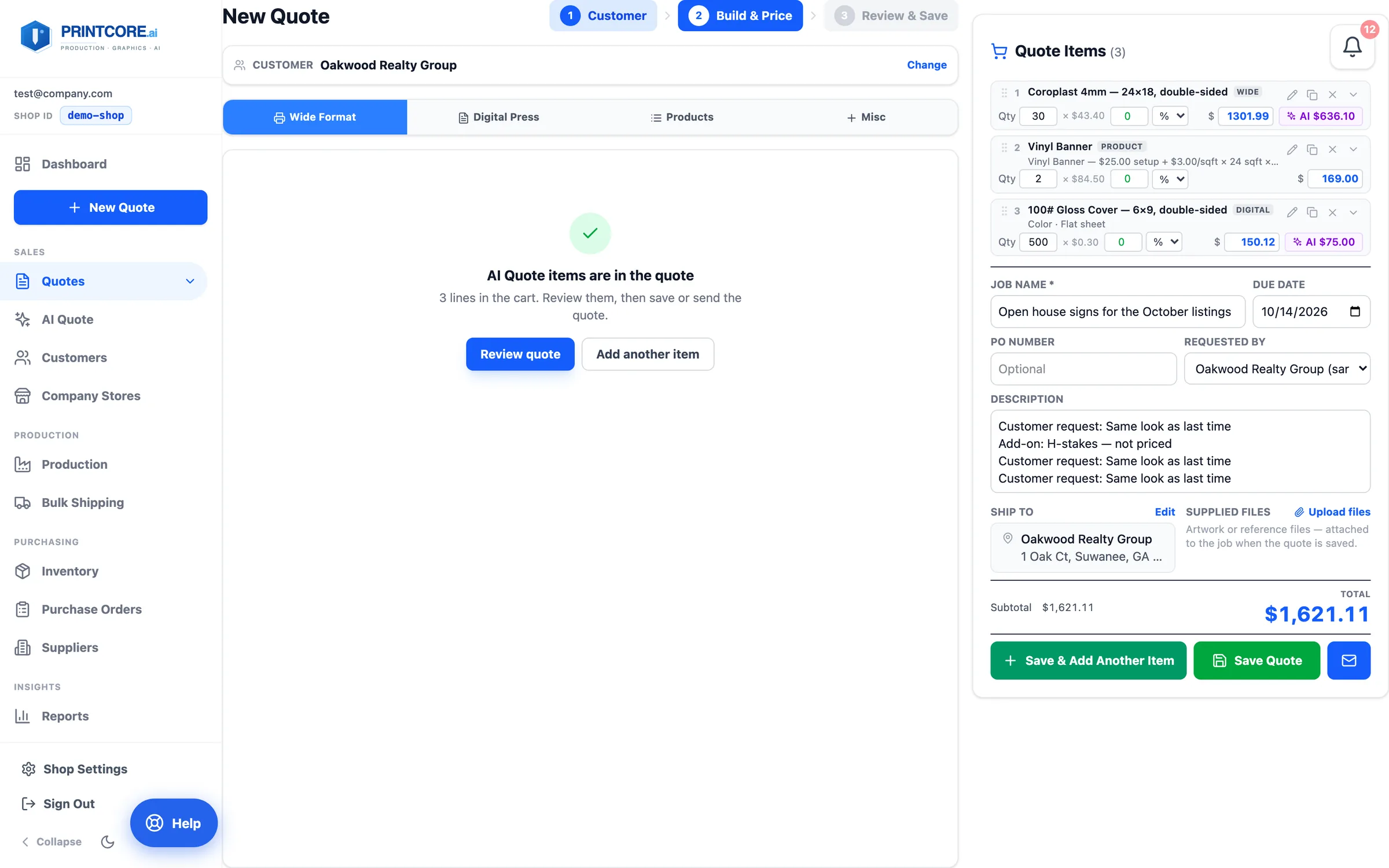
Create Quote puts every line straight into the Quote Builder's cart — at the price the customer's PO states when there is one, from the calculator otherwise. Finishing the customer asked for, like hemming or grommets, arrives as its own priced lines.
app.printcore.ai/quotes/wide-digital
Create the quote

What to do

Review the lines, click any line's AI $ chip to use the AI price, name the job, then Save Quote or send it. Apparel & Promo lines go onto the same quote with their size runs and decoration.

Why it matters

A request that mixes categories lands on one quote, not three — ready to send back while the customer is still thinking about it.

Inbox to quote in 60 seconds ✨

This is one of the most-loved features. Next: managing customers and their history.