Step 1 of 5Booklet Quotes
Customer & Basics
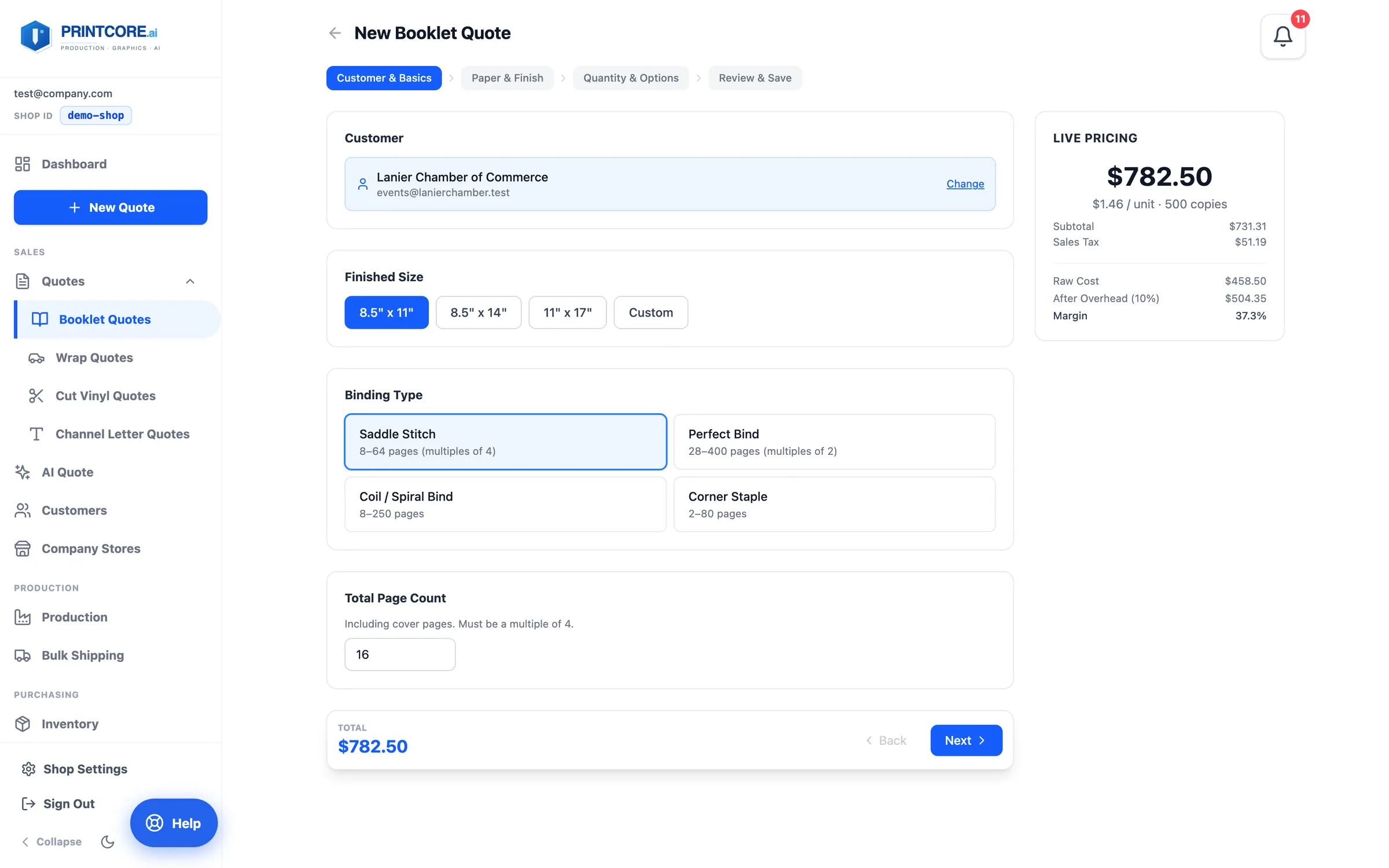
Booklets have lots of variables, so the quote is a four-step wizard: Customer & Basics → Paper & Finish → Quantity & Options → Review & Save. The Live Pricing card on the right shows price, per-unit, raw cost, and margin the whole way through. A brand-new shop can quote right away from built-in starter rates.
app.printcore.ai/quotes/booklet/new
What to do
Click New Quote → Booklet. Pick the customer, the finished size, the binding (saddle stitch, perfect bind, coil, corner staple), and the total page count including covers.
Why it matters
Each binding shows its page limits right on the button — you can't perfect-bind 8 pages or saddle-stitch 200.
Step 2 of 5Booklet Quotes
Paper & Finish
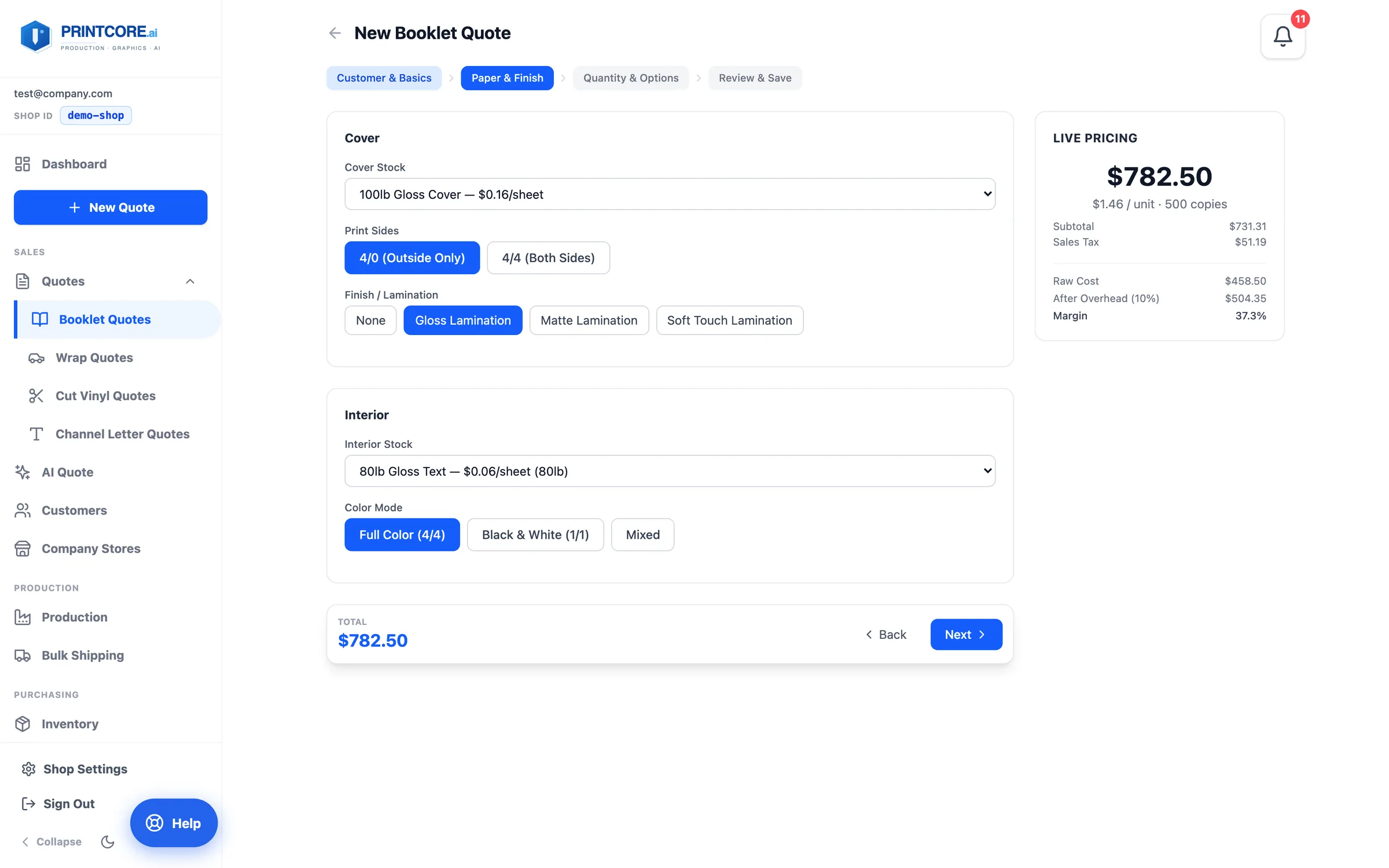
Cover stock, cover print sides (4/0 or 4/4), and cover finish (none, gloss, matte, soft touch). Then the interior stock and color mode — full color, black & white, or mixed.
app.printcore.ai/quotes/booklet/new
What to do
Choose the cover and interior stocks from the lists. Each shows its price per sheet so you can see what a heavier stock costs.
Why it matters
The cover sets the perceived quality; the interior sets most of the cost. Seeing both side by side makes the trade-off easy to explain.
Step 3 of 5Booklet Quotes
Quantity & Options
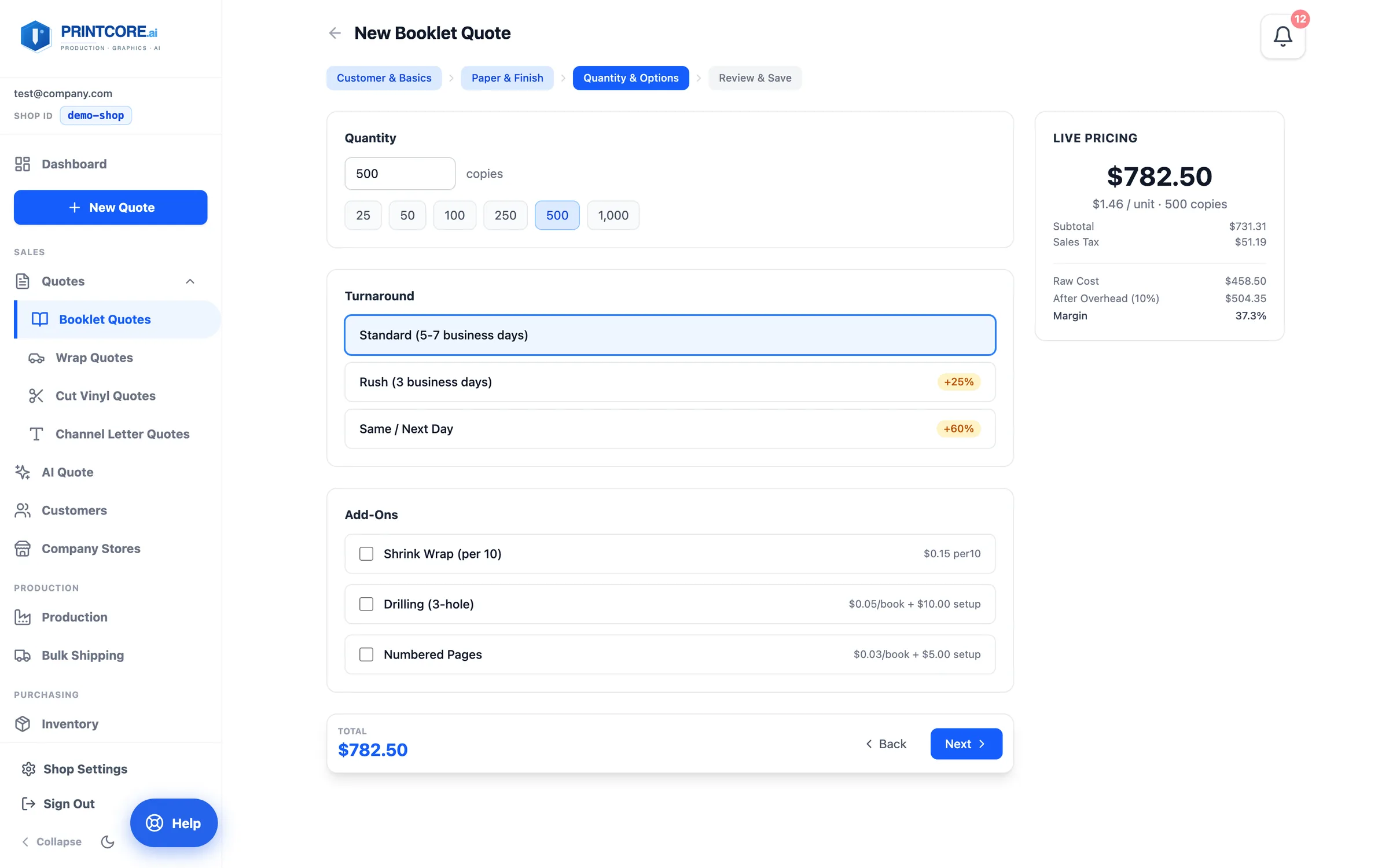
Type the quantity or tap a preset (25 to 1,000). Choose the turnaround — standard, rush (+25%), or same/next day (+60%) — and any add-ons like shrink wrap, drilling, or numbered pages.
app.printcore.ai/quotes/booklet/new
What to do
Tap through a few quantities and watch the per-unit price in Live Pricing fall.
Why it matters
You can show the customer 100 vs 500 vs 1,000 copies in seconds — useful for selling up to the next price break.
Step 4 of 5Booklet Quotes
Review & Save
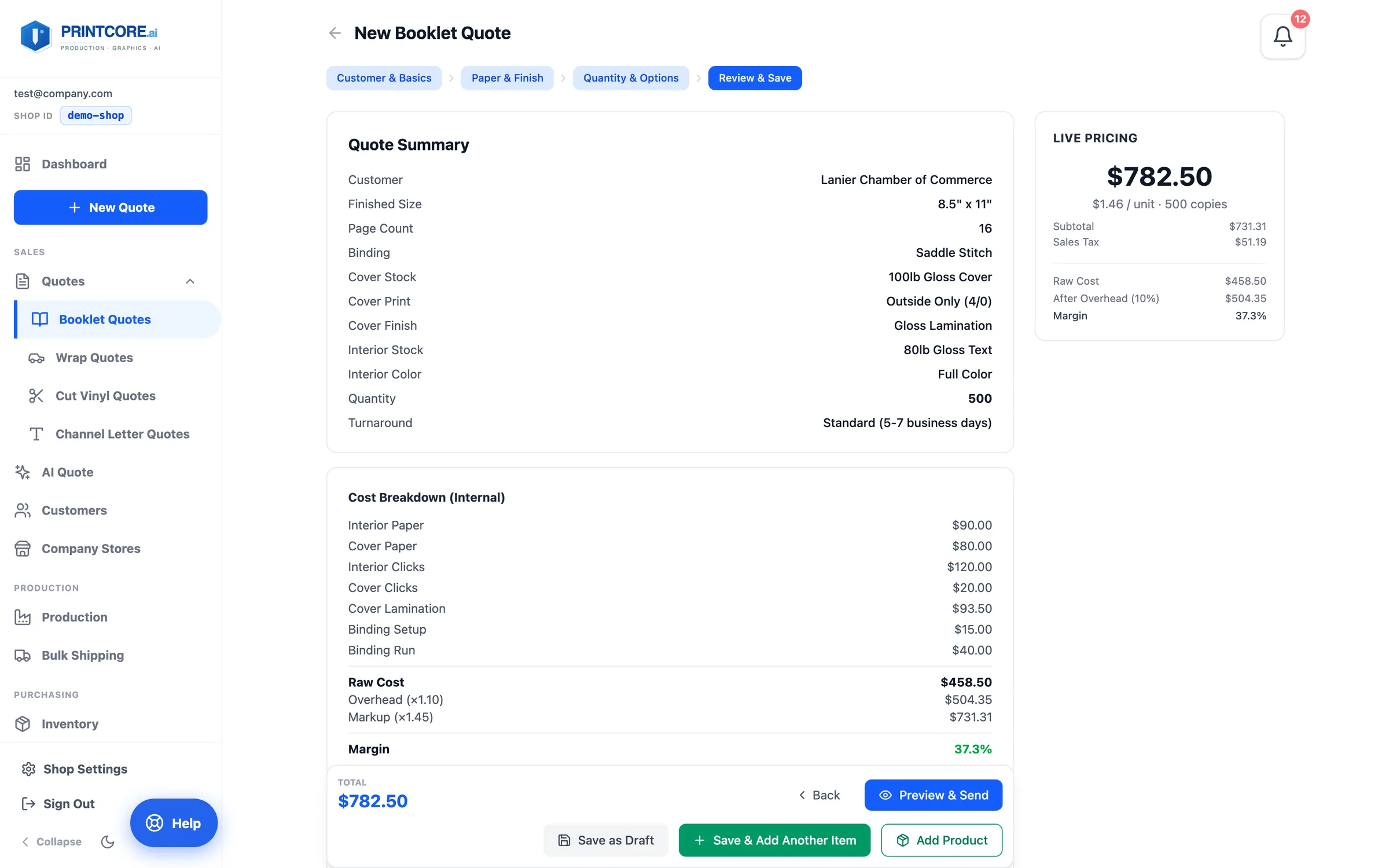
The Quote Summary lists every choice, and the internal Cost Breakdown shows paper, clicks, lamination, binding, overhead, markup, and margin. Ship To and Supplied Files sit at the bottom.
app.printcore.ai/quotes/booklet/new
What to do
Check the margin, add internal notes if the press operator needs them, upload the artwork, then Save as Draft or Preview & Send. The booklet joins the customer's Active Quote alongside anything else you've priced for them.
Why it matters
The cost breakdown never reaches the customer — it's there so you know exactly what the job makes before you send it.
Booklets are easy now 📖
You've covered the standard quoters. If you do channel letters, the next walkthrough is for you.