Step 1 of 6Cut Vinyl Calculator
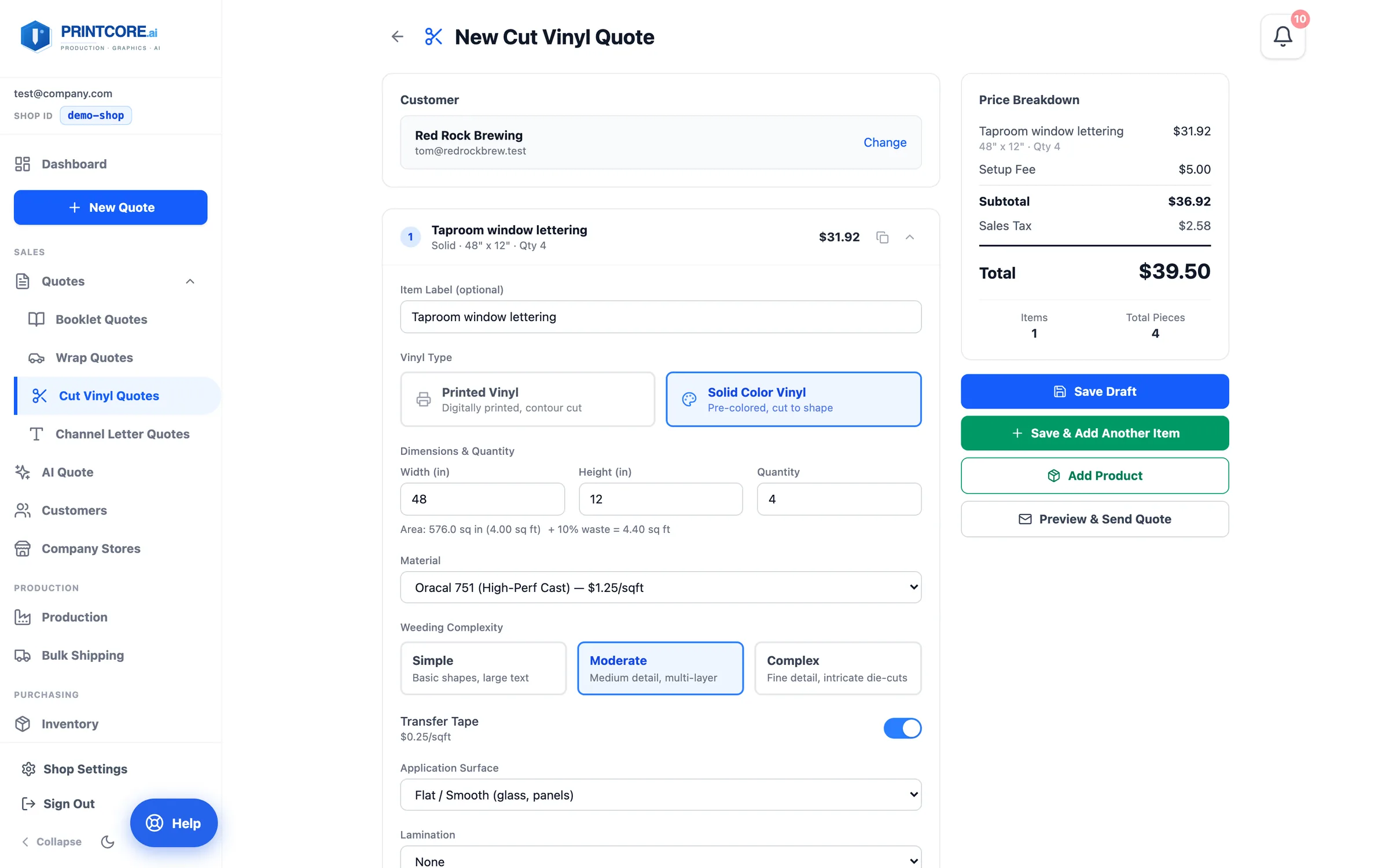
Pick the customer and the vinyl type
Choose the customer, give the line a label ("Front door lettering"), then pick Printed Vinyl (digitally printed, contour cut) or Solid Color Vinyl (pre-colored, cut to shape).
app.printcore.ai/quotes/cut-vinyl/new
What to do
Click New Quote → Cut Vinyl, search for the customer, and choose the vinyl type. The Price Breakdown on the right updates as you fill in the line.
Why it matters
A label on each line tells the cutter operator — and the customer — which decal is which.
Step 2 of 6Cut Vinyl Calculator
Size, quantity, and material
Enter the width and height of the design and how many you need. Printcore works out the area plus waste, and applies an editable quantity discount as the run grows. Then choose the material — calendared, cast, reflective, heat transfer — each with its own price per square foot.
app.printcore.ai/quotes/cut-vinyl/new
What to do
Type the width, height, and quantity, then pick the material. Outdoor or vehicle? Use cast. Indoor short-term? Calendared.
Why it matters
Working from real dimensions keeps your quote accurate even before a final design is approved.
Step 3 of 6Cut Vinyl Calculator
Weeding, transfer tape, surface, lamination
Weeding is the hand labor of pulling away the unwanted vinyl — pick Simple, Moderate, or Complex. Then transfer tape, the application surface (curved and textured can add a surcharge), and any lamination.
app.printcore.ai/quotes/cut-vinyl/new
What to do
Pick the weeding level that matches how fiddly the design is, and set the finishing options. The line total updates as you change values.
Why it matters
You're paid for time, not just material. Weeding and transfer tape are the most-forgotten parts of a cut-vinyl quote — here they're explicit.
Step 4 of 6Cut Vinyl Calculator
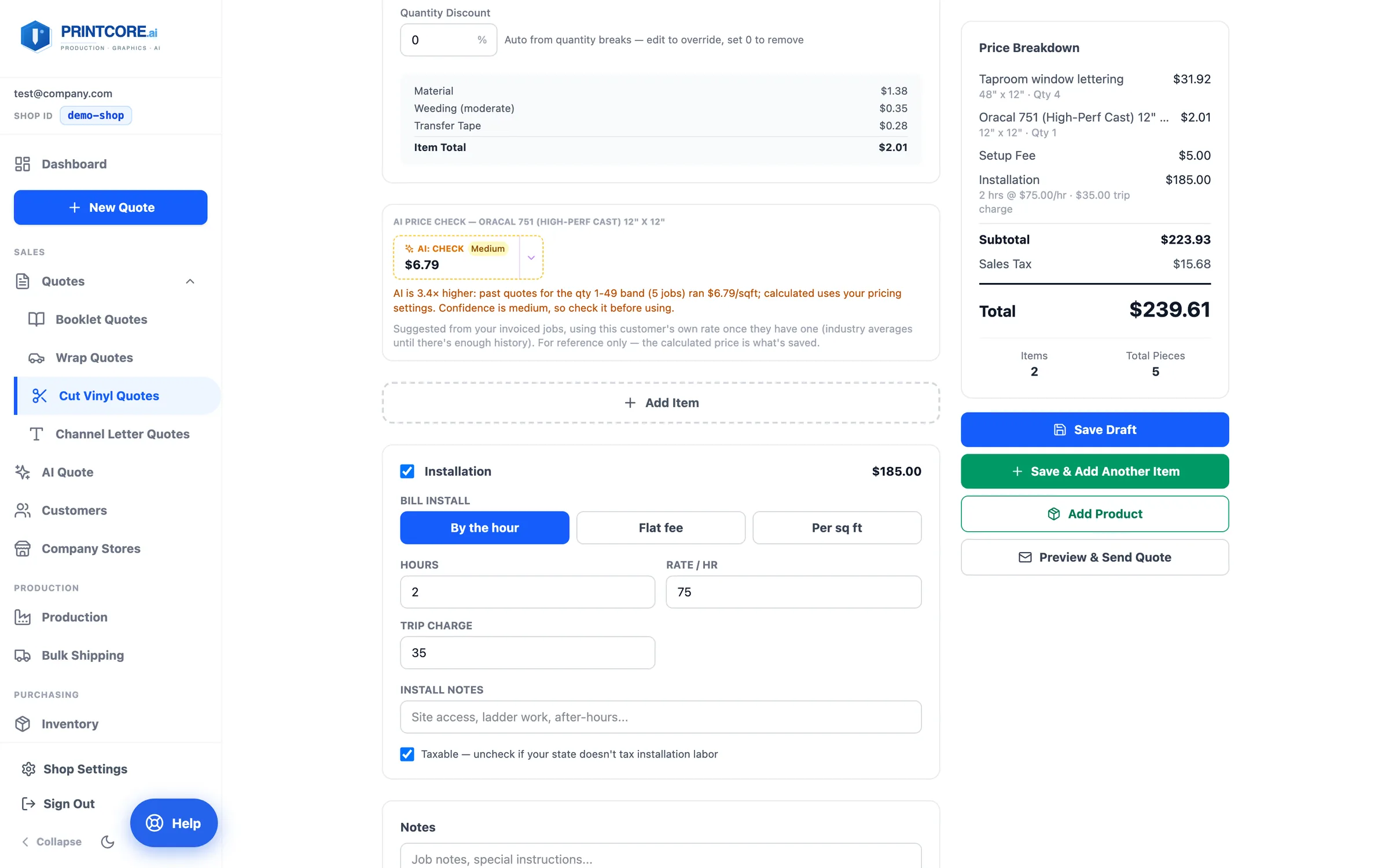
Add more lines, then price the install
A cut vinyl quote can carry several lines — different decals, sizes, or colors. Installation is priced once for the whole job: by the hour, a flat fee, or per square foot, plus an optional trip charge.
app.printcore.ai/quotes/cut-vinyl/new
What to do
Click Add Item for each additional graphic. Switch on Installation, pick how to bill it, and enter hours, a flat fee, or a per-sq-ft rate. Untick Taxable if your state doesn't tax installation labor.
Why it matters
One trip to the site is one charge, not one per decal — and a 20-minute job still carries your minimum.
Step 5 of 6Cut Vinyl Calculator
Ship To, files, and save
Below the lines, Shipping & Files holds the Ship To address (filled in from the customer) and the customer's supplied artwork. The setup fee and minimum charge are applied in the Price Breakdown.
app.printcore.ai/quotes/cut-vinyl/new
What to do
Upload the artwork, then Save Draft, Save & Add Another Item, or Preview & Send Quote. Add Product puts a catalog item on the same quote.
Why it matters
Once saved, the job reaches your cutter operator with the specs and the artwork already attached.
Cut vinyl is in your toolkit ✂️
Next up — Booklet Quotes, for multi-page jobs. The wizard handles cover stocks, paper, and binding.