Step 1 of 5Wrap Quotes
Step 1 — Vehicle
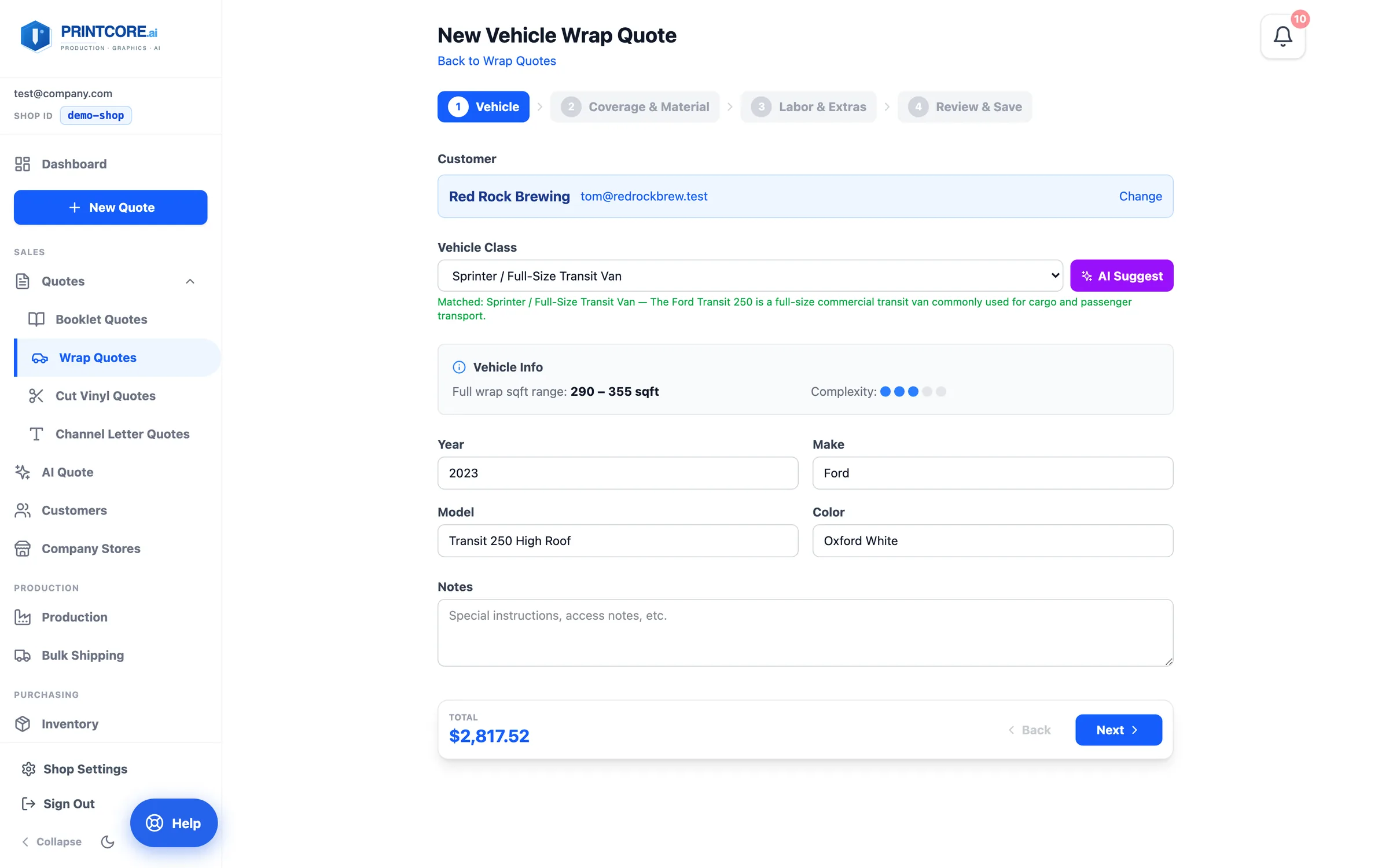
Pick the customer, then describe the vehicle. Type the year, make, and model and click AI Suggest — Printcore matches it to one of your vehicle classes and shows the full-wrap square-footage range and complexity.
app.printcore.ai/quotes/wrap/new
What to do
Click New Quote → Wrap. Search for the customer, fill in Year, Make, Model, and Color, then click AI Suggest (or pick the vehicle class yourself). Add access or install notes if there are any.
Why it matters
You don't need to measure the vehicle. The class carries the surface area, so the rest of the quote is sized for you.
Step 2 of 5Wrap Quotes
Step 2 — Coverage & Material
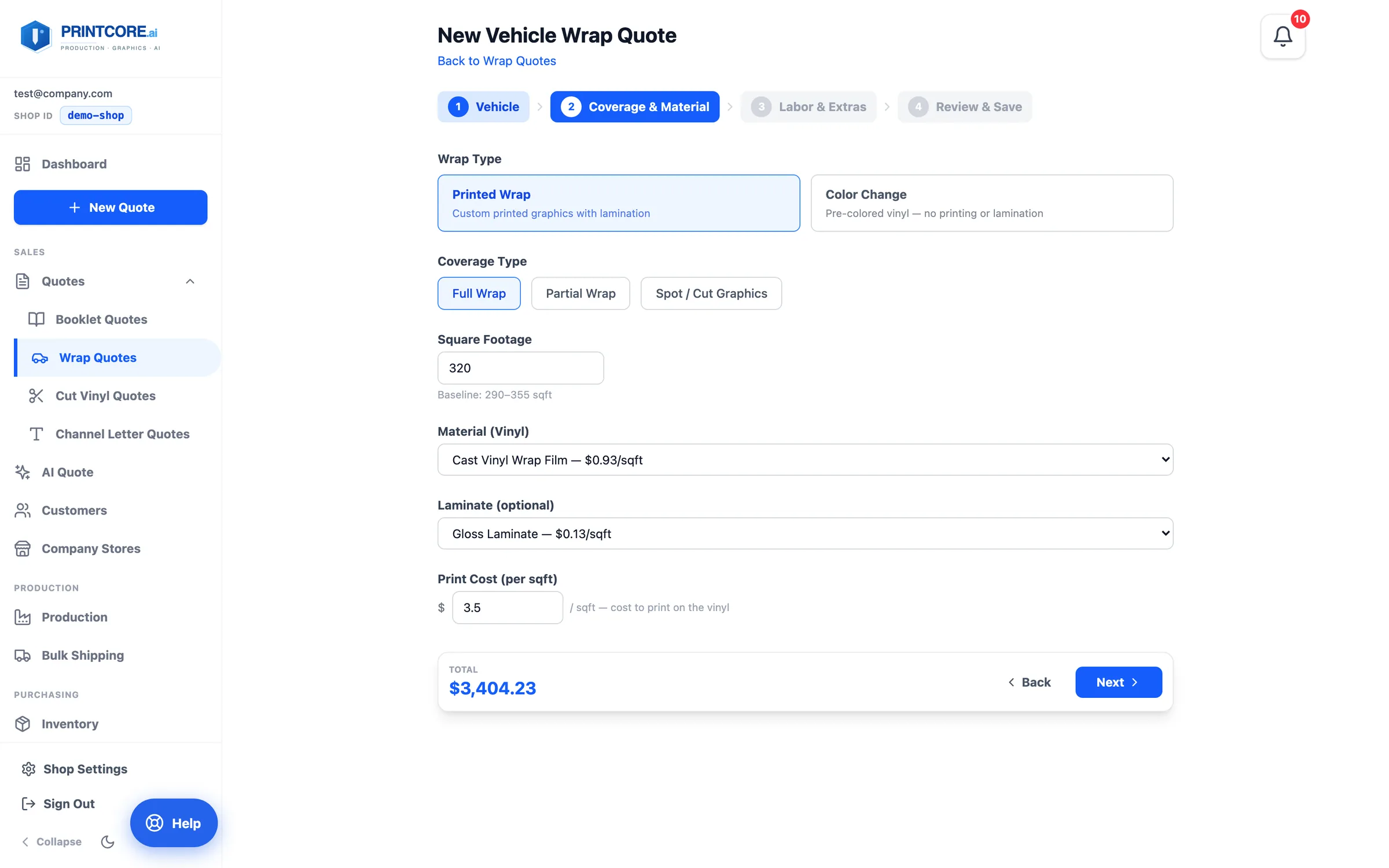
Choose Printed Wrap or Color Change, then the coverage — Full Wrap, Partial Wrap, or Spot / Cut Graphics. The square footage fills in from the vehicle class and stays editable.
app.printcore.ai/quotes/wrap/new
What to do
Pick the vinyl and, for printed wraps, the laminate and your print cost per square foot. The running total at the bottom updates as you go.
Why it matters
The two paths price very differently. Picking the right one up front avoids re-quoting later.
Step 3 of 5Wrap Quotes
Step 3 — Labor & Extras
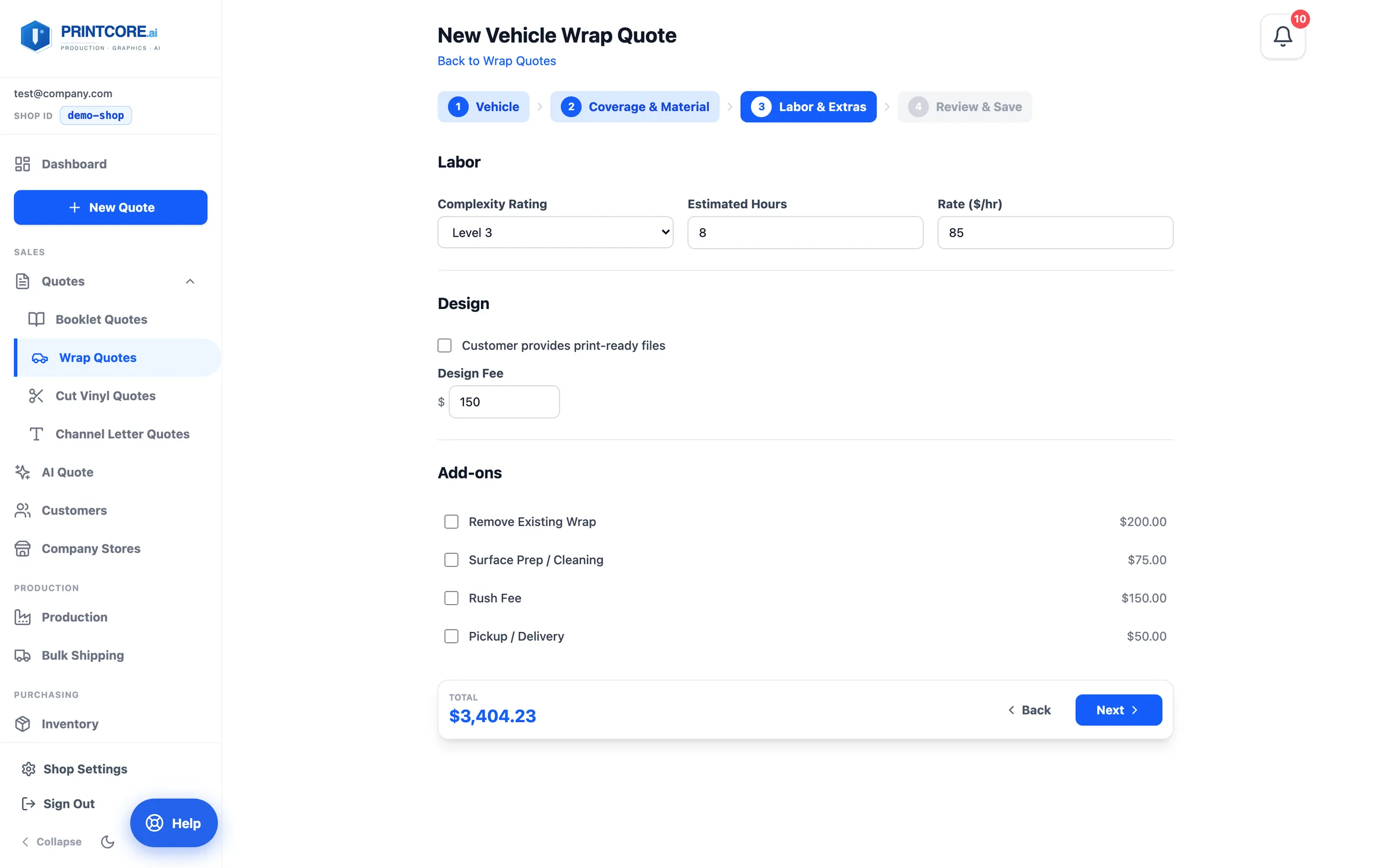
Set the Complexity Rating, estimated install hours, and your hourly rate. Add a design fee if you're designing it, and tick the add-ons that apply — removing an existing wrap, surface prep, rush, pickup or delivery.
app.printcore.ai/quotes/wrap/new
What to do
Adjust the hours if your install team needs more time. Tick Customer provides print-ready files to drop the design fee.
Why it matters
Wraps have lots of variables. Laying them out as checkboxes means none of them slips through.
Step 4 of 5Wrap Quotes
Step 4 — Review & Save
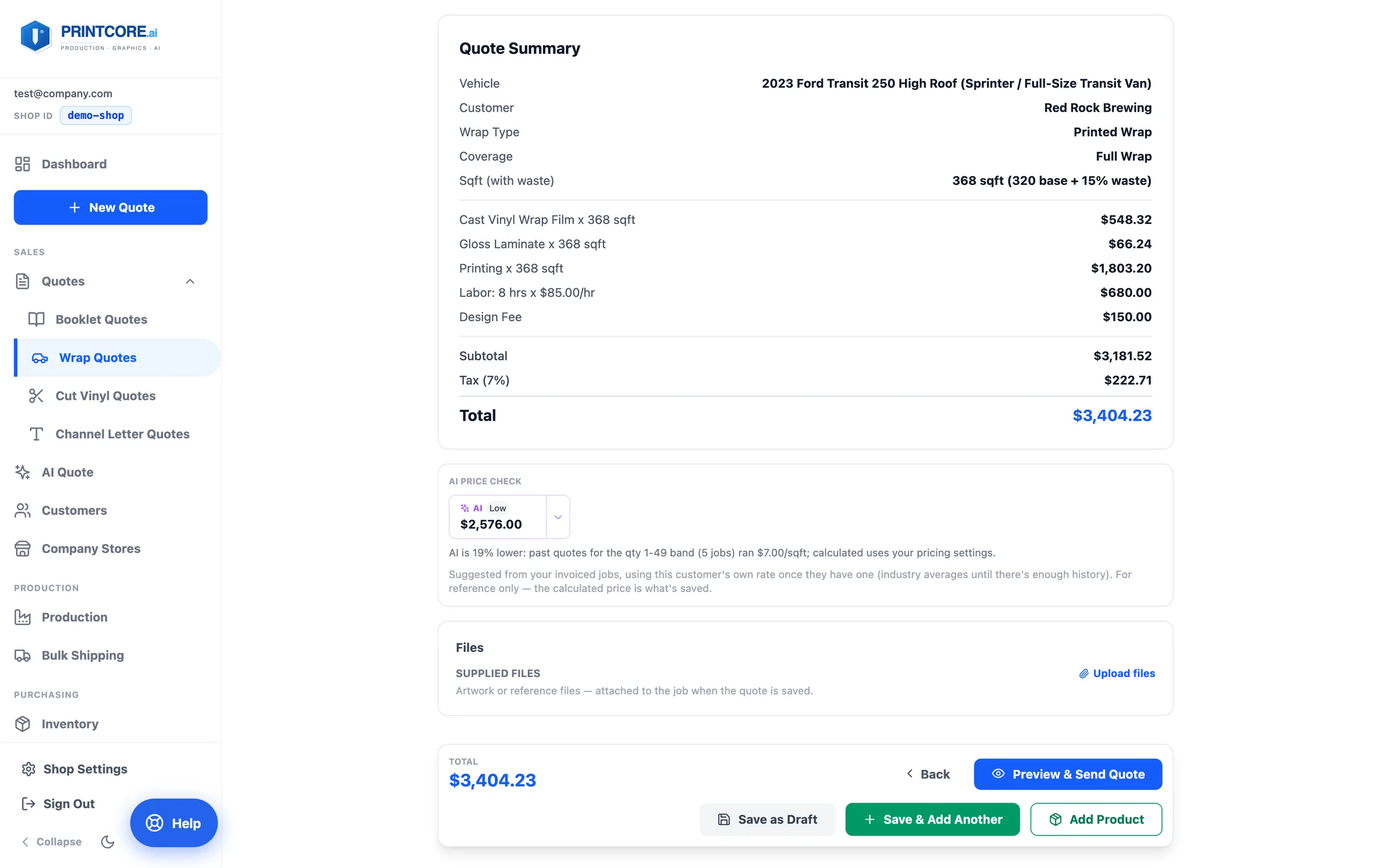
The Quote Summary lists the vehicle, coverage, square footage with waste, material, laminate, printing, labor, and design, with the total. Supplied Files takes the customer's artwork. There's no Ship To — wraps are installed, not shipped.
app.printcore.ai/quotes/wrap/new
What to do
Upload any artwork, then Save as Draft or Preview & Send Quote. Need matching decals or a catalog item on the same quote? Add Product drops a preset onto this quote without leaving the wrap builder.
Why it matters
A saved wrap joins the customer's Active Quote, so a wrap plus decals plus a banner is one quote, not three.
Wraps unlocked 🚗
Wrap Quotes is one of Printcore's most loved tools. Try Cut Vinyl next — it's even quicker.