
This is your Shop Floor
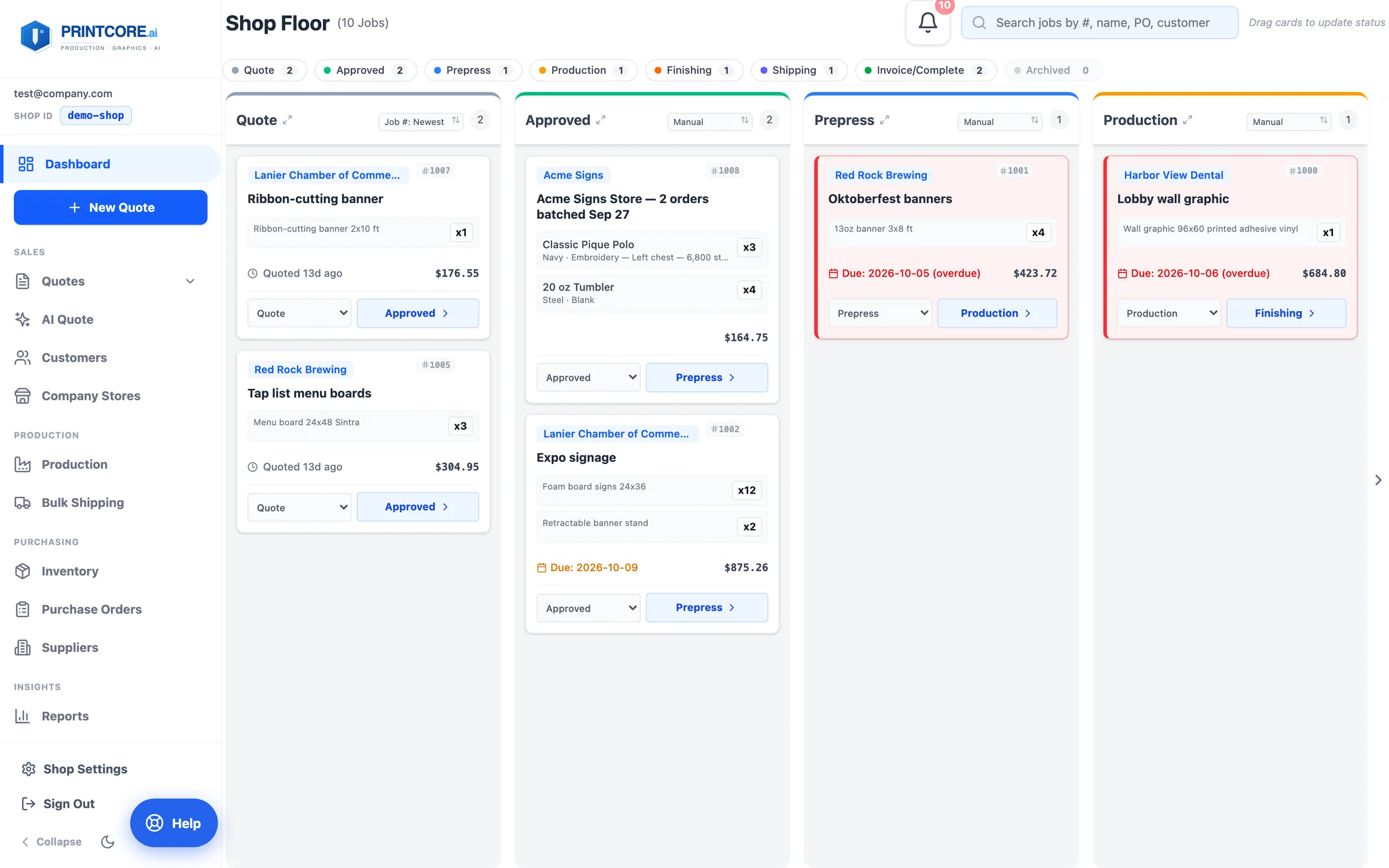
Every job in the shop, on one screen. Cards move from left to right as work progresses — Quote → Approved → Prepress → Production → Finishing → Shipping → Invoice/Complete → Archived. The chips across the top count each stage.
What to do
Why it matters
Each card is one job
A card shows the customer, job number, what's being printed, the quantities, the due date, and the price. Quote cards show their age instead of a due date — and after 30 days without a decision, an amber Follow up chip.
What to do
Why it matters
Late work turns red
A job past its due date gets a light red card, a red border, and a red stripe down the left edge, and its due date reads (overdue). A job due in the next few days shows its date in amber.
What to do
Why it matters
Drag cards to update status
When work moves from one stage to the next, drag the card to the new column — or use the next-stage button on the card. Moving into Production deducts inventory; moving to Invoice/Complete closes out any open operations.
What to do
Why it matters
Search anything
The search bar at the top finds jobs by number, customer, PO, project name, material — anything you remember about it. The Quote column keeps expired and stale quotes behind a Show N expired/stale toggle so the live ones stay visible.
What to do
Why it matters
The side menu is grouped
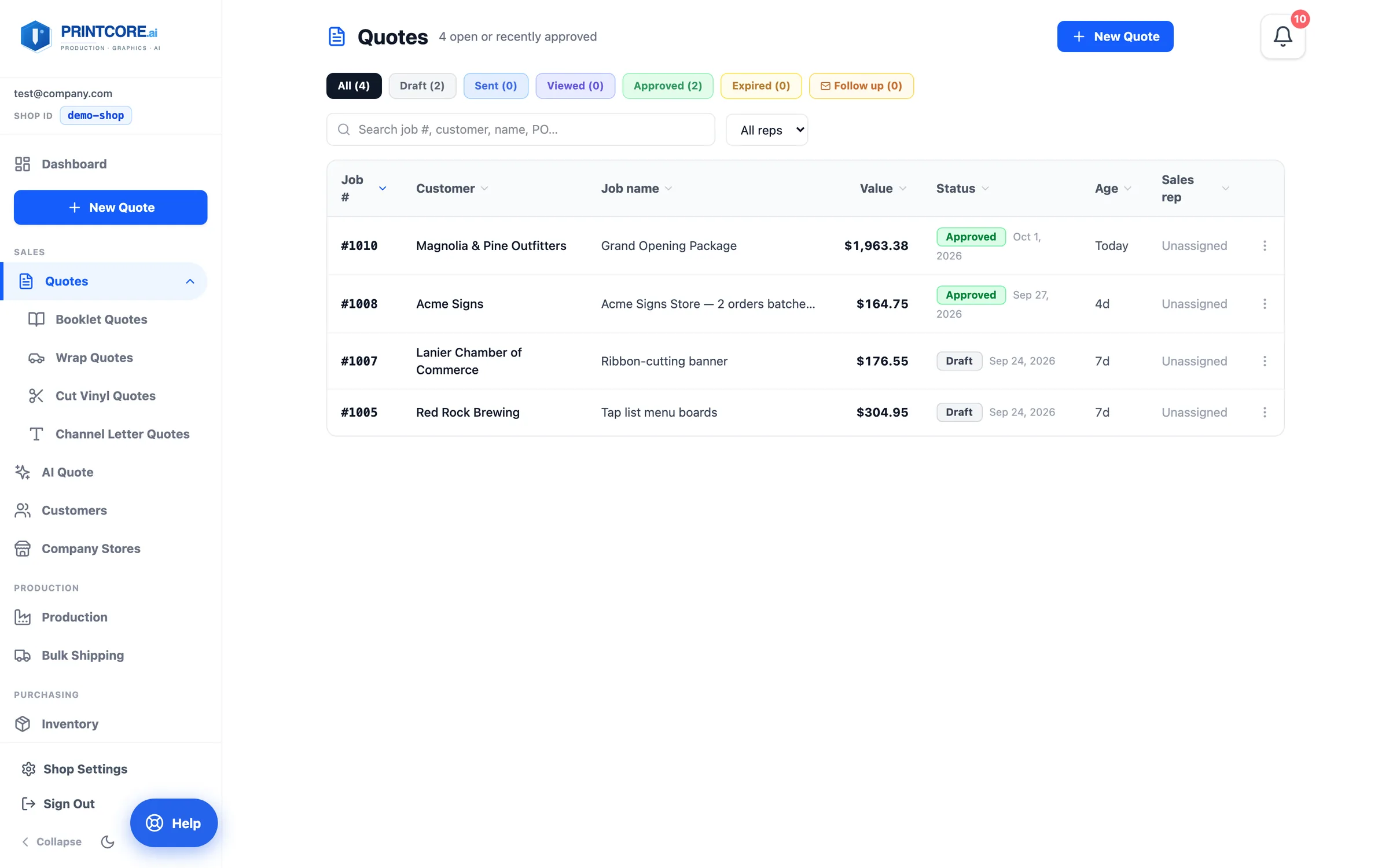
+ New Quote is the one button that starts a quote. Below it the menu is grouped: Sales (Quotes, AI Quote, Customers, Company Stores), Production (Production, Bulk Shipping), Purchasing (Inventory, Purchase Orders, Suppliers), and Insights (Reports). Shop Settings is at the bottom.
What to do
Why it matters
You know the dashboard 🎯
Next up: building your first quote. Click below to learn the Quote Builder — the most-used feature in Printcore.