Step 1 of 6Outsourced Work & Purchase Orders
Mark a line item as outsourced
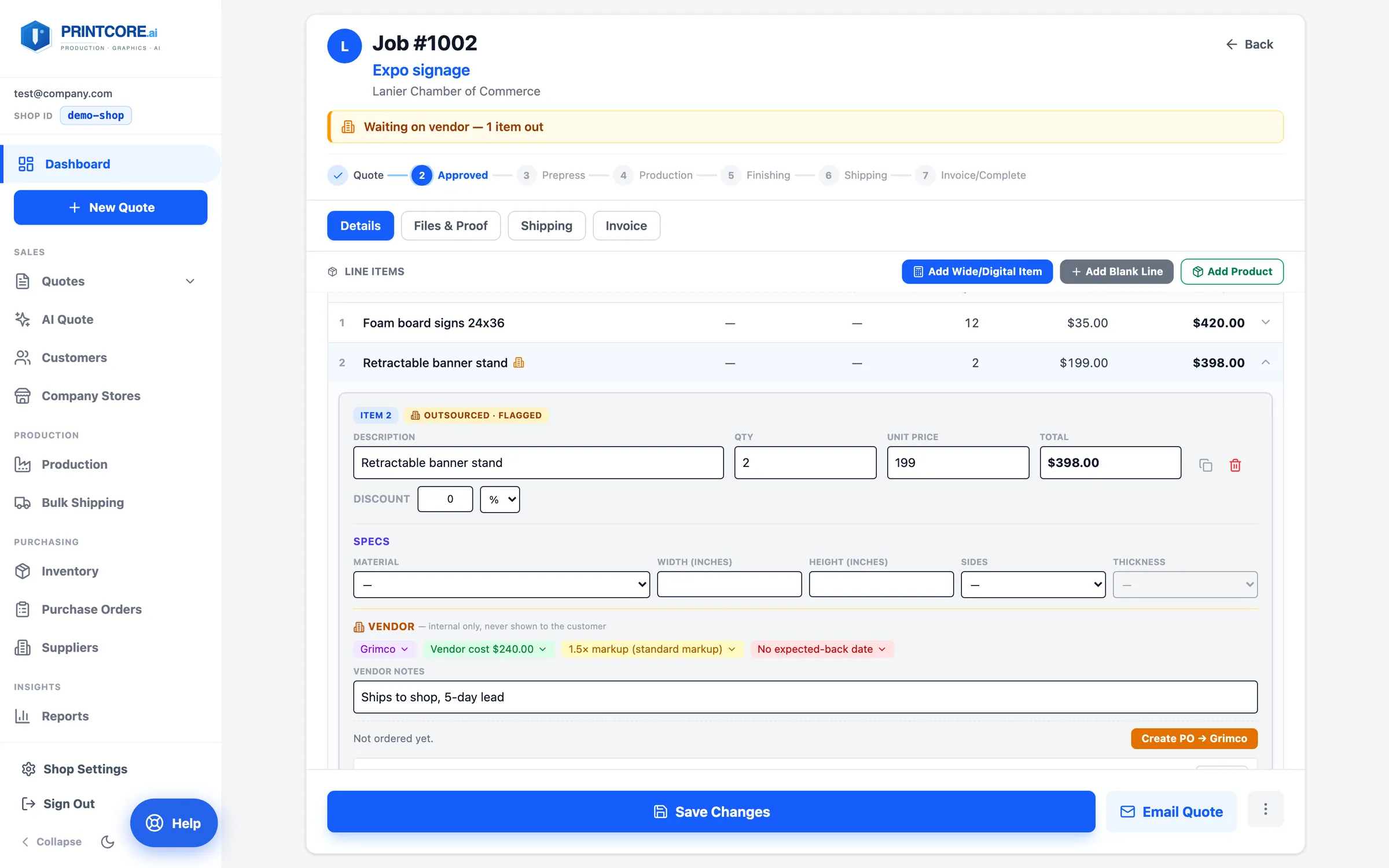
Any line on a job ticket can be flagged Outsourced. An amber badge shows on the staff side only; the customer sees an ordinary line in the portal and on the quote.
app.printcore.ai/jobs/1002
What to do
Open the job ticket, click a line's chevron to expand it, and click OUTSOURCE. The line is marked Outsourced · Flagged.
Why it matters
Vendor identity and cost never touch the customer-facing job, so there's nothing to accidentally reveal.
Step 2 of 6Outsourced Work & Purchase Orders
Pick the vendor and the cost
The vendor fields are chips with inline pickers: supplier (recent vendors for this kind of work are suggested), vendor cost, markup, and the expected-back date.
app.printcore.ai/jobs/1002
What to do
Click the Supplier chip and choose or add the vendor. Enter the vendor cost for the whole line. The sell price is suggested from vendor cost × your outsource markup (a shop-wide default in Settings → Pricing, with a per-line override) — it never overwrites a price you've already set.
Why it matters
One place records who builds it and what they charge, and the margin is explicit instead of guessed.
Step 3 of 6Outsourced Work & Purchase Orders
Raise the purchase order
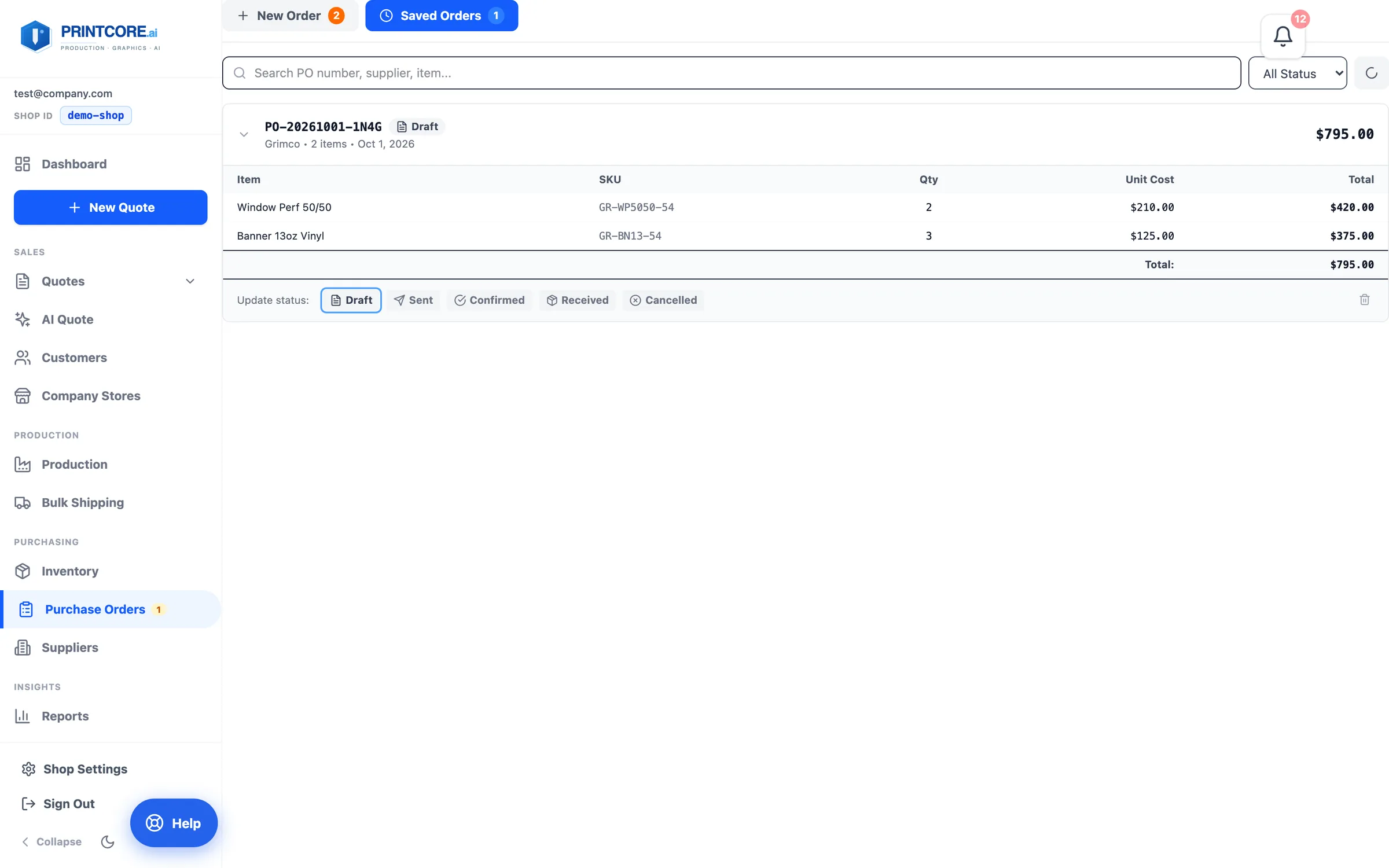
From the job ticket, outsourced lines roll up into a PO — one per supplier per job. Lines already on a PO are excluded, so you never order the same work twice.
app.printcore.ai/purchase-orders
What to do
Click Create PO → supplier on the line. The draft PO is created on the spot and the line shows On purchase order. Send it and track it through Draft → Sent → Confirmed → Received from Purchase Orders in the sidebar. Vendor status on the job reads from the PO.
Why it matters
Two channel-letter lines going to the same fabricator are one order, not three.
Step 4 of 6Outsourced Work & Purchase Orders
Outsourcing in the calculators
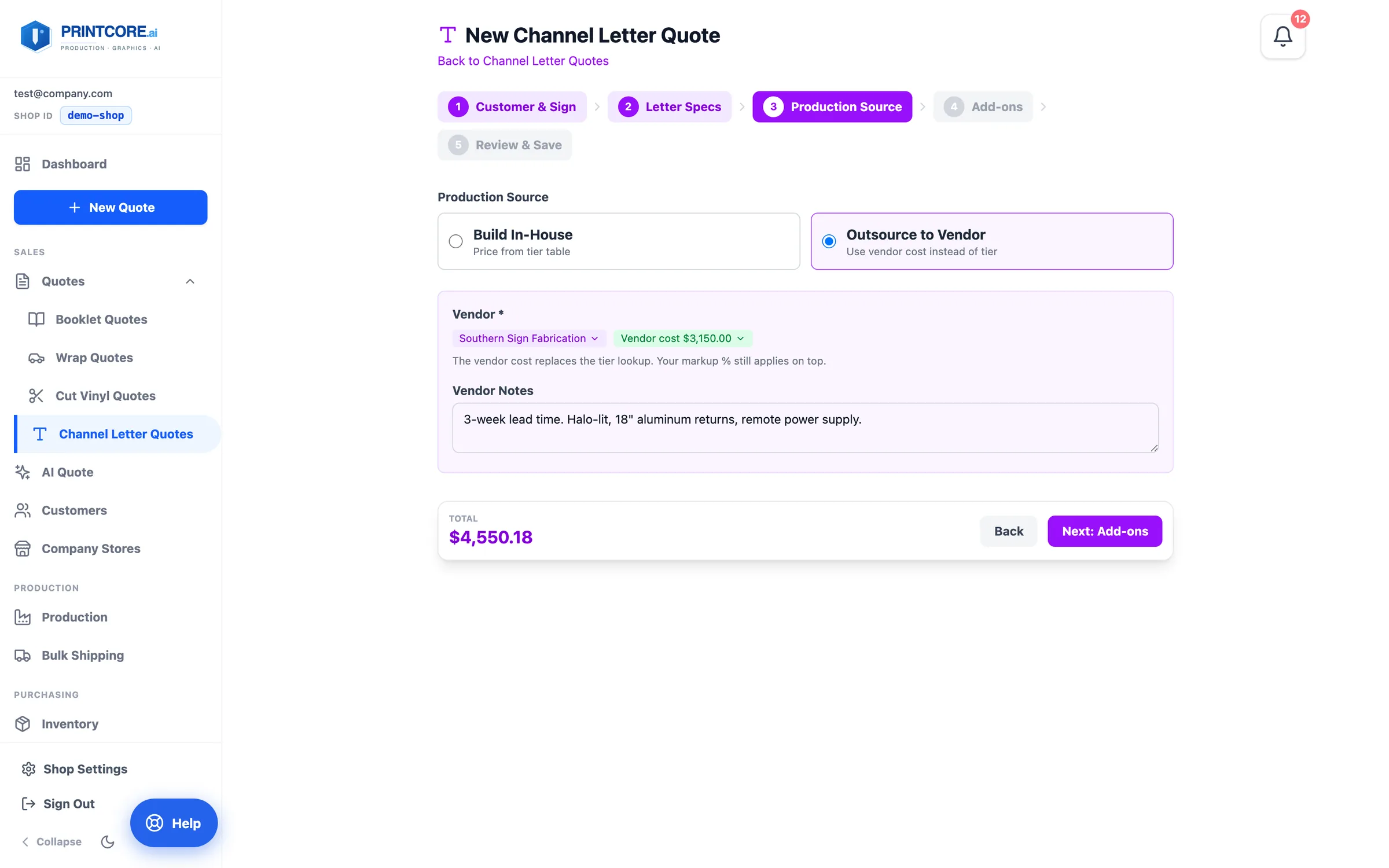
The Channel Letter wizard's Production Source step and any vendor-supplied preset use the same vendor chips, so a quote built there arrives on the job with the supplier and cost already filed.
app.printcore.ai/quotes/channel-letter/new
What to do
Outsource a channel letter set, or quote a vendor-supplied product from the catalog. Open the job afterwards — the line is already flagged and ready for a PO.
Why it matters
You type the vendor's price once, when you quote — not again when you order.
Step 5 of 6Outsourced Work & Purchase Orders
Suppliers have their own screen
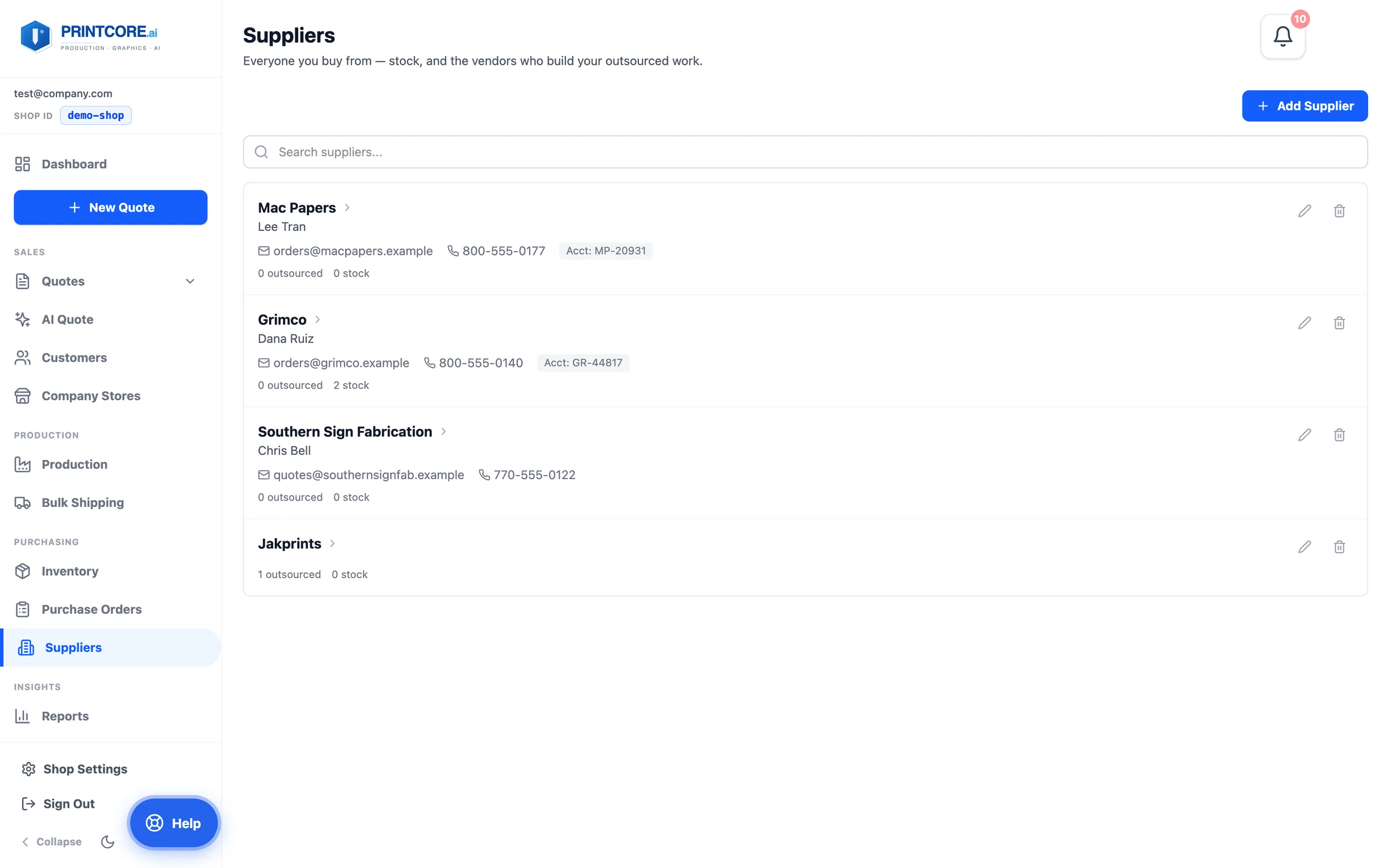
A supplier can be where stock comes from, who fabricates outsourced work, or both. Contact, terms, and account number live on the record; POs and outsourced lines point at it.
app.printcore.ai/suppliers
What to do
Click Suppliers in the sidebar to add or edit vendors.
Why it matters
Every PO and every outsourced line references a real supplier, so cost reports by vendor are possible.
Outsourcing under control 🤝
Last one: the job ticket — where quotes, files, proofs, shipping, and invoicing all come together.